Virtual Try-On in Pop-Up Shops and Physical Stores
By the ZeDaq.ai team · · 4 min read
On this page
- How does in-store try-on work with a web-based tool?
- What do you need to set it up?
- What is the visitor flow?
- Is a tablet fitting room better than a kiosk?
- How does in-store try-on connect to online sales?
- What should you check before the event?
- What are the limits of in-store try-on?
- What privacy steps should you take?
You can use virtual try-on in a pop-up shop or physical store by opening your online product pages on a tablet, then letting visitors take a photo and see the garment on themselves. It works because the try-on lives on your website, so any device with a browser and camera can run it.
This extends what online stores already do with a virtual fitting room for clothing websites. Here is how to bring the same idea into a physical space.
How does in-store try-on work with a web-based tool?
ZeDaq.ai is built for online stores. The shopper uploads one photo and sees the store's real garment on their body, on the store's own site. There is no separate in-store hardware or shopper app.
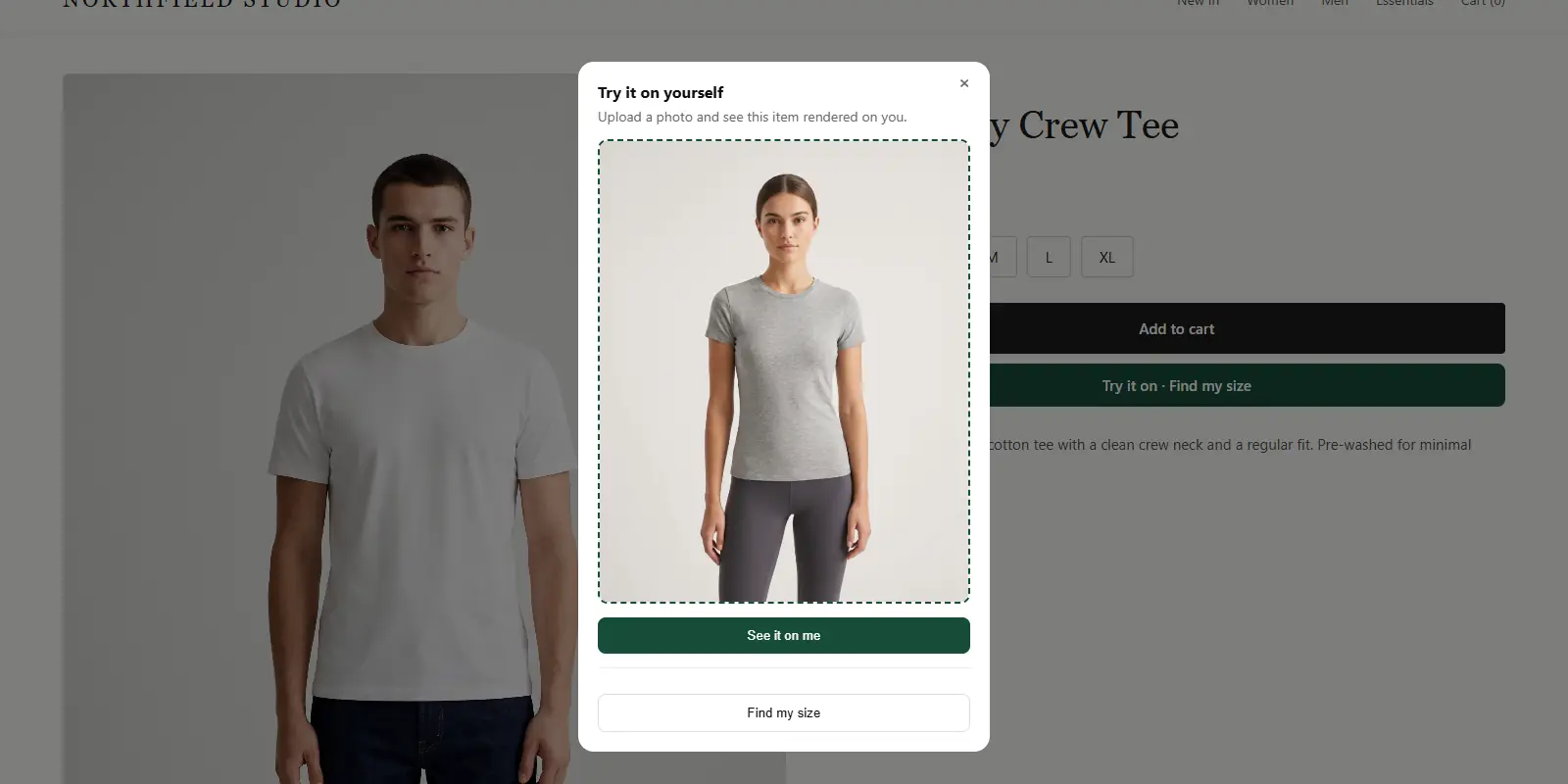
In a pop-up, that means you set up a tablet showing your product pages. A visitor chooses a garment, takes or uploads a full-length photo and sees the result. They can also use the "Find my size" option to get a size from your size chart.
What do you need to set it up?
Keep the kit small:
- Your online store with try-on already installed.
- A tablet or two, with a stable internet connection.
- A plain wall or corner with even light for photos.
- A stand or case so the tablet is secure.
- A QR code linking to your store, so visitors can continue on their phone.
If you do not have a developer, see virtual try-on without a developer for what you can set up alone.
Try the demo to see the visitor experience
Try it on yourself
Live renderUpload a photo, pick a piece, see it rendered on you.
Pick something to try on
What is the visitor flow?
Plan a short, repeatable path so staff can explain it in a few seconds.
- Visitor picks a garment on the tablet.
- Staff or visitor takes a full-length photo.
- The visitor taps "Try it on" and waits for the result.
- They tap "Find my size" and enter their height.
- They try the real garment on, or order online.
Ask permission before taking any photo. Tell visitors how their photo is used, and follow the privacy rules where you operate.
Is a tablet fitting room better than a kiosk?
It depends on budget and traffic. A kiosk is a dedicated machine, while a tablet is cheap and flexible. The guide to virtual try-on kiosks versus online try-on compares them.
For a pop-up, tablets are usually the practical choice. You can move them, charge them and lock them to your store page.
How does in-store try-on connect to online sales?
The value for a pop-up is often what happens after. A visitor who finds their size can order online later, or buy a different size on the spot.
Give them a card with your store address and a QR code. If your stock is limited at the event, they can order anything you did not bring. Compare this with sending clothes home, as in home try-on programs versus virtual try-on.
What should you check before the event?
Test everything the day before.
- Wi-Fi or mobile data works at the venue.
- The store key is locked to your domain and the tablet loads your site.
- Lighting is good enough for photos.
- Your plan's monthly limits can cover expected visitors. Check the pricing page and plan limits.
Keep a printed size chart as backup in case the connection fails.
What are the limits of in-store try-on?
Be honest with visitors about what the tool does. It shows how your garment may look on their photo, and recommends a size from your chart. It does not replace trying on fabric, feel and movement.
Other limits to plan around:
- It needs a connection and a camera.
- Queues form if one tablet serves a busy crowd.
- Photos taken in poor light give weaker results.
- Staff need a few minutes of practice.
Treat it as a conversation starter that helps visitors decide what to try on for real.
What privacy steps should you take?
Visitors will be handing over a photo of themselves, so be clear about it. Put a small sign beside the tablet saying what happens to the photo, and let people decline.
Do not keep photos on the tablet's camera roll after the event. Clear the device at the end of each day, and follow the data rules that apply where you trade.
See how your garments look on a shopper
FAQs
Do visitors need to download an app?
No. Try-on runs on your store's website in the browser.
Can I run it without internet?
No. The try-on and size scan need a connection, so test the venue first.
Does it work on any tablet?
Any modern tablet with a camera and browser should work, but test your own device before the event.
Can visitors get a size recommendation too?
Yes. "Find my size" uses the visitor's photo and height, and matches them to your store's size chart.
Do I need a separate account for in-store use?
No. In-store use runs through the same store setup and key as your online store, so your plan limits cover both.
What if a visitor does not want to be photographed?
Let them decline. They can still use your size chart, or browse the garments and try them on in person.
Try ZeDaq.ai free
Virtual try-on and Find my size for your store, plus client, order and invoicing tools for tailors, in one subscription.