How Try-On Works With Product Variants and Colorways
By the ZeDaq.ai team · · 4 min read
On this page
- What is a variant, and why does it matter for try-on?
- How does the garment image reach the try-on?
- How should you prepare photos for each colorway?
- What about prints, stripes and two-tone items?
- What should the shopper photo look like?
- How do you test every variant before launch?
- Does size recommendation work with variants?
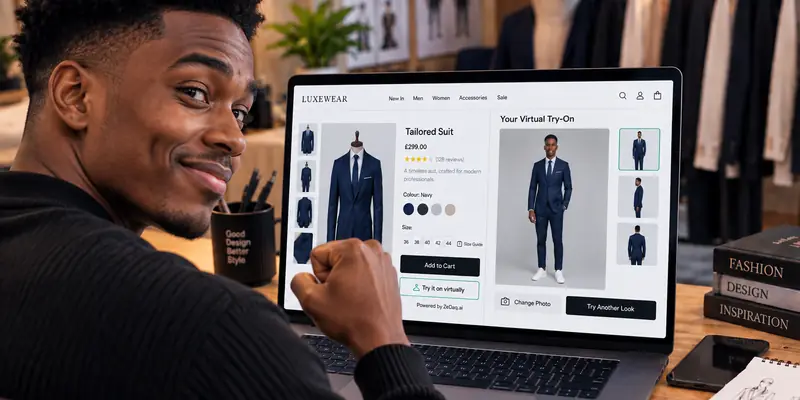
Virtual try-on works from the garment image on your product page, so each color or style variant needs its own clear photo to look right on a shopper. If a colorway has no good image of its own, the preview can show the wrong color or a poor render.
This guide explains how to prepare variants for a virtual fitting room on your clothing website, and how to test each one before shoppers see it.
What is a variant, and why does it matter for try-on?
A variant is one version of a product, such as a dress in navy or in olive. Size is also a variant option, but size does not change how the garment looks, while color does.
Try-on shows the garment on the shopper's own photo. The shopper sees what the image shows, so the image has to match the variant they chose. That is why colorways need more care than sizes.
How does the garment image reach the try-on?
On a Shopify store, ZeDaq.ai's inline block uses the product's featured image as the garment. Our guide to placing a try-on button in your theme covers that block in detail.
On other platforms, the widget uses the product image shown on the page. For variable products, test more than one color, since each variation may have its own image. Behavior depends on how your theme swaps images when a shopper picks a variant, so check it on your own store.
Try a garment on yourself
Try it on yourself
Live renderUpload a photo, pick a piece, see it rendered on you.
Pick something to try on
How should you prepare photos for each colorway?
Treat every colorway as its own product shoot. Follow these steps:
- Shoot the same angle for every color. A front view works best.
- Keep the whole garment in frame. Do not crop sleeves or hems.
- Use even light. Avoid strong shadows that change how the color reads.
- Match the real color. Compare the photo with the cloth in daylight.
- Name your files clearly. For example, "dress-navy-front".
- Assign each photo to its variant in your store admin, so the image changes when the shopper picks the color.
Our guide to what product images virtual try-on needs goes deeper on image quality.
What about prints, stripes and two-tone items?
These are harder to judge. Prints depend on a clear, flat photo, because a bunched or angled garment hides the pattern.
For patterned items, shoot the garment flat or on a stand with the pattern fully visible. Add a close-up of the cloth as a separate image, so shoppers can see the detail. The close-up is for reading the page. The front view is the one that suits try-on.
If a print looks wrong in your test, reshoot before you blame the tool.
What should the shopper photo look like?
The shopper's photo matters as much as yours. A full-length photo, taken in even light, gives a better result. Our guide to which shopper photo works best covers the details you can share on your page.
Setting expectations helps. A short note such as "Try-on shows the garment on your photo, so the final fit and drape may differ" is honest and builds trust.
How do you test every variant before launch?
Make a simple checklist and run it on your phone:
- Open the product page and switch on try-on.
- Pick the first color and run a try-on with a full-length photo.
- Compare the result with the real garment.
- Repeat for every color.
- Check sold-out colors, which should not confuse the shopper.
- Try a second person with a different body shape.
Test your best sellers first. Their pages get the most visitors, so a fix there matters most. Write down what you find for each colorway, and reshoot any photo that fails, so the next round of testing starts clean.
Each try-on counts against your plan. The Free plan includes 3 try-ons a month, so plan your tests, or start a paid plan's 3-day free trial.
Does size recommendation work with variants?
Size recommendation does not depend on color. The shopper uploads one photo and enters their height, and the scan matches their measurements to your size chart for that garment type. All colors of the same style share the same chart.
That means you set up the chart once per garment type, not once per color. If you sell on a platform other than Shopify, see virtual try-on on Ecwid for what to consider.
See your colorways on a real shopper
FAQs
Do I need a separate photo for every color?
Yes, if you want the preview to show the right color. A single photo of one color will not represent the others.
Does the try-on change when the shopper picks a different color?
It depends on how your theme changes the product image when a variant is selected. Test it on your own store.
Do sizes need their own photos?
No. Sizes usually look the same, so one image per color is enough.
Can I use model photos for variants?
You can, but test them. Clear front-facing images with the whole garment visible tend to work better than cropped or heavily styled shots.
Try ZeDaq.ai free
Virtual try-on and Find my size for your store, plus client, order and invoicing tools for tailors, in one subscription.