Using Virtual Try-On in Email Campaigns
By the ZeDaq.ai team · · 4 min read
On this page
- What can an email do that a product page cannot?
- Which email campaigns suit virtual try-on?
- What should the subject line and preview say?
- How do you write the body and CTA button?
- How do you set it up with your email tool?
- Which businesses should be careful?
- How do you measure whether it worked?
- What does it cost to try?
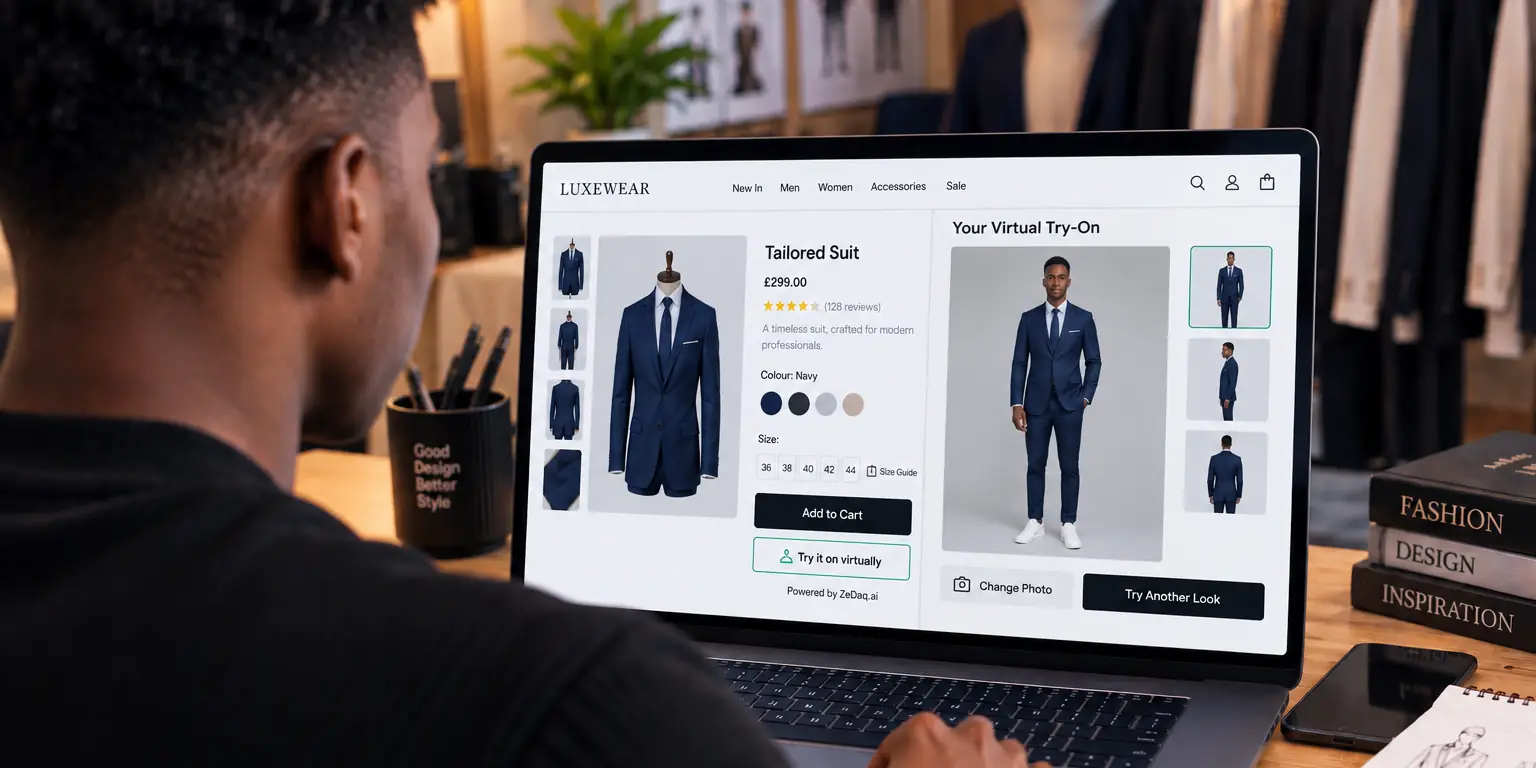
You use virtual try-on in email campaigns by sending subscribers to a product page where the "Try it on" button already works. The email sells the idea, and the store's own page does the try-on. This guide shows where that fits, what to write, and what to avoid promising.
It assumes your store already has a virtual fitting room on its product pages. Email cannot run the try-on itself, because the shopper uploads a photo on your site.
What can an email do that a product page cannot?
An email reaches people who are not browsing right now. It can remind them that they can see a garment on their own photo before they buy.
That makes email a good place to announce the feature, then point to a specific product. The try-on happens after the click.
Be honest about the limit. Do not show a mocked-up try-on image of a subscriber, and do not imply the email contains a personal render. Only the store's page, with the shopper's own upload, produces one.
Which email campaigns suit virtual try-on?
Four campaign types fit well:
- Feature announcement. Tell your list that shoppers can now see garments on themselves.
- New arrivals. Add a line to a launch email that the new pieces have a try-on button.
- Fit-focused edits. Group dresses or trousers that shoppers often hesitate over.
- Welcome series. Mention try-on in the second or third message, once the subscriber knows your brand.
Skip it in pure sale emails where the shopper already knows what they want. A line about fit there only adds noise.
What should the subject line and preview say?
Keep it plain and specific. Name the benefit in words the shopper would use.
Examples you can adapt:
- "See it on you before you buy"
- "Try our new dresses on your own photo"
- "Not sure of the fit? Try it on first"
Avoid hype and avoid promises about outcomes. Do not say the feature will cut returns or guarantee a perfect fit. Keep the preview text to one short supporting line, such as where the button lives on the page.
How do you write the body and CTA button?
Lead with the one product or collection. Then explain the steps in a short list, because many subscribers have not seen try-on before:
- Open the product page.
- Tap "Try it on".
- Upload one full-length photo.
- See the garment on your body.
Your button should say what happens, such as "Try it on" or "See it on you". Link it to the product page, not the home page, so the subscriber lands next to the button. If your size tool is on, you can add that "Find my size" is on the same page.
Test this on your own phone first. Most subscribers open email on mobile, so the product page must load fast and show the button without scrolling far.
How do you set it up with your email tool?
The setup is mostly links and copy. You do not need an integration. Use your email platform's usual tools, and build each campaign like this:
- Pick the product page. Choose a page where the button is live.
- Add the link. Use a normal link, plus UTM tags if your analytics use them.
- Tag the click. Compare clicks from try-on emails with your other campaigns.
- Send a test. Open it on a phone and walk through the whole journey.
For Shopify stores, our guide to email marketing for clothing brands covers lists, flows and timing. This article adds only the try-on layer.
Which businesses should be careful?
Try-on does not suit every product. Ask whether a shopper would actually want to see the item on their body. Our views on dancewear and costume shops show cases where the answer is mixed. If try-on is awkward for a product, leave it out of that email.
How do you measure whether it worked?
Track what you control: email clicks to the product page, and the number of try-ons started from those visits. Compare these against a similar email without the try-on line.
Do not borrow results from other stores. Run a small test on your own list, change one thing at a time, and read the result over a few sends.
For the shopper-side numbers, see our guide to tracking try-on engagement.
What does it cost to try?
Try-on usage is counted on your ZeDaq.ai plan. The Free plan includes 3 try-ons a month, which is enough to test the journey yourself. Paid plans start with Micro at $14 a month, and every paid plan has a 3-day free trial with no card required. See the current ZeDaq.ai pricing.
Try the shopper journey before you email it
FAQs
Can I put a try-on image directly inside an email?
Not a personal one. The shopper uploads a photo on your product page, and the render happens there. An email can link to that page.
Do I need a special integration with my email platform?
No. The email only needs a link to a product page where the try-on button is active.
Which product should I feature first?
Pick a best-selling item where fit is a common question, such as a dress or trousers. A clear fit question gives the try-on line a reason to be there.
How often should I mention try-on?
Announce it once, then mention it briefly when it fits the product. Repeating it in every email makes it background noise.
Try ZeDaq.ai free
Virtual try-on and Find my size for your store, plus client, order and invoicing tools for tailors, in one subscription.