Using Try-On in Abandoned Cart Flows
By the ZeDaq.ai team · · 4 min read
On this page
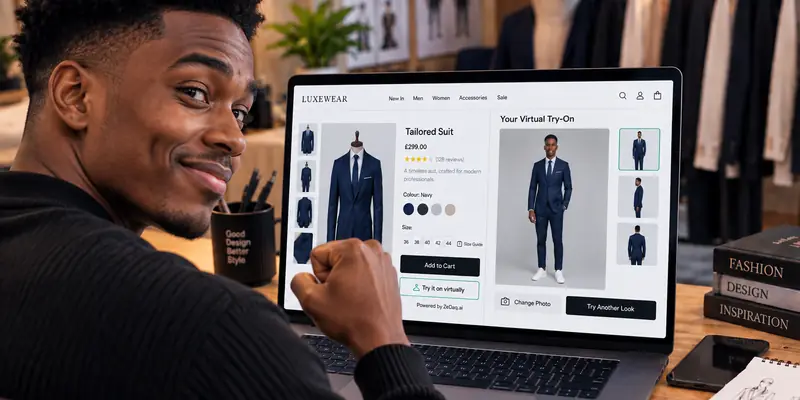
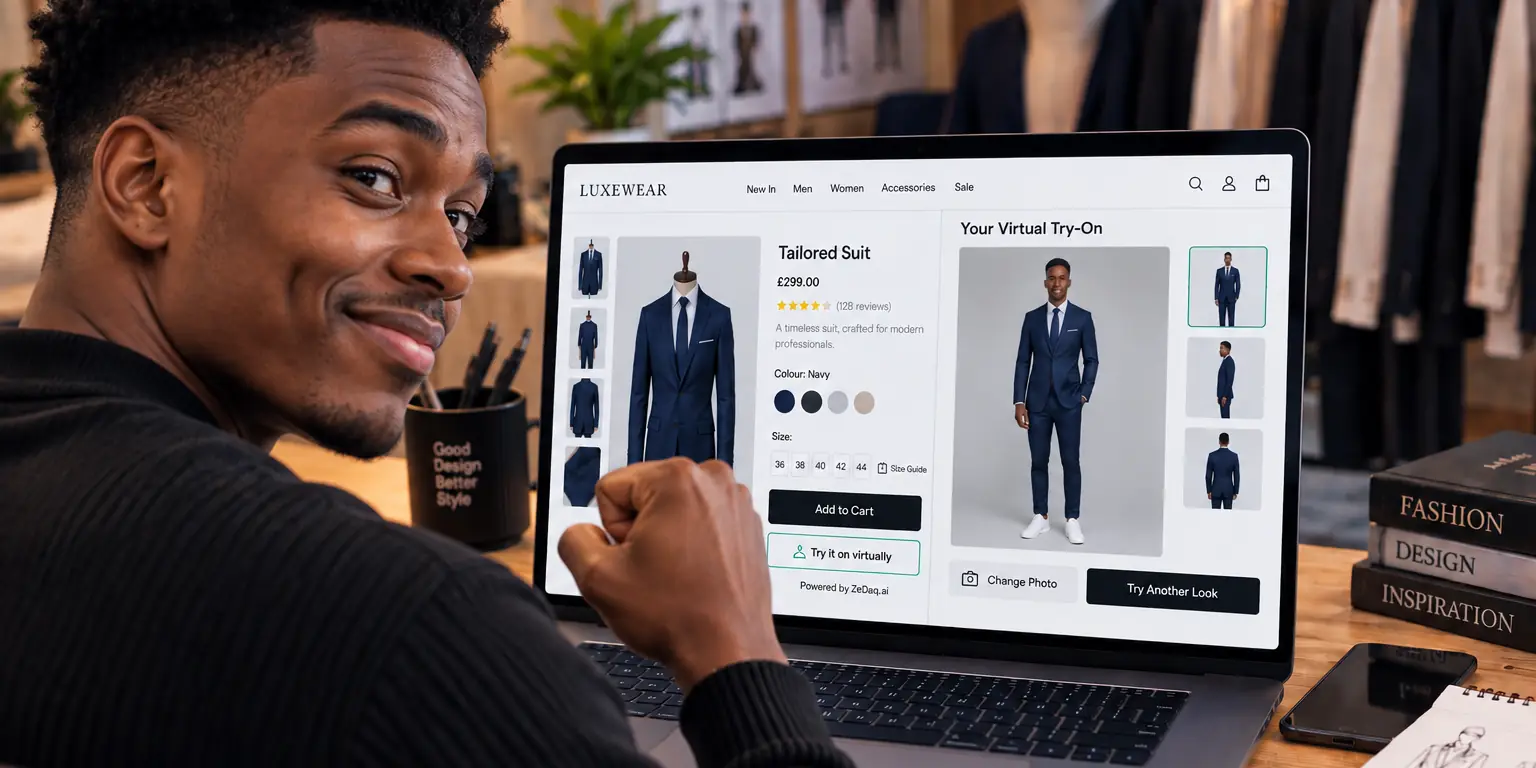
You use try-on in abandoned cart flows by writing reminders that address the fit doubt and link the shopper back to the product page, where they can try the garment on. The email or message cannot run the try-on itself. It sends the shopper to the page that can.
This guide covers where try-on fits in a cart flow and what to say. It builds on the basics of a virtual fitting room for clothing websites. Fashion carts are often left because of fit doubt, so a reminder that answers that doubt is more useful than a generic nudge.
Why do fashion shoppers leave carts?
There are many reasons, including shipping cost and distraction. One that is specific to clothing is not knowing whether it will fit.
Do not assume that is the reason for every cart. Ask your own shoppers, perhaps with a short exit survey, and look at which products are abandoned most often. If the abandoned items are fit-sensitive, such as fitted dresses or trousers, a try-on line is worth testing.
Where does try-on fit in a cart flow?
A typical flow has two or three messages. Try-on belongs in the one that deals with doubt, usually the second.
| Message | Purpose | Try-on role |
|---|---|---|
| First reminder | Simple nudge, shows the cart | None, keep it short |
| Second message | Answer doubts | Mention try-on and size help |
| Final message | Last prompt | Optional short link |
Keep the first reminder clean. Add the try-on idea only once the shopper has had a moment.
Space the messages to suit your shoppers, and do not send more than your audience will tolerate. A short flow that is relevant beats a long one that feels like pressure.
What should the message say?
Speak to the doubt in plain words. Examples you can adapt:
- "Not sure about the fit? See it on you before you decide."
- "Your size is saved in your cart. You can also check it with a quick photo."
- "Want to see how it looks on you? Try it on from the product page."
Avoid pressure and false urgency. Do not promise that try-on will guarantee a fit. Use a clear button, such as "Try it on", linked to the product page.
How do you link back to the product page?
The link should land on the page for the item in the cart, next to the try-on button. Check that:
- The link goes to the product, not the cart.
- The page loads quickly on mobile.
- The try-on button is visible without much scrolling.
- The right variant is pre-selected where your platform supports it.
Platform tools differ, so follow your store's cart recovery settings. If you run WooCommerce, see virtual try-on for WooCommerce for how the button reaches your product pages. ZeDaq.ai does not need a connection to your email tool, because the message only holds a link.
Does it work for store owners with no email tool?
You can place the same message in other channels you already use. Any reminder that links to the product page will do. Keep each message short, and never send a reminder to someone who has not agreed to receive them.
Follow your region's rules on marketing messages. Check the official guidance for your country before you send reminders.
How do you measure the result?
Compare two groups of abandoned carts: those who received the try-on line and those who did not. Look at clicks, try-ons started and orders. Run the test over several sends before you decide.
Your try-on usage numbers will help. See tracking try-on engagement for what to count, and keep your own results separate from other stores' figures.
Should you use AR or photo try-on for this?
The message works with either, as long as the page has a try-on option. The two approaches work differently, so it helps to know what yours does. The ZeDaq.ai approach is photo-based: the shopper uploads one photo and sees the store's real garment on their body. Our comparison of AR try-on and AI photo try-on explains the difference.
What does it cost?
The Free plan includes 3 try-ons a month, enough to test the journey yourself. Micro is $14 a month, with $1 for the first month on monthly plans, then $14 a month. Every paid plan has a 3-day free trial with no card required. Check the ZeDaq.ai pricing page for current terms.
Walk through the shopper journey yourself
FAQs
Can the reminder email contain the try-on image?
No. The shopper uploads a photo on your product page, so the render happens there. The email links to that page.
Do I need a special integration?
No. The message only needs a link to a product page with an active try-on button.
Which products suit this?
Fit-sensitive items such as dresses, trousers and fitted tops. Items where fit is rarely a question need no extra line.
Should I mention discounts?
That is your decision. Keep the try-on line focused on fit and add any offer separately, so the two messages do not blur together.
Try ZeDaq.ai free
Virtual try-on and Find my size for your store, plus client, order and invoicing tools for tailors, in one subscription.