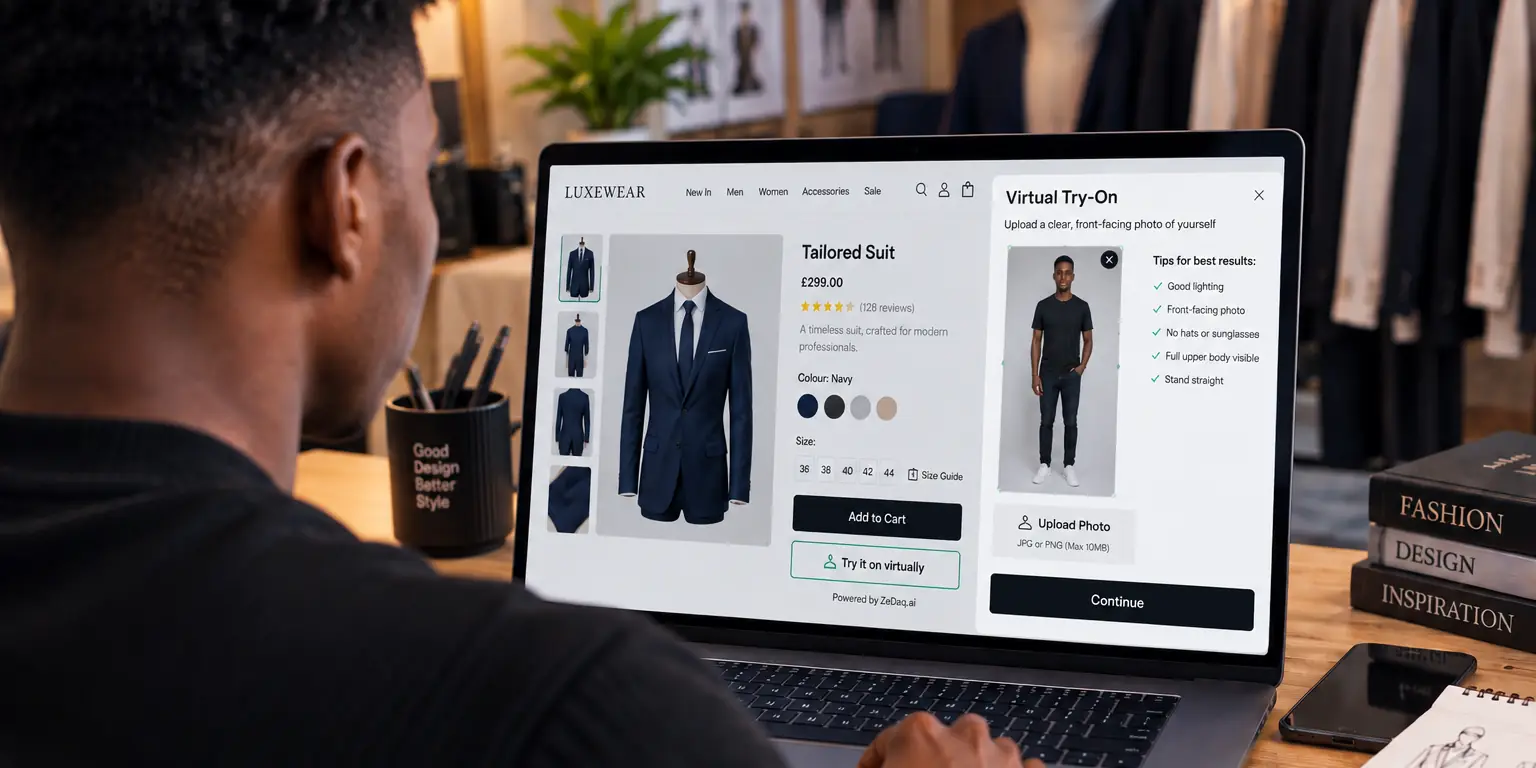
Uploading Shopper Photos Securely: Signed URLs and Size Limits
By the ZeDaq.ai team · · 4 min read
On this page
To upload shopper photos securely, send them over HTTPS, validate the file type and size on your server, store them with a short-lived signed URL instead of a public link, and delete them when you no longer need them. A try-on photo is personal data, so treat it that way from the first request.
This guide is for developers building their own flow on top of a try-on API for ecommerce. It is general engineering advice. For ZeDaq.ai limits, always check the API reference, because they can change.
Why do shopper photos need extra care?
A full-length photo shows a person's face and body. If it leaks, the harm is real. You also own the problem if a malicious file arrives through the same upload field.
The goal is to accept only what you expect, keep it private, and keep it for as short a time as your feature needs.
What should you validate before accepting an image?
Never trust the browser. Check each upload on the server:
- File type by content. Read the file's first bytes (the magic bytes) and confirm it is a JPEG, PNG or WebP. Don't rely on the extension or the
Content-Typeheader the client sent. - Size. Reject files above your limit before reading all of them.
- Dimensions. Reject images that are absurdly large or tiny, since they cause memory problems or give a poor result.
- Decoding. Re-encode the image with a trusted library. This also strips hidden data and many malicious payloads.
The OWASP File Upload Cheat Sheet lists these checks in more detail.
How do you choose a size limit?
Pick a limit that fits the use. A phone photo needs to be sharp enough for pose detection, but it doesn't need to be a raw camera file. Many apps resize the photo in the browser before upload, which saves mobile data and speeds things up.
Set the limit in three places: the file input hint, your server config and, if you use a CDN or proxy, the proxy's body size setting. A mismatch causes confusing errors, such as a 413 response the shopper can't understand. Show a plain message like "Photo too large, try a smaller one."
What is a signed upload URL?
A signed URL is a temporary link that allows one action, such as uploading a file to one location in storage, until it expires. Your server creates it after the shopper's request passes your checks. The browser then sends the photo directly to storage.
Benefits:
- The file never passes through your app server, so it uses less memory.
- The link works only for a short time and for one object.
- You can restrict the allowed content type and maximum size in the signature, on storage services that support it.
Major storage providers document this, for example Amazon S3 presigned URLs. Treat the signed link itself as a secret and don't log it.
How should you store and delete photos?
- Use a private bucket. Never make shopper photos publicly readable.
- Use random file names, not names that include the shopper's name or email.
- Set a retention rule that deletes the file after the session or after a short period.
- Keep access logs, and limit which staff and services can read the files.
- Tell shoppers what you do with the photo, in plain words, near the upload button.
For a sizing scan with ZeDaq.ai, the photo is analyzed in the shopper's browser and only measurements are sent. If a shopper also runs a try-on, that photo is sent to render the image. Why shoppers hesitate here, and what to say to them, is covered in the guide on why shoppers hesitate to upload a photo.
How do you protect the API key?
If your server calls a try-on API, the x-api-key header must stay on the server. Never place the key in front-end code. If you use the widget, lock the key to your store's domain in the dashboard instead.
What should you check before launch?
- HTTPS everywhere, including the upload endpoint
- Server-side type, size and dimension checks
- Private storage with expiring signed URLs
- A deletion rule you can explain to a shopper
- Plain-language notice at the upload button
- Rate limits on the upload endpoint
For more on the output side of the feature, see AI-generated model photos versus shopper try-on. If your range spans many body types, size-inclusive try-on explains why shoppers upload their own photos. Shopify merchants can skip the build with try-on on Shopify.
Build a try-on flow with the REST API
FAQs
Is checking the file extension enough?
No. Anyone can rename a file. Check the actual file content on the server.
Do I need signed URLs if I use a widget?
Not for the widget itself, since it handles the flow for you. Signed URLs matter when you build your own upload step.
How long should I keep a shopper photo?
As briefly as your feature needs. If you don't need it after the result is shown, delete it then.
Should I resize photos in the browser?
It often helps, because smaller files upload faster on mobile data. Still validate on the server, since client-side checks can be bypassed.
Try ZeDaq.ai free
Virtual try-on and Find my size for your store, plus client, order and invoicing tools for tailors, in one subscription.

