Virtual Try-On on Squarespace: What Are Your Options?
By the ZeDaq.ai team · · 6 min read
On this page
- What do you need on Squarespace first?
- How does the script-tag widget work?
- How do you add the widget to Squarespace?
- When should you use the API instead?
- How do you undo it if something goes wrong?
- Which route fits which store?
- What should you check before going live?
- What does it cost?
- How do you get good results on a Squarespace fashion store?
You have two main options for virtual try-on on Squarespace: paste a script-tag widget into your site through code injection, or connect a try-on API with the help of a developer. The widget is the faster route and needs no programming. The API gives you full control of the design but takes more work.
This guide uses ZeDaq.ai as the example. It is the same approach we describe for virtual try-on on WooCommerce, since both use the script-tag widget. Squarespace details come from Squarespace's own help page, checked in November 2026.
What do you need on Squarespace first?
Squarespace has no ZeDaq.ai app, so you add try-on with code. That means your plan must allow custom code.
According to Squarespace's code injection guide, code injection is available on the Core, Plus and Advanced plans and some legacy billing plans. Check your own plan before you start.
The same page lists three caveats:
- Custom code can break your site's appearance or behavior, especially on mobile.
- Squarespace support can't help you add custom code or troubleshoot problems from it.
- Checkout pages don't support code.
That last point is fine for try-on, because shoppers use it on the product page, before checkout.
How does the script-tag widget work?
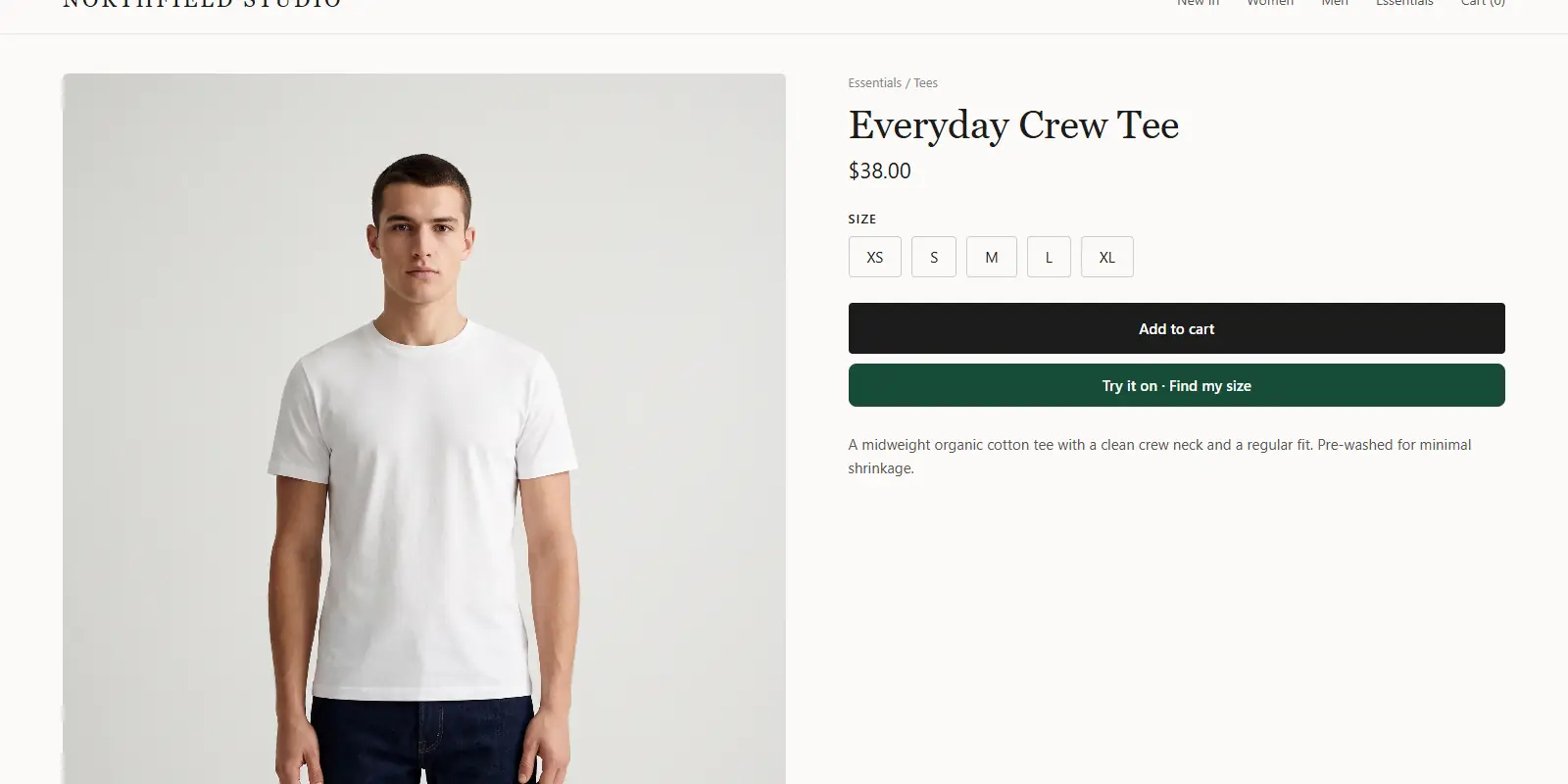
The widget is one line of code. You paste it into your site, and it adds two buttons to the product page: "Try it on" and "Find my size." The shopper uploads one photo and sees your real garment on their body. For sizing, a 30-second body scan uses that photo and their height.
The line looks like this:
<script src="https://www.zedaq.ai/widget/zedaq.js" data-key="YOUR_KEY" defer></script>
Replace YOUR_KEY with your own key from the dashboard. Lock the key to your store's domain under Dashboard, then API keys. A locked key won't work if someone copies it to another site. Full setup details are in the widget documentation.
How do you add the widget to Squarespace?
- Create a ZeDaq.ai account and copy your key from the dashboard.
- Lock the key to your domain in Dashboard, API keys.
- Enter your size chart in Dashboard, Size charts. Add one chart per garment type: tops, outerwear, dresses and bottoms.
- In Squarespace, open the code injection settings and paste the script line.
- Open a product page on your phone and test both buttons.
- Test with a few different photos before you tell customers about it.
Squarespace's guide describes two places for code: the site-wide Header and Footer fields, and a page-level field under the page's Advanced settings. It doesn't say product pages are handled differently from other pages. So test on a real product page and on a non-product page, and make sure the buttons appear only where you want them.
Before you announce it to customers, run through the launch checklist for fashion brands.
When should you use the API instead?
Use the REST API if you want the try-on to look exactly like the rest of your store, or if you build a custom flow. A developer sends POST /api/v1/tryon with an x-api-key header from your own server. The API reference is at /en/docs/api.
Keep the API key on the server. Don't paste it into code that shoppers can read. The widget key is the one designed for the browser, because it is locked to your domain.
Weigh the two routes before choosing:
| Script-tag widget | REST API | |
|---|---|---|
| Who sets it up | You | A developer |
| Buttons and layout | Provided | You design them |
| Best for | Most Squarespace stores | Custom flows |
How do you undo it if something goes wrong?
Removing the widget is as simple as adding it. Delete the script line from the code injection field and save. The buttons disappear from your product pages.
If you pasted the line into a page-level field, repeat the removal on each page where you added it. That is another reason to keep a note of where the code lives.
Which route fits which store?
Match the route to your team, not to the technology.
- You run the store alone and want to test quickly. Use the widget. You can paste one line and try it on a few products the same day.
- You have a developer and a custom design. Use the API, so the buttons and the result screen match your brand.
- You use Squarespace and another platform. Use the widget on both, so shoppers get the same experience.
- You are unsure. Start with the widget on the Free plan, which costs $0, and move to the API later if you outgrow it.
What should you check before going live?
Run this short checklist on your phone, since many shoppers browse there:
- The "Try it on" and "Find my size" buttons appear on product pages.
- They do not appear on pages where they make no sense, such as your About page.
- The key is locked to the domain shoppers actually use.
- A size chart exists for every garment type you sell, so shoppers get your own labels and not a generic size.
- A custom code error on one page does not break the others.
Because Squarespace support can't troubleshoot custom code, write down what you pasted and where. That makes it easy to remove if you ever need to.
What does it cost?
Check the live ZeDaq.ai pricing before you decide. These are the plan prices today:
| Plan | Price |
|---|---|
| Free | $0, with 3 try-ons, 3 measurements and 5 invoices a month |
| Micro | $14 a month |
| Starter | $49 a month |
| Growth | $129 a month |
| Scale | $299 a month |
Every paid plan has a 3-day free trial with no card required. The Free plan is enough to test the widget on your own products.
How do you get good results on a Squarespace fashion store?
Good inputs matter more than the platform. Use clear, front-facing product photos on a plain background, and keep your size chart in line with the sizes you sell.
Dresses need extra care because of flow and length, so read what works and what to watch in virtual try-on for dresses.
Squarespace is one of several platforms where a widget works. If you also run another store, see the options on Wix and OpenCart.
Get your key and test try-on on Squarespace
FAQs
Does Squarespace have built-in virtual try-on?
We did not find a built-in try-on feature in the Squarespace help page we checked. You add one with code injection or an API.
Do I need a developer to add the widget?
Usually not. Pasting one script line into code injection is a task most store owners can do. Squarespace support won't help with custom code, so keep a backup of your settings.
Will it work on every Squarespace plan?
Only on plans that include code injection. Squarespace lists the Core, Plus and Advanced plans and some legacy plans.
Does the shopper need an account?
No. They upload a photo on your product page. There is no sign-up and no app to download.
Try ZeDaq.ai free
Virtual try-on and Find my size for your store, plus client, order and invoicing tools for tailors, in one subscription.

