Virtual Try-On on OpenCart: What Are Your Options?
By the ZeDaq.ai team · · 6 min read
On this page
On OpenCart you can add virtual try-on three ways: a third-party extension, a script-tag widget placed in your product template, or a REST API call from your own code. For most clothing stores, the widget is the quickest to test.
ZeDaq.ai has no OpenCart extension. It works on custom sites, so the approach in the guide to virtual try-on for WooCommerce carries over: a widget for speed, or the API for control.
How does OpenCart handle add-ons?
OpenCart uses extensions. Its developer guide says the platform "supports extensions to add or modify functionality without altering core files" (OpenCart extensions guide).
Extensions come in types, including modules, themes, payments and shipping. They are managed in the admin panel under Extensions.
A try-on feature could arrive as a module, or as a change to your theme templates. That second path is where the widget fits.
Can you use a try-on extension?
Maybe, but check each one yourself. This guide has not tested any particular OpenCart try-on extension, so it does not name one.
Before you install a third-party extension, ask:
- Does it support your OpenCart version?
- Is it still maintained?
- Does it send shopper photos to a third party, and what happens to them?
- Does it use your own size chart for size advice?
- How is it priced: per render, monthly or one-time?
The comparison of free versus paid try-on apps explains what usually changes between price tiers.
How do you add the widget to OpenCart?
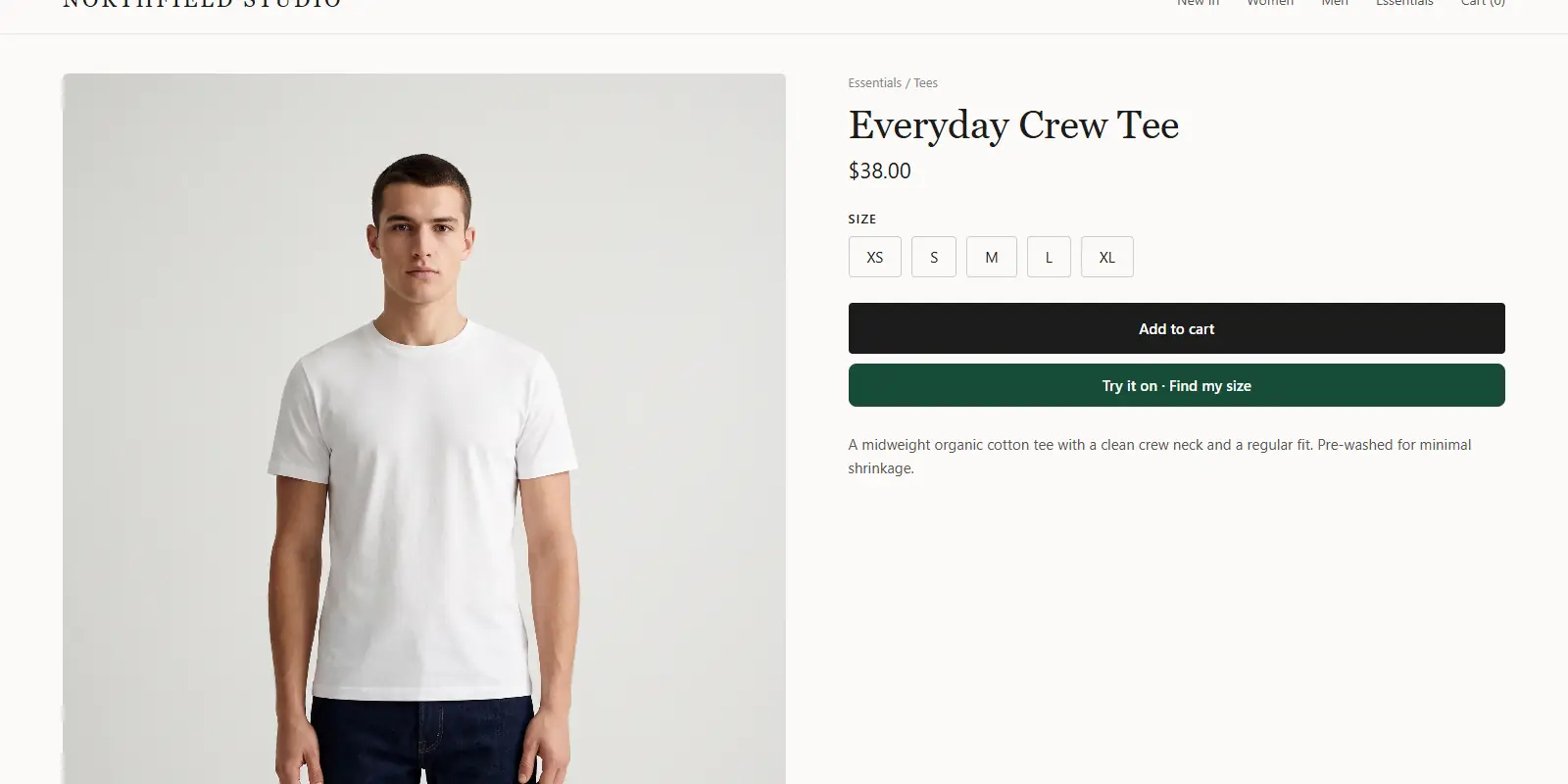
The widget is a script tag, so it needs no extension. It adds "Try it on" and "Find my size" to the product page. Shoppers upload one photo and see your real garment on their body.
Step 1: Make and lock a key
Sign up and create an API key in the Dashboard under API keys. Lock it to your store's domain. Widget keys are visible in the page source, so an unlocked key is refused.
Step 2: Open the product template
OpenCart's Theme Editor lets you edit store templates written in Twig. Per its documentation, overrides are saved in the database and the original files stay untouched (OpenCart Theme Editor docs).
That makes it a safer place to test than editing files on the server. You can disable the override to restore the original.
Step 3: Paste the script tag
Add this to the product template:
<script src="https://www.zedaq.ai/widget/zedaq.js" data-key="…" defer></script>
The widget setup notes cover optional settings such as garment type and button placement.
Step 4: Test on a product
Open a product page on your phone and tap "Try it on". Check the result, then run "Find my size" with your own height.
When is the REST API the better choice?
Use the API when you want your own interface or a custom extension. You send POST /api/v1/tryon with an x-api-key header, plus the shopper's photo and your product image.
This needs a developer. In return, you control the button, the upload flow and how the result appears.
How do the options compare?
| Option | Setup effort | Control | Best for |
|---|---|---|---|
| Third-party extension | Low, if one fits | Limited to its settings | Stores that want a one-click install |
| Script-tag widget | Low | Moderate | Quick tests and small catalogs |
| REST API | High | Full | Custom builds and agencies |
If you also sell through PrestaShop, the same decision applies there. See virtual try-on on PrestaShop.
Store owners on a hosted builder face a similar choice, covered in the notes on try-on for Wix stores.
What if the button does not appear?
If you pasted the tag and nothing shows, work through the likely causes in order.
- Confirm the override is enabled for the right store and route in the Theme Editor.
- Clear the cache, then reload the product page.
- Check that the key is locked to the domain you are viewing. A request from any other domain is refused.
- Open your browser's developer console and look for errors on the script.
- Check whether another extension changes the same template.
The docs list the exact error codes the service returns. If you still cannot find the cause, test on a plain product page with other extensions switched off, then switch them back on one at a time.
Write down what you changed in each step. If you work with a developer later, that note saves time, and it helps you undo a change that caused trouble.
What should you check before you launch on OpenCart?
OpenCart stores vary a lot, since themes and extensions differ from shop to shop. Test on your own setup before you trust it.
- Extension conflicts: other modules that change the product page can move or hide the button.
- Cache: OpenCart's own documentation tells you to clear the cache after installing an extension, and a template change may need the same step.
- Domain lock: confirm the key only works on your store's domain, and add every domain you use, such as a staging copy.
- Product images: the widget fetches product images only from your own domain or common store CDNs.
- Photo privacy: a sizing scan is analyzed in the shopper's browser and only measurements are sent. A try-on photo is sent to render the image, so mention this in your privacy policy.
How should you pilot it?
Start with a few products rather than the whole catalog.
- Choose a handful of clothing products from different categories.
- Add the widget through a template override for those pages.
- Test on a phone and on a laptop.
- Check that "Find my size" uses your own size chart.
- Disable the override at any time to go back to the original template.
The last step is the benefit of the Theme Editor approach: a test that does not work is easy to switch off.
After the pilot, review it honestly. Did shoppers find the button, did the size advice match what your team would say, and did the page still feel quick? If so, extend it to more products, a category at a time. If not, fix the weakest point first and test again before you widen it.
What will it cost?
ZeDaq.ai's Free plan costs $0 and includes 3 try-ons, 3 measurements and 5 invoices a month. Paid plans are Micro at $14 a month, Starter at $49, Growth at $129 and Scale at $299, and each has a 3-day free trial with no card required. See the live pricing page for current details.
Try it on your OpenCart product pages
FAQs
Is there an OpenCart extension for ZeDaq.ai?
No. You use the script-tag widget or the REST API on your OpenCart store.
Where do I paste the script tag?
Paste it into your product template. In OpenCart, the Theme Editor can override store templates without changing the original files.
Do I need to know how to code?
Not for the widget, if you can edit a template. The API needs a developer.
Can I test it before paying?
Yes. The Free plan has 3 try-ons a month, and paid plans have a 3-day free trial with no card required.
Try ZeDaq.ai free
Virtual try-on and Find my size for your store, plus client, order and invoicing tools for tailors, in one subscription.

