Virtual Try-On on commercetools: A Headless Integration Guide
By the ZeDaq.ai team · · 5 min read
On this page
- Why is try-on a frontend job on commercetools?
- What are your integration options?
- How do you call the try-on API from a storefront?
- How do you handle sizing as well?
- How do you keep the integration safe and fast?
- What should you test before launch?
- How does this compare with other open stacks?
- What does it cost?
To add virtual try-on to a commercetools store, build the button in your own frontend and call a try-on REST API with the shopper's photo and your product image. Because commercetools has no theme to install an app into, the try-on lives in your storefront code.
This guide is for developers on a headless build. It uses the ZeDaq.ai API, and the virtual try-on API guide for developers covers the same endpoint in more general terms.
Why is try-on a frontend job on commercetools?
commercetools exposes its data through HTTP APIs (REST and GraphQL), and the storefront is code you or your agency own. There is no marketplace app that drops a button onto a product page.
That means two decisions are yours. You choose where the try-on button sits, and you choose how product images reach the try-on service. Both are normal frontend tasks.
The commercetools docs list frontend development as its own area. Whatever framework you use, the pattern below stays the same.
What are your integration options?
ZeDaq.ai offers two routes that fit a headless store.
| Option | How it works | Best for |
|---|---|---|
| REST API | Your frontend sends a shopper photo and a product image to POST /api/v1/tryon |
Custom product pages and your own design |
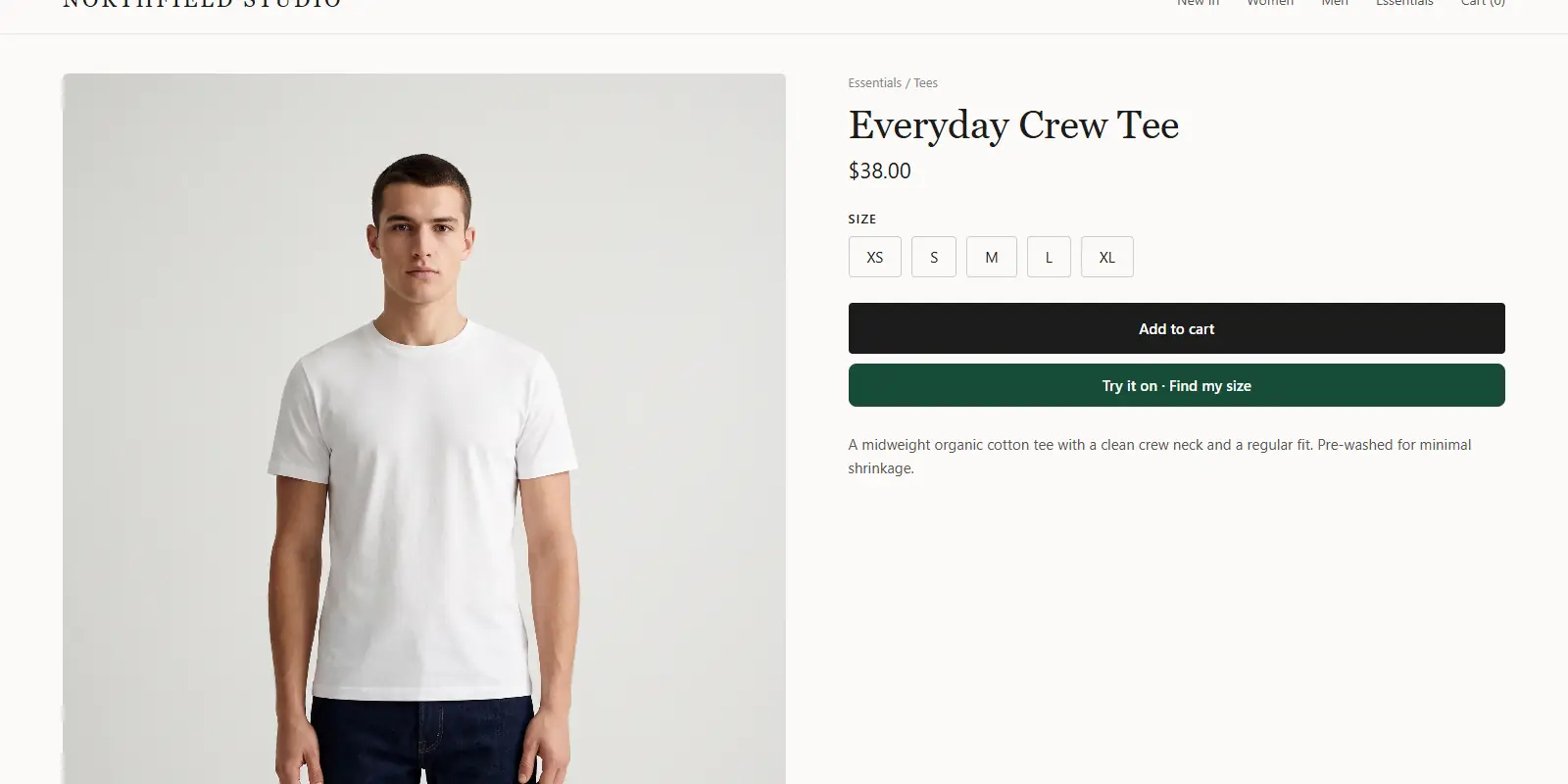
| Script-tag widget | One script tag adds "Try it on" and "Find my size" buttons | Fast launch with little code |
The widget works on custom sites, so it also works on a headless storefront. You paste <script src="https://www.zedaq.ai/widget/zedaq.js" data-key="…" defer> into the product template. The key must be locked to your store's domain. Setup details are in the widget documentation.
Pick the API if you want the result to appear inside your own components. Pick the widget if you want to test the idea first.
How do you call the try-on API from a storefront?
Here is the flow for one product page.
- Create an API key. In the ZeDaq.ai dashboard, go to Dashboard → API keys and lock the key to your storefront domain.
- Get the product image URL. Take it from the product data you already fetch from commercetools.
- Collect the shopper photo. Use a file input and encode the image as base64.
- Send the request. Post JSON to
/api/v1/tryonwith anx-api-keyheader. - Show the result. Display the returned image in a modal or panel on the product page.
The request body takes person_image_base64, product_image_base64 and an optional garment_type of upper_body, lower_body or dresses. The API reference lists every field.
What if the render takes a while?
Some renders return a 202 with a job_id and a poll_url. The docs say to poll that URL every 2 seconds until a 200 returns the image. Show a loading state while you wait.
A render that completes returns image_base64 and a mime_type. Decode it into an image element.
Where do the product images come from?
In commercetools, your product type and attribute setup decide where image URLs live. The commercetools guide to modeling your product catalog is the place to check how your own catalog is shaped.
Pick the image that shows the whole garment on a plain background. A cropped detail shot gives the try-on little to work with.
How do you handle sizing as well?
The API also has a scan endpoint, POST /api/v1/scan. It takes height and body-width measurements from pose data and returns a size from your own size chart. Without a chart, it falls back to a generic UK, US, EU or AU size.
Merchants enter their charts in Dashboard → Size charts, one per garment type: tops, outerwear, dresses and bottoms. The scan recommends your labels and sizes up to the largest relevant measurement.
For a store that sells tailored or flowing pieces, see how try-on behaves on loose fabric in virtual try-on for loungewear and pajamas.
How do you keep the integration safe and fast?
Treat the key and the photo as the two things to protect.
- Key. Anything in the browser can be read, so lock the key to your domain and never reuse it elsewhere. The API docs say requests from other origins are refused.
- Photo. Tell shoppers before they upload what the photo is used for. Link to your privacy policy next to the upload button.
- Loading. Load the try-on code only on product pages. Shoppers who never tap "Try it on" should not pay for it in page weight.
- Fallbacks. If a call fails, hide the result panel and keep the rest of the page working.
These habits matter more on a headless build, because no theme or app wrapper handles them for you.
What should you test before launch?
Use this checklist on a staging site.
- Domain lock. Confirm the key works on your domain and fails elsewhere. The API returns
domain_not_allowedwhen it fails. - Error states. Handle
tryon_cap_reached,measurement_cap_reachedandrate_limitedwith a friendly message. - Photo handling. Tell shoppers what photo works best: full length, good light, one person.
- Image quality. Check three or four products of different garment types.
- Mobile. Shoppers upload photos from their phones, so test the upload flow there first.
How does this compare with other open stacks?
The same API pattern applies to other composable platforms. If you are comparing stacks, the guide to virtual try-on on Medusa covers an open-source storefront, and virtual try-on on Shopware covers another non-Shopify option.
What does it cost?
A try-on render counts as one try-on, and a scan counts as one measurement. The Free plan includes 3 try-ons and 3 measurements a month, which is enough for a staging test.
Paid plans are Micro at $14/mo, Starter at $49/mo, Growth at $129/mo and Scale at $299/mo. Every paid plan has a 3-day free trial with no card required. See the live ZeDaq.ai pricing for current limits.
Get an API key and test on staging
FAQs
Does commercetools have a built-in try-on feature?
This guide does not rely on one. You add try-on through your own frontend code and an outside service such as the ZeDaq.ai API.
Can I use the widget instead of the API?
Yes. The widget supports custom sites, so a headless storefront can load the script tag. The key must be locked to your domain first.
Do I need a backend service to call the API?
The API key is designed to be locked to your domain. For how requests from your own server are handled, check the current API reference before you build.
How are shopper photos used for sizing?
For sizing, the browser helper measures the photo on the shopper's device and the docs say the photo itself is not sent. Only measurements go to the scan endpoint.
Try ZeDaq.ai free
Virtual try-on and Find my size for your store, plus client, order and invoicing tools for tailors, in one subscription.

