How to Show "Model Is Wearing Size M" on Shopify
By the ZeDaq.ai team · · 4 min read
On this page
The cleanest way to show "Model is wearing size M" on Shopify is to store it as a product metafield and display it near the size selector. A metafield is a custom field you add to products, so you write the note once per product and it appears in the same spot every time.
Model info helps, but it describes one body. To help shoppers who look different from your model, pair it with a size recommendation on the product page. The broader picture of fit tools is in our guide to adding virtual try-on to Shopify.
What should "model is wearing" info include?
Keep it short and factual. Shoppers want enough to compare the model to themselves:
- The size worn, using your own label, such as "M" or "UK 12".
- The model's height, in both centimeters and feet and inches if you sell internationally.
- One or two body measurements, such as chest or waist and hips, only if you are sure they are right.
- The fit you see, for example "fitted at the waist" or "relaxed through the hips".
Example: "Model is 178 cm (5 ft 10 in) and wears size M. Chest and waist measurements are in the size chart."
Check these details with the model and write them down at the shoot. Guessing later leads to wrong notes that cause returns.
Which method should you use on Shopify?
There are three practical places to put the note. Pick based on how many products you have.
| Method | Best for | Trade-off |
|---|---|---|
| Product description text | A handful of products | You retype it each time, and the position varies |
| Metafield shown by the theme | Most stores | Needs a one-time setup |
| Image caption or alt text | Supporting the photo | Easy to miss, not always visible |
Description text is fine to start. Once you have many products, a metafield keeps the wording and position consistent.
How do you set it up with a metafield?
Shopify describes metafields as a way to add custom data to products, and says you can connect most of them to your theme in the theme editor if your theme supports dynamic sources. See Shopify's own metafields guide for the current admin steps, since menu names can change.
- In your Shopify admin, create a product metafield definition. Name it something clear, like "Model info", and choose a single-line text type.
- Open a product and fill in the new field with a line such as "Model is 178 cm and wears size M".
- Open the theme editor and go to the product page template.
- Add a text block near the size selector, and connect its content to the metafield through the dynamic source option.
- Preview a product with a value and one without. A product without a value should show nothing, not an empty line.
If your theme does not support dynamic sources, Shopify's guide says you may need to edit theme code. In that case, ask your developer rather than guessing.
Where on the page should the note go?
Put it close to where the shopper picks a size. The best spot is directly under the size buttons or next to the size chart link.
Avoid burying it at the bottom of a long description. On mobile, the shopper rarely scrolls that far before deciding.
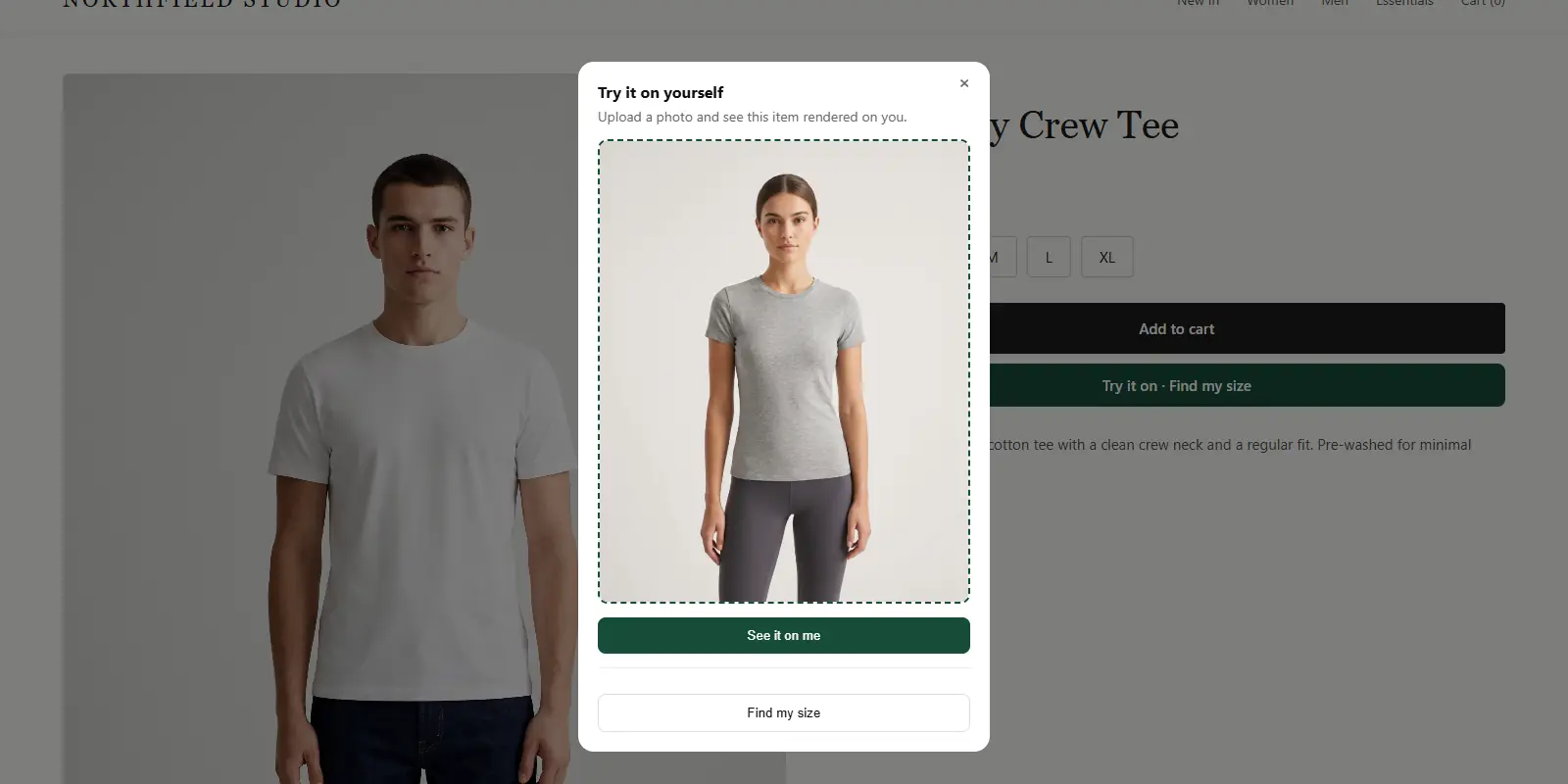
See how a shopper finds their own size
Try it on yourself
Live renderUpload a photo, pick a piece, see it rendered on you.
Pick something to try on
How do you handle models of different sizes?
If you shoot more than one model, show each one. For example, "Anna is 168 cm and wears S. Tolu is 183 cm and wears L."
This is more useful than a single model, and you can store both in one metafield line. If you only have one model, say so plainly. Honest notes build more trust than an implied fit.
Also tell shoppers which direction to go. A line like "If you are between sizes, size up for a relaxed fit" gives a rule they can apply to their own body.
What can model info not do?
A model note cannot tell a shopper what size they should order. It only shows what size fits one person.
That gap is where fit-related returns come from. If you want to reduce them, look at your returns policy ideas that protect margins, and add a tool that matches the shopper's own measurements to your size chart.
With ZeDaq.ai, the shopper uploads one photo and enters their height. The app suggests a size from your own size chart. The Shopify app is available on the Shopify App Store.
Model info and a size chart also work well together. Our guide on adding a size chart to product pages covers that part.
Give shoppers a size from their own body
FAQs
Should I show the model's measurements or only the size worn?
Show the size worn and the height at minimum. Add chest, waist and hips only if you measured them yourself.
Do I need a developer to add this?
Not always. If your theme supports dynamic sources, you can connect the metafield in the theme editor. Older themes may need a small code edit.
Can I add model info to every product at once?
You can fill metafields in bulk through a product import, or edit products one by one. Check Shopify's help pages for the current bulk options.
Does model info replace a size chart?
No. A model note shows one example, while a size chart lets shoppers compare their own measurements.
Try ZeDaq.ai free
Virtual try-on and Find my size for your store, plus client, order and invoicing tools for tailors, in one subscription.