How to Add a Size Chart in WooCommerce
By the ZeDaq.ai team · · 4 min read
On this page
The simplest way to add a size chart in WooCommerce is to build a table in the block editor and place it in your product description or short description. WooCommerce's product documentation covers sizes as variation attributes but doesn't describe a built-in size chart, so the chart itself is content you add.
This guide covers three ways to do it, from a plain table to a chart that gives shoppers a size suggestion. If you want the suggestion route, start with our overview of virtual try-on for WooCommerce.
What should a size chart include?
A good chart answers one question: "which size fits my body?" Before you build anything, collect these:
- Body measurements, not garment measurements. Chest, waist and hips of the person who fits each size.
- One chart per garment type. Tops, dresses and trousers fit differently.
- A unit choice. Show centimeters and inches, or state which one you use.
- A fit note. One line such as "runs small, size up if between sizes".
If your numbers come from a supplier, label them as an example chart and check them against a sample before publishing.
How do you add a size chart table to a product?
This works on any WooCommerce theme and needs no extra software.
- In your WordPress admin, open Products and edit the product.
- In the description editor, add a Table block.
- Enter one row per size and one column per measurement.
- Add a heading above it, such as "Size guide".
- Update the product and check it on your phone.
Put the table in the long description, or in the short description if you want it near the Add to cart button. Keep the table narrow, because wide tables are hard to read on small screens.
How do you reuse one chart across many products?
Retyping a table for every product wastes time and creates mistakes. Use the block editor's reusable options instead.
Save the table as a reusable block
Select your table block, open its menu, and save it as a reusable block or pattern. Then insert it into other products of the same garment type. Change it once and every product that uses it follows, if you saved it as a synced pattern.
Use a chart image as a fallback
You can also upload an image of the chart. It is quick, but shoppers can't copy it, screen readers can't read it, and it is harder to update. Use a real table where you can.
How do you show the chart on the product page?
Think about where shoppers look when they hesitate. Three placements work well:
- Inside the description, under a clear "Size guide" heading.
- Near the size dropdown, using the short description.
- In a product tab or pop-up, which usually needs a size chart plugin or a small code snippet from a developer.
Test each product on a phone. Most fashion browsing happens there, and a chart that needs pinching and zooming gets skipped.
How do you go beyond a table with size recommendations?
A table still leaves the work to the shopper. They have to know their own measurements and read across the rows.
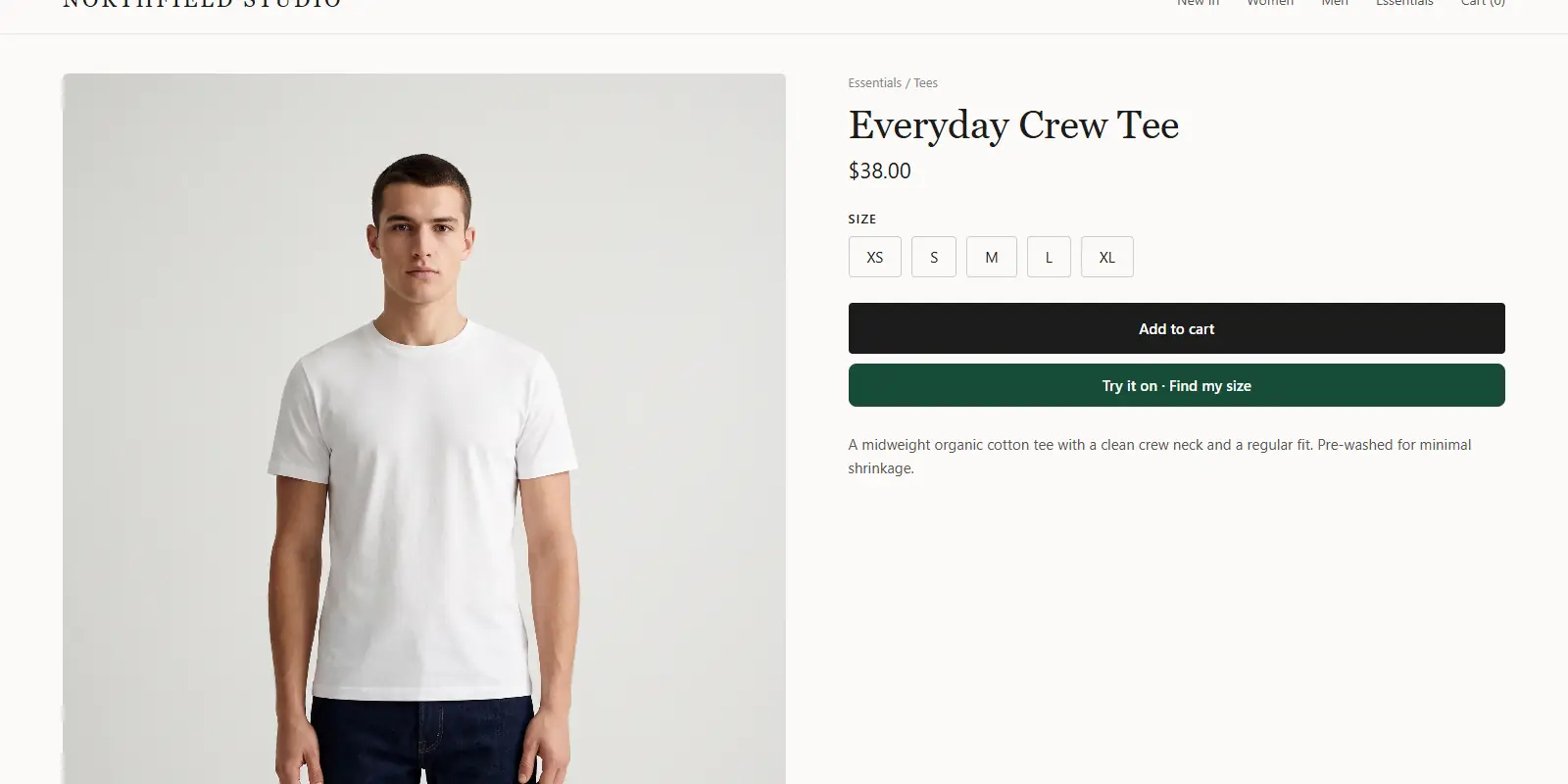
ZeDaq.ai adds a script tag that gives shoppers a "Find my size" button. They upload one photo and enter their height, and the scan recommends one of your own labels from your chart. Here is the tag:
<script src="https://www.zedaq.ai/widget/zedaq.js"
  data-key="YOUR_WIDGET_KEY"
  data-garment-type="upper_body"
  defer></script>
Paste it into your product template and lock the key to your domain in the dashboard, as the widget setup docs explain. Then enter your chart in Dashboard → Size charts, with one chart per garment type: tops, outerwear, dresses and bottoms.
If you can't add a chart, shoppers still get a size from a generic UK, US, EU or AU chart. For other routes, see WooCommerce size recommendation options.
How does this compare with other platforms?
The idea is the same everywhere: a clear table first, then a recommendation if you want one. Wix handles it with reusable product info sections, which the guide to adding a size chart in Wix Stores covers. Shopify has its own approach, described in adding a size chart to Shopify product pages.
Give WooCommerce shoppers a size, not just a table
FAQs
Does WooCommerce have a built-in size chart?
WooCommerce's product documentation doesn't describe one. You add a table yourself, or use a plugin or script.
Should I use a plugin or a table?
A table is free and easy to maintain for a small catalog. A plugin or script helps when you have many products or want shoppers to get a size suggestion.
Can I have different charts for men and women?
Yes. Build one chart per garment type and per fit, then insert the right one on each product. Menswear and womenswear usually need separate numbers.
How do I keep the chart accurate?
Compare it with a real garment on a real person each season. Update the saved block once and the change carries across your products.
Try ZeDaq.ai free
Virtual try-on and Find my size for your store, plus client, order and invoicing tools for tailors, in one subscription.

