WooCommerce Size Recommendation: Your Options
By the ZeDaq.ai team · · 6 min read
On this page
You have four main options for WooCommerce size recommendation: a size chart plugin, a hosted fit quiz service, a body-scan widget added with a script tag, or your own tool built on an API. The right one depends on whether you want to show a chart, suggest a size, or both, and on how much developer time you have.
This guide compares the four, then shows how the script-tag route works with ZeDaq.ai. If you also want shoppers to see the garment on their own photo, the guide to adding virtual try-on to WooCommerce uses the same script tag.
What counts as a size recommendation on WooCommerce?
A size recommendation tells the shopper which size to order. A size chart only shows the numbers and leaves the choice to them. Both have a place, but they solve different problems.
- Size chart: a table of measurements per size. The shopper measures themselves and reads across.
- Size advisor: a tool that asks for some body information, then suggests one size label.
- Body scan: a size advisor that gets its measurements from a photo instead of a questionnaire.
Many WooCommerce stores start with a chart and add an advisor later. A chart is still useful even after you add an advisor, because some shoppers like to check the numbers.
Try the scan your shoppers would use
Try it on yourself
Live renderUpload a photo, pick a piece, see it rendered on you.
Pick something to try on
What are the four main options?
Option 1: A size chart plugin
WordPress.org lists several free size chart plugins for WooCommerce. One example is Sizor Product Size Chart for WooCommerce by VillaTheme. Its listing describes building chart templates, assigning them to products or categories, and showing them as a popup, a product tab or near the add-to-cart button (checked November 2026).
Its listing describes showing charts for shoppers to read. It doesn't describe suggesting a size from the shopper's own measurements. That is typical of chart plugins.
Option 2: A hosted fit quiz service
Some sizing companies offer a "fit finder" for WordPress stores. The shopper answers questions such as height, weight, age and how they like clothes to fit. The service then estimates a size.
These services vary a lot in setup, data needs and pricing. Some need your garment measurements for every product. Check each provider's own site for how it connects to WooCommerce before you plan around it.
Option 3: A body-scan widget added with a script tag
ZeDaq.ai works this way. You paste one script tag into your single-product template. The shopper uploads one full-length photo and types their height, and the scan matches their measurements to your own size chart. The scan takes about 30 seconds.
ZeDaq.ai is not a WooCommerce plugin, and there is no WordPress plugin to install. It is a script tag, so there is no plugin to keep updated.
Option 4: Build your own on an API
If you have a developer and want full control of the interface, you can build your own flow on a REST API. The guide to adding size recommendation through an API covers what that involves. This route suits headless WooCommerce stores and custom themes.
How do the options compare?
| Size chart plugin | Fit quiz service | Body-scan script tag | Own build on an API | |
|---|---|---|---|---|
| Suggests a size | No, shows a chart | Yes | Yes | Yes, if you build it |
| What the shopper enters | Their own tape measurements | Answers to questions | One photo and height | Whatever you design |
| Setup | Install from WordPress admin | Varies by provider | Paste one tag | Developer project |
| Uses your own size chart | Yes | Varies by provider | Yes | Yes |
| Best for | Small catalogs, simple fits | Stores with a provider in mind | Most fashion stores | Headless or custom stores |
A chart plugin and a size advisor can run side by side. Many stores keep a chart tab for shoppers who want the numbers, and add an advisor for those who don't want to measure.
How do you choose the right size advisor for WooCommerce?
Ask these questions before you pick a size advisor for WooCommerce:
- Do shoppers ask "which size?" in chats and emails? If yes, a chart alone isn't enough. Look at an advisor.
- Do you have a clean size chart? Every advisor is only as good as the chart behind it. Fix gaps between sizes first.
- Who will install it? A script tag needs someone who can edit a theme template. An API build needs a developer for days, not minutes.
- Do you sell different fits? Tops, dresses and trousers need separate charts. Check the tool supports that.
- Do you serve extended sizes? Make sure your chart covers your full range, so the advisor doesn't run out of sizes.
That last point matters most for plus-size ranges, where gaps at the top of a chart show up quickly. The guide to size recommendation for plus-size stores covers how to set up extended ranges.
How do you add ZeDaq.ai size recommendation to WooCommerce?
Step 1: Create your account and API key
Sign up for ZeDaq.ai, then open Dashboard → API keys. Create a key and lock it to your store's domain. A locked key only works on that domain, so nobody can copy it to their own site.
Step 2: Add your size charts
Open Dashboard → Size charts. Add one chart per garment type you sell: tops, outerwear, dresses and bottoms. Enter your own size labels and the body measurements for each, using chest, waist and hips as each garment needs.
If a shopper's measurements point to different sizes, the scan sizes up to the largest relevant measurement. If you skip this step, shoppers get a standard UK, US, EU or AU size instead.
Step 3: Paste the script tag into your single-product template
Paste this tag into your single-product template, with your own key in data-key:
<script src="https://www.zedaq.ai/widget/zedaq.js" data-key="YOUR_KEY" defer></script>
Most stores add it through a child theme, so a theme update doesn't remove it. Load it on product pages only, not across the whole site. The widget setup notes cover placement details.
Step 4: Test on a few products
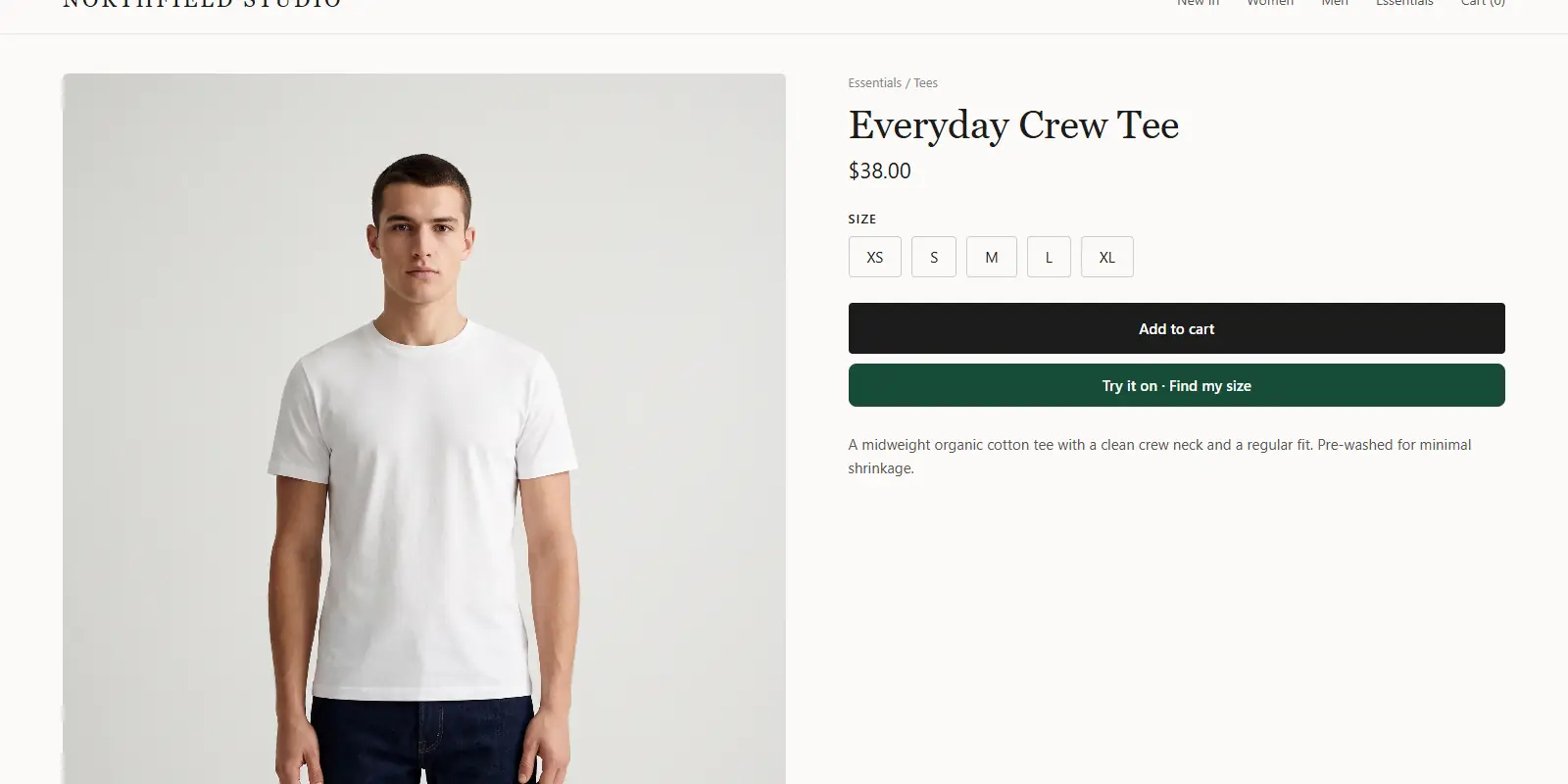
Open a top, a dress and a pair of trousers on your phone. You should see Find my size and Try it on on each page. Run a scan on yourself and check the suggested size against what you would pick in person.
What does it cost to run?
Each scan uses one measurement from your monthly plan. The Free plan includes 3 measurements a month, which is enough to test on your own store. Paid plans start with Micro at $14 a month, and every paid plan has a 3-day free trial with no card required.
If you are weighing the script tag against a full API build, the overview of try-on for WooCommerce, Magento and custom stores compares both routes. Current plan limits are on the ZeDaq.ai pricing page.
Add size recommendation to WooCommerce
FAQs
Is there a ZeDaq.ai WooCommerce plugin?
No. ZeDaq.ai works on WooCommerce through a script tag in your single-product template. There is no WordPress plugin to install or update.
Can I keep my size chart plugin as well?
Yes. A chart plugin and the ZeDaq.ai widget can sit on the same product page. Some shoppers like to read the chart even after they get a suggested size.
Does the shopper need an account to get a size?
No. The shopper uploads a photo and types their height on your product page. There is no sign-up.
What if my theme has no single-product template?
Most WooCommerce themes have one. If yours uses a page builder, add an HTML element to the product template and paste the tag there.
Try ZeDaq.ai free
Virtual try-on and Find my size for your store, plus client, order and invoicing tools for tailors, in one subscription.

