How to Add a Size Chart in Wix Stores
By the ZeDaq.ai team · · 4 min read
On this page
To add a size chart in Wix Stores, create a product info section, put your size table inside it, and apply that section to each product. Wix describes info sections in its guide to adding a physical product, and you can reuse one section across products.
This article walks through that setup and then shows how to add a size recommendation on top. If you want the recommendation route, our guide to virtual try-on for WooCommerce and similar stores explains how the script tag approach works on non-Shopify platforms.
What do you need before you start?
Have your chart ready as body measurements before you open Wix:
- Measurements per size. Chest, waist and hips for the body that fits each size.
- A unit. Centimeters, inches, or both.
- One chart per garment type. Tops, dresses and trousers rarely share numbers.
How do you create a size chart info section?
Wix says an info section can include tables, images and GIFs. That makes it a natural home for a size table.
- In your Wix dashboard, open your store products and edit the product.
- Find the info sections area and click +Add an Info Section.
- Choose Create New Info Section.
- Enter a title shoppers will see, such as "Size guide", and an internal name such as "Tops size chart".
- Add your table and any fit notes, then save.
Wix's menu names can change, so follow its help article if your screen looks different.
How do you reuse the chart on other products?
After you create an info section once, Wix says you can select it to apply to other products. That means one "Tops size chart" can sit on every top in your store.
Name your sections by garment type so you can find them quickly. When you change a chart, check which products use it, because the change affects all of them.
How do you set up the sizes themselves?
The chart tells shoppers what each size means. The size option lets them pick one. Wix's guide describes adding an option with these steps:
- Click +Add Option.
- Choose Dropdown list as the field type.
- Name the option "Size".
- Type each size and press Enter.
- Click Add.
Wix also notes that once you add options, price and inventory are managed per variant. Plan your stock counts with that in mind.
What are the common mistakes?
- A chart image nobody can read on a phone. Use a table, not a screenshot.
- Garment measurements mixed with body measurements. Label which one you show.
- One chart for every product. Fit differs between a fitted shirt and a relaxed hoodie.
How should you write the table itself?
Keep the layout simple so it reads well on a phone.
- Put sizes in the first column and measurements across the top.
- Use a range, such as a minimum and maximum, if your sizes cover a span.
- Make sure ranges meet. If one size ends where the next one begins, nobody falls into a gap.
- Add a short line under the table explaining how to measure.
Before you apply the section to every product, open one product page on your phone and check that the table fits the screen.
How can shoppers get a size suggestion instead of reading a table?
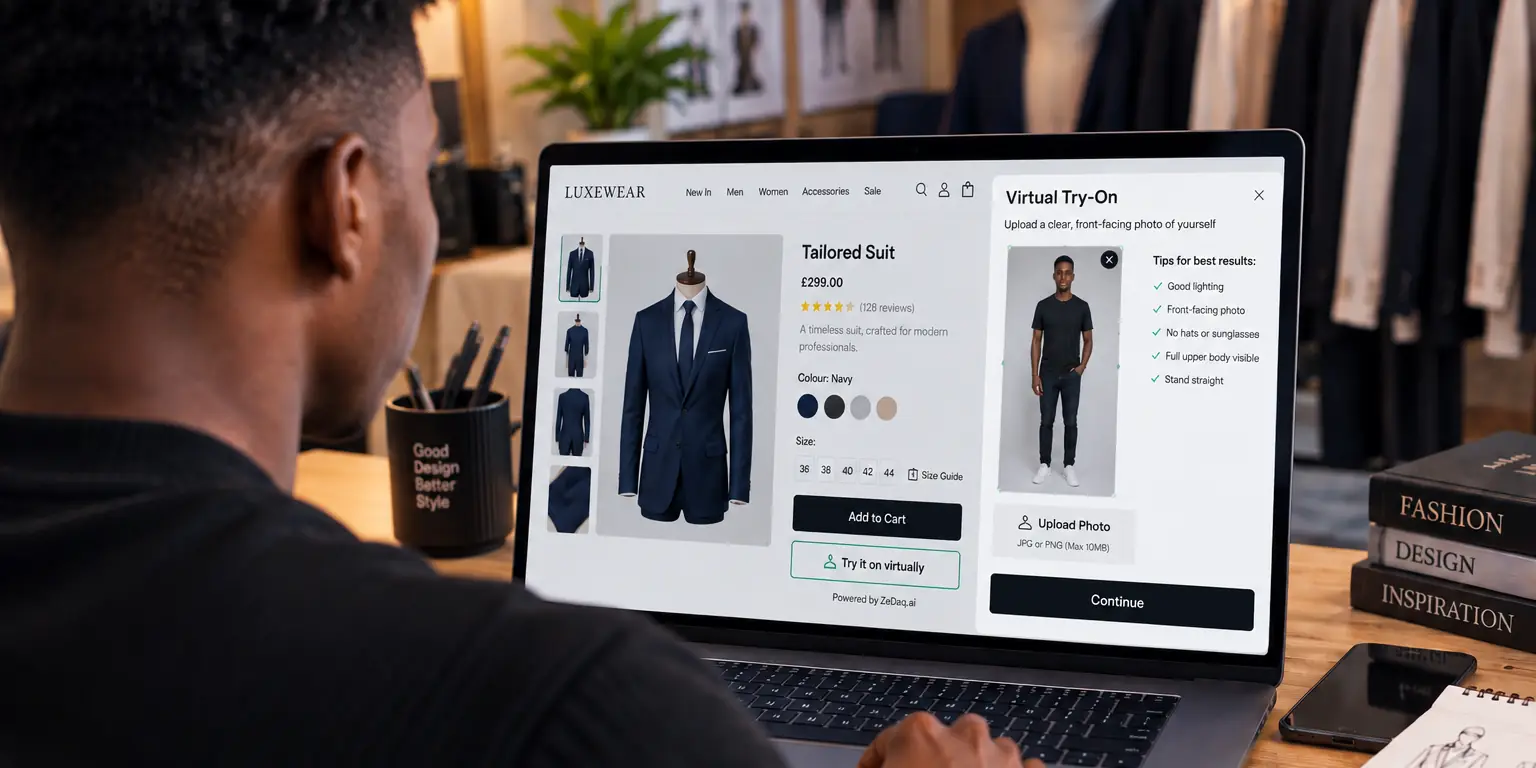
A table asks shoppers to measure themselves and compare. ZeDaq.ai offers a script-tag widget that works on Wix and other platforms. It adds a "Try it on" button and a "Find my size" button to your product page.
The shopper uploads one photo and enters their height. The scan matches their measurements to your own chart, which you enter in Dashboard → Size charts. The widget key must be locked to your domain, and the widget setup details explain how.
For a comparison with another platform, see how to add a size chart in WooCommerce and the WooCommerce size recommendation options. Store owners on Shopify can follow adding a size chart to Shopify product pages.
Add size recommendations to your Wix store
FAQs
Can I put a size chart on every Wix product at once?
Wix lets you create an info section once and apply it to other products. You still select it on each product, so name your sections clearly.
Can an info section hold a table?
Wix says info sections can include tables, images and GIFs. A table is easier to read and update than an image.
Is there a limit on product options?
Wix's help article says each product can have up to 6 product options and each option up to 100 choices. Check it for current limits.
Do I need a developer?
Not for an info section. The script-tag widget is a paste-in step, but a developer can help if you are unsure where to put it.
Try ZeDaq.ai free
Virtual try-on and Find my size for your store, plus client, order and invoicing tools for tailors, in one subscription.

