WooCommerce Product Swatches for Color and Size
By the ZeDaq.ai team · · 4 min read
On this page
- What are swatches, and why use them?
- How do you set up the attributes first?
- How can you display swatches?
- What should you look for in a swatch tool?
- How should you show color swatches?
- What is a quick swatch test checklist?
- How should you show size buttons?
- Do swatches replace sizing help?
- What about Shopify stores?
To add color and size swatches in WooCommerce, create your attributes as variable product options, then use a swatch plugin or a theme feature that turns the dropdowns into color dots and size buttons. WooCommerce's default is a dropdown, so swatches come from an extra tool.
Swatches speed up choosing, but they don't tell a shopper which size fits. For that, pair them with a size chart or a try-on widget, as covered in virtual try-on for WooCommerce.
What are swatches, and why use them?
A swatch is a small clickable color dot, image or label that replaces a dropdown menu. Shoppers see every color and size at once instead of opening a list.
For clothing, that means fewer taps on mobile and less chance of picking the wrong variant by accident.
How do you set up the attributes first?
Swatches sit on top of variations. Set these up before any plugin:
- Go to Products → Add New and choose Variable Product in the Product data dropdown.
- In the Attributes tab, add "Color" and "Size", then click Save Attributes.
- In the Variations tab, click Generate variations, then set price and stock.
- Save changes, publish, and check the product page.
WooCommerce's variable product guide describes these steps. It also lets you use global attributes, which you can reuse across products.
How can you display swatches?
You generally have three routes:
- A swatch plugin that converts attributes into color, image or button swatches.
- A theme with built-in swatches, if your theme provides them.
- Custom code by a developer, using the variation form.
Plugin features vary, and they change often. This article doesn't compare specific products. Read each plugin's own page before you install and confirm it works with your theme.
What should you look for in a swatch tool?
- Color swatches and text buttons for sizes.
- Clear display of out-of-stock sizes.
- Good behavior on phones, with large tap targets.
- Compatibility with your theme and product gallery.
- Updates that keep pace with WooCommerce.
Test on a real phone, not just a desktop browser.
How should you show color swatches?
Use a color dot for solid colors and a small photo for prints. A dot can't show a pattern, and print customers will want to see the real fabric.
Keep the color names short and consistent: "Navy", not "Navy-2024-final". The name should match what appears in the cart, the order email and your packing slip, so nobody has to guess.
When the shopper picks a color, the main product image should change to match. If it doesn't, check that each variation has its own image.
What is a quick swatch test checklist?
- Pick every color and confirm the image changes.
- Pick every size and confirm the price and stock update.
- Add to cart and check that the variant shown is the one you picked.
- Try an out-of-stock combination and read what the shopper sees.
- Repeat on a phone with a slow connection.
How should you show size buttons?
Use plain labels that match your size chart: S, M, L or UK 10. Mismatched labels cause confusion.
Show unavailable sizes crossed out instead of hiding them. Shoppers then know the size exists. The guide on adding a size chart in WooCommerce shows where to place the chart link beside your buttons.
Do swatches replace sizing help?
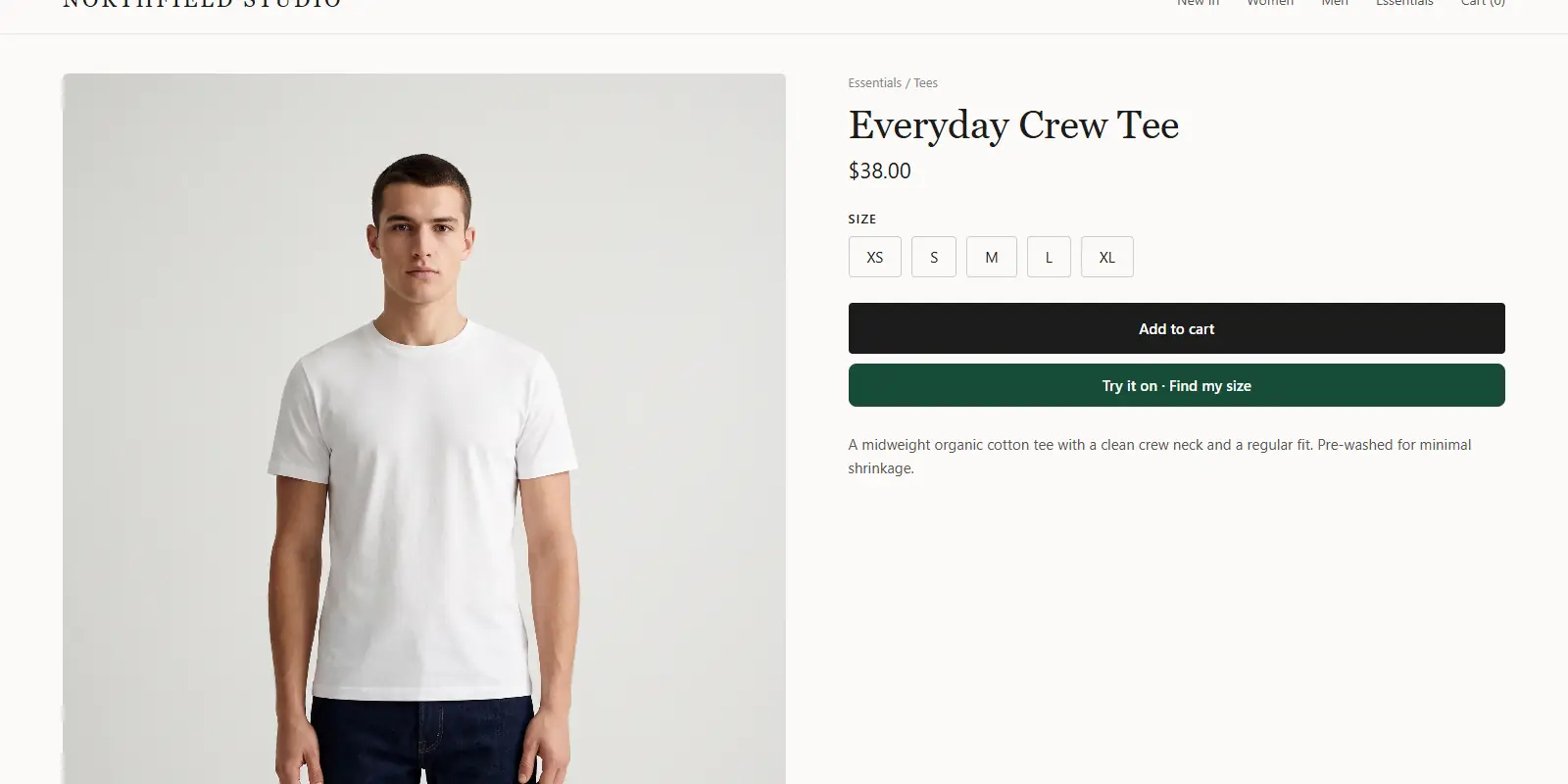
No. A button tells the shopper what exists, not what fits. Add a size recommendation next to the buttons.
With ZeDaq.ai, a script-tag widget adds "Try it on" and "Find my size" to product pages on WooCommerce, Wix, Squarespace, BigCommerce and custom sites. Paste the script into the product template, with a key locked to your domain from Dashboard → API keys. Setup details are in the widget documentation.
The recommendation uses your own size chart, entered in Dashboard → Size charts. For the full range of choices, see size recommendation options for WooCommerce.
What about Shopify stores?
The idea is the same, with different tools. The Shopify version of this guide is how to add color swatches in Shopify.
Add size help next to your swatches
FAQs
Does WooCommerce have swatches built in?
The default variable product display uses dropdowns. Swatches come from a plugin, a theme feature or custom code.
Do swatches work for size as well as color?
Yes. Most swatch tools support text or button swatches for sizes, but check the plugin's own description.
Will swatches slow down my store?
Any added plugin can affect speed. Test your product page on a phone before and after you install one.
Can I show a size recommendation beside the swatches?
Yes. The ZeDaq.ai widget adds a "Find my size" option to the product template, using your own size chart.
Try ZeDaq.ai free
Virtual try-on and Find my size for your store, plus client, order and invoicing tools for tailors, in one subscription.

