What Permissions Does a Shopify Try-On App Need?
By the ZeDaq.ai team · · 4 min read
On this page
A Shopify try-on app needs permission to read your product catalog and to add its button to your theme. Any other access should be explained on the app's listing, so read the permissions screen before you approve the install.
This guide shows how to read that screen and what ZeDaq.ai lists on its Shopify App Store page. For the full setup steps, see how to add virtual try-on to Shopify.
Where do you see an app's permissions?
You see them in two places, both before you commit:
- The App Store listing, where Shopify shows what data the app needs.
- The install screen, where you approve access before the app is added to your store.
Check both. If the install screen asks for more than the listing explains, pause and contact the developer.
What does ZeDaq.ai list on its App Store page?
Checked November 2026, the ZeDaq.ai listing says the app "needs access to the following data to work on your store." It lists:
| Access shown on the listing | Data named |
|---|---|
| View staff and contributor data | Name, email address, phone number, physical address |
| View products | Products, collections |
| Edit Online Store | Theme |
Read the listing yourself before you install, because it is the source of truth and can change. This article describes the listing as it stood on the check date.
Why would a try-on app need product access?
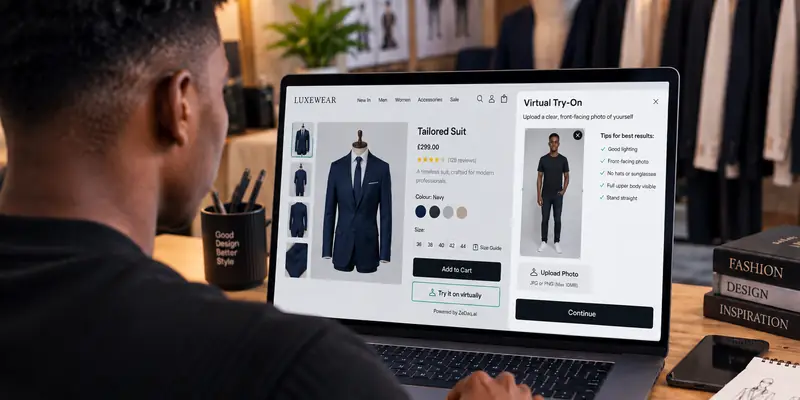
A try-on app must know which garment to show. Reading products and collections lets it find the product image and details on the page where the shopper taps the button.
Without any product access, the app could not match a try-on to the item the shopper is viewing.
Why would it need theme access?
The try-on button has to appear on your product page. Theme access lets the app support that placement. In the ZeDaq.ai app, you switch it on in the Theme Editor, and the listing says setup needs no code.
Theme access is a sensitive permission, so make a theme backup before any app change. Duplicate your live theme, then test on the copy.
What happens to the shopper's photo?
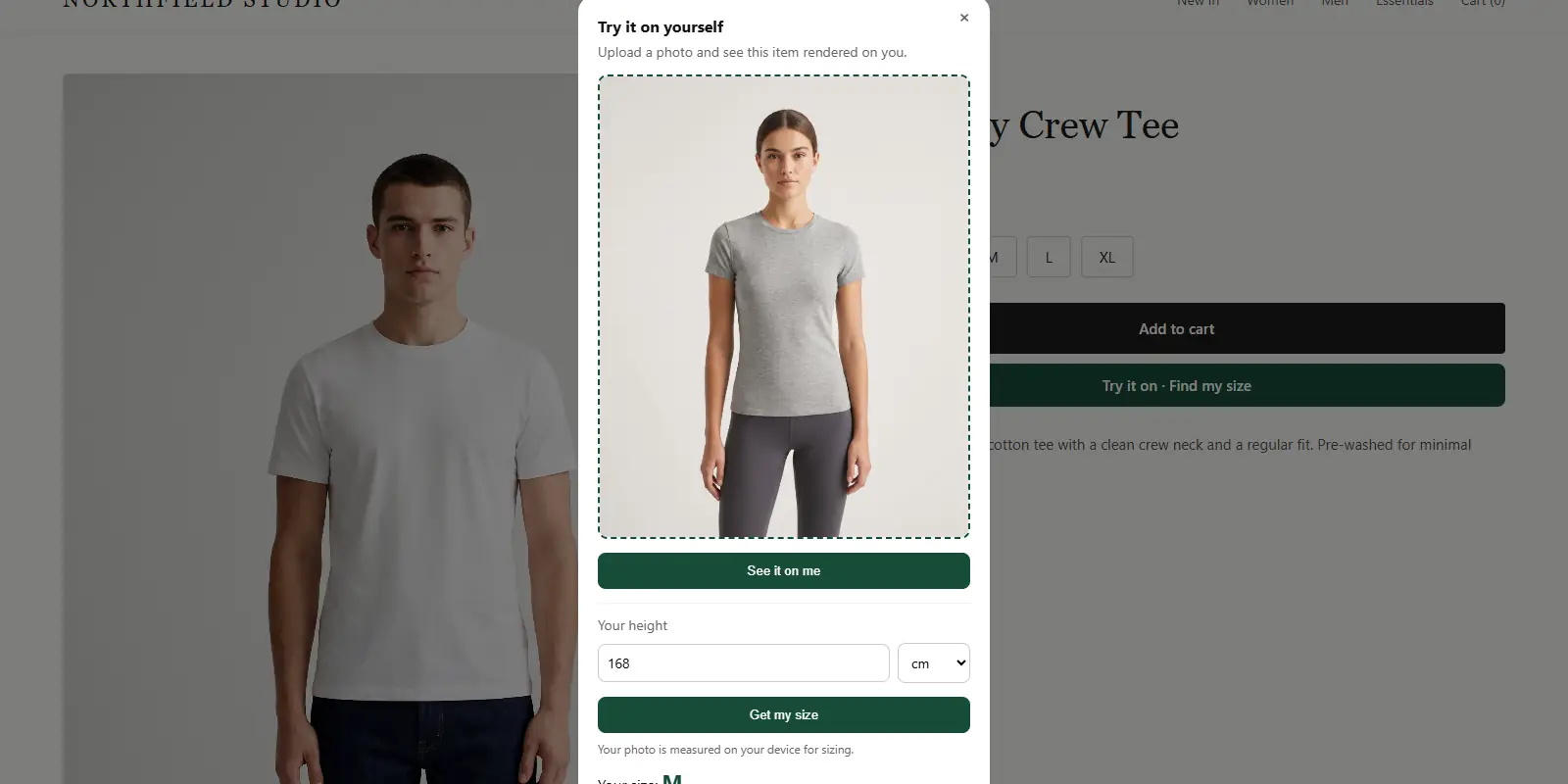
For sizing, the ZeDaq.ai listing says the photo is measured on the shopper's device. Only the measurements are used to find a size.
If a shopper also runs a try-on, the photo is sent so the image can be rendered. Tell shoppers this in your privacy policy. Check the privacy policy section of any app listing for how it handles data.
How do you judge any try-on app's permissions?
Use this checklist when you compare apps. The guide to comparing try-on apps on the App Store covers the rest of the evaluation.
- Does each permission match a feature you can see?
- Does the app ask for customer or order data it doesn't seem to need?
- Does the listing explain how photos are handled?
- Is there a clear way to contact the developer?
- Is the pricing clear before you install?
Cost also matters. ZeDaq.ai has a Free plan at $0 and a Micro plan at $14 a month, with the first month $1 for a first paid monthly plan, then $14 a month. Every paid plan has a 3-day free trial with no card required. The first-month price applies once per store and to monthly plans only. See how try-on app pricing works for the plan breakdown.
If you wonder whether you need an app at all, read whether Shopify has built-in virtual try-on.
Review the permissions and install
What should you do before you approve an install?
Take ten minutes to protect your store. These steps apply to any app, not only a try-on app.
- Read the listing. Note every permission and what feature it supports.
- Duplicate your theme. Install and test on the copy first if the app edits your theme.
- Check the developer. Look for a support contact and a privacy policy.
- Install on a quiet day. Avoid launches and sales.
- Test as a shopper. Open a product page on your phone and use the feature.
- Review again after updates. Apps can ask for new permissions, and Shopify will show you the change.
Keep a note of what you approved and when. If a staff member later asks why an app can see certain data, you will have an answer.
FAQs
Can I remove an app's access later?
Yes. You can uninstall an app from your Shopify admin, which ends its access. Ask the developer how long they keep data after uninstall.
Does the app see my customers' orders?
The ZeDaq.ai listing, checked November 2026, doesn't name orders in its access list. Read the current listing and the install screen to confirm before you approve.
Why does the listing mention staff data?
The listing names staff and contributor details, such as name and email, under "View staff and contributor data." Ask the developer if you want to know how it is used.
Do I need a developer to install a try-on app?
Not for ZeDaq.ai. The listing says setup is done in the Theme Editor with no code.
Try ZeDaq.ai free
Virtual try-on and Find my size for your store, plus client, order and invoicing tools for tailors, in one subscription.