Virtual Try-On on Webflow: What Are Your Options?
By the ZeDaq.ai team · · 5 min read
On this page
- Does ZeDaq.ai have a Webflow app?
- What does Webflow say about custom code?
- How do you add the widget to a Webflow product page?
- What should you know about product images?
- When is the REST API a better fit?
- How do you set up sizing for a Webflow store?
- Does this work for every kind of fashion store?
- How do you test the setup before launch?
- What should you tell shoppers about their photos?
- What questions should you ask before you start?
- What other platforms follow this pattern?
- What does it cost to test?
ZeDaq.ai has no Webflow-specific app, so virtual try-on on Webflow means adding the script-tag widget with a code embed, or calling the REST API from your own code. Webflow says its Code Embed element requires a paid site plan or Workspace, so check your plan before you start.
This guide is for fashion brands on Webflow and the designers who build their sites. The same widget is covered for another platform in the guide to virtual try-on for WooCommerce.
Does ZeDaq.ai have a Webflow app?
No. ZeDaq.ai is a Shopify app, a REST API, and a script-tag widget for WooCommerce, Wix, Squarespace, BigCommerce and custom sites. Webflow is not named, and there is no Webflow plugin.
A Webflow site is still a site you can add a script to. That makes the widget a reasonable thing to test, provided Webflow allows the code.
What does Webflow say about custom code?
Webflow's learning pages describe the Code Embed element as a way to place HTML, iframe embeds, or small CSS or JavaScript snippets directly in a page layout. They also say it "requires a paid site plan or Workspace." See the Webflow University lesson on the Code Embed element (checked November 2026).
The same page notes that embeds meant for other frameworks won't render in Webflow. A plain script tag is not a framework, but test it in a published page.
Webflow's help center blocked our automated check today, so confirm any plan details on Webflow's own pricing page.
How do you add the widget to a Webflow product page?
The widget is a single script tag. Here is the method:
- Create a key. In the ZeDaq.ai dashboard, open API keys and create one.
- Lock it to your domain. Because the key is visible in page source, it must be locked to your store's domain. Unlocked keys are refused.
- Add a Code Embed. In the Webflow Designer, drag a Code Embed element into your product page layout.
- Paste the script. Use the tag below with your own key.
- Publish and test. Open the published page on a phone and run a test photo.
<script src="https://www.zedaq.ai/widget/zedaq.js" data-key="YOUR_KEY" defer></script>
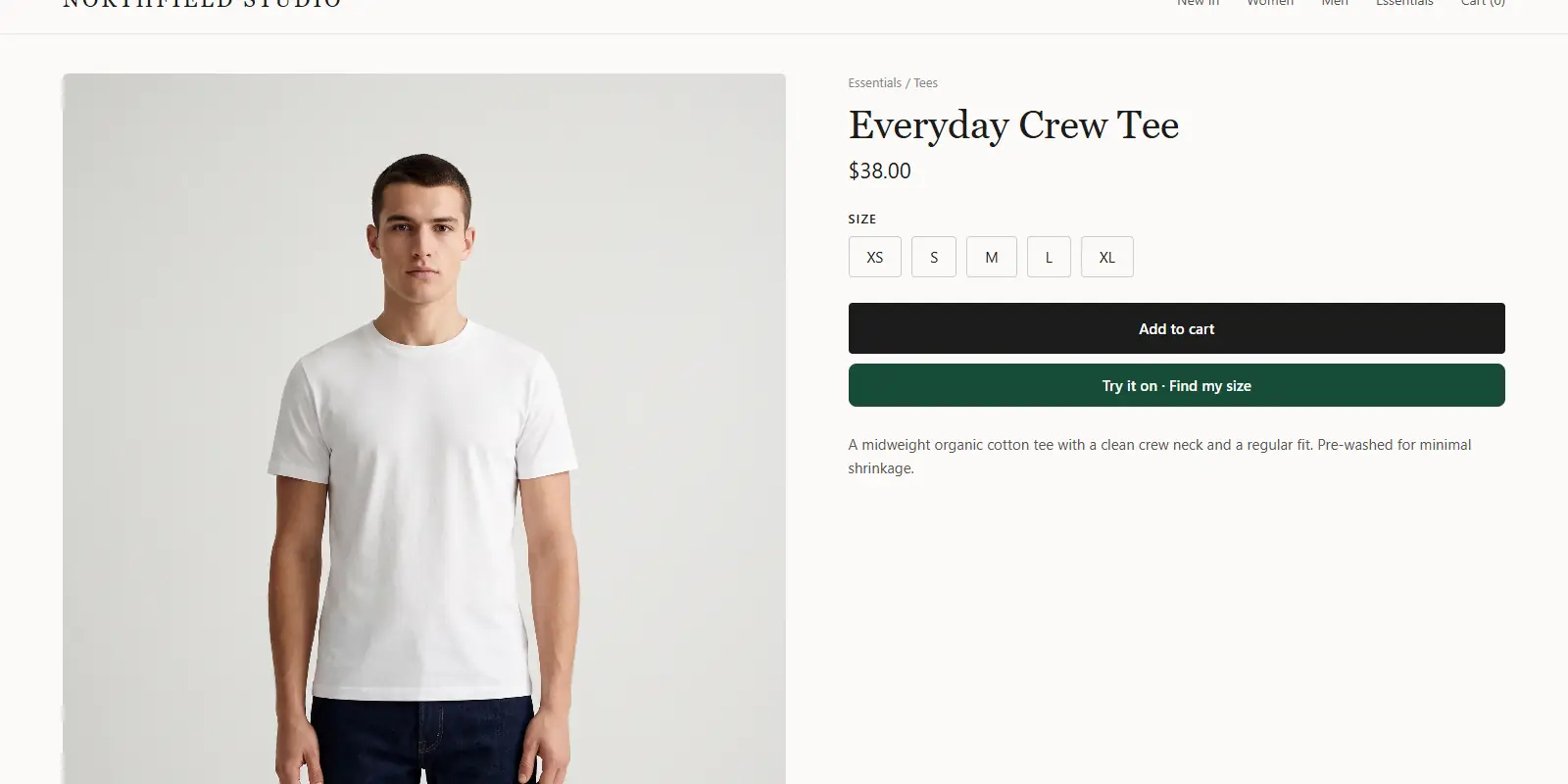
This adds a "Try it on" button and a "Find my size" option. The widget documentation lists optional attributes, such as choosing a target element, setting a product image, or changing the button label.
What should you know about product images?
The widget can only fetch product images from your own domain or common store CDNs. If your images live somewhere unusual, set a product image in the widget attributes and test that it loads.
On a site with many products, check one product per template before you roll it out.
When is the REST API a better fit?
Use the API when you want full control over the look and flow, or when your Webflow site calls a separate backend.
Send POST /api/v1/tryon with your key in an x-api-key header, and keep any key that is not domain-locked on your server. The API reference lists the request and error formats.
| Question | Widget | REST API |
|---|---|---|
| Needs a developer? | No | Yes |
| Own button and layout? | Limited | Full control |
| Works on a static Webflow page? | Yes, with a Code Embed | Needs a backend |
| Fastest to test? | Yes | No |
How do you set up sizing for a Webflow store?
Add your size guide in the ZeDaq.ai dashboard under Size charts, one chart per garment type: tops, outerwear, dresses and bottoms. The scan recommends your store's own labels and sizes up to the largest relevant measurement.
Set the garment type on the widget so each product uses the right chart. Without a chart, shoppers get a generic UK, US, EU or AU size.
Does this work for every kind of fashion store?
It works for any product page that shows a garment photo. Categories with close fits need extra testing, such as swim. The swimwear try-on guide shows what to check.
How do you test the setup before launch?
Test on one product first, using the published page on a phone.
- Check the button appears. If "Try it on" is missing, the script did not load on that page.
- Run a photo through. Use a full-length photo of yourself and see the garment render.
- Try "Find my size." Enter your height and compare the answer with your chart.
- Read any error codes. The docs list them:
missing_api_keyfor no key,invalid_api_keyfor a wrong or revoked key, anddomain_lock_requiredwhen the key is not locked to your domain.
Most setup problems come down to a key that is missing, wrong or not domain-locked, so check those first.
What should you tell shoppers about their photos?
Say it plainly near the button. For sizing, the photo is analyzed in the shopper's browser and only the measurements are sent. If the shopper also runs a try-on, that photo is sent to render the image.
Check any line you write against your own privacy policy before you publish.
What questions should you ask before you start?
A few quick checks save wasted effort. Write the answers down first.
- Is my Webflow plan paid? The Code Embed element needs a paid site plan or Workspace, per Webflow.
- Do I have my own domain? The widget key must be locked to your store's domain.
- Who will maintain it? Someone should own the key, the size charts and the test routine.
- Which products come first? Pick a handful of popular items and test those before the rest.
If you cannot add the script, the REST API on a custom front end is the other route.
What other platforms follow this pattern?
The same widget-or-API choice applies to other platforms without a dedicated app. See the guides on virtual try-on on Shopware and virtual try-on on Ecwid.
What does it cost to test?
The Free plan includes 3 try-ons, 3 measurements and 5 invoices a month. Paid plans start with Micro at $14 a month, and every paid plan has a 3-day free trial with no card required. Current details are on the pricing page.
Get an API key and test on your Webflow site
FAQs
Can I install ZeDaq.ai from Webflow's app marketplace?
No. There is no Webflow app. Use the script-tag widget with a Code Embed, or the REST API.
Do I need a paid Webflow plan?
Webflow says the Code Embed element requires a paid site plan or Workspace. Check your plan on Webflow's pricing page.
Why does the widget say domain_lock_required?
The key is not locked to your domain. Lock it in the dashboard under API keys, then reload your published page.
Do shoppers need to sign up?
No. Shoppers use try-on and "Find my size" on your product page with no account.
Try ZeDaq.ai free
Virtual try-on and Find my size for your store, plus client, order and invoicing tools for tailors, in one subscription.

