How to Use Video on Shopify Product Pages
By the ZeDaq.ai team · · 4 min read
On this page
- What can video show that photos can't?
- How do you add video to a product in Shopify?
- What should you film for a clothing product?
- What does a simple filming checklist look like?
- Where should the video sit on the page?
- Will video slow down your store?
- How does video fit with reviews, filters and returns?
- Should you use video or try-on for fit?
To use video on Shopify product pages, add a clip to the product's media in your admin, check that your theme shows it, and use it to show what photos can't: movement, drape and fit. Shopify's help center says product media can include images, 3D models and videos, and that videos display only if your theme supports them (Shopify Help Center).
This guide covers what to film for clothing, where to place it and how to avoid slowing your pages. It sits alongside the wider guide to adding virtual try-on to Shopify, because video and try-on answer different questions.
What can video show that photos can't?
Video shows motion and scale. For clothing, that matters because shoppers want to know how fabric moves and how it sits when someone walks.
- Drape and movement: How a skirt swings or a jacket hangs.
- Fabric detail: Sheen, texture and transparency.
- Fit on a body: How the garment looks from several angles on a real person.
- Scale: How long or cropped the piece is.
Photos stay better for close detail and quick scanning. Use both.
How do you add video to a product in Shopify?
Follow the steps in Shopify's help center, as the admin layout can change.
- In your Shopify admin, open Products and choose the product.
- In the media section, add your video file. The help page points to a separate article for file requirements, so check it before uploading.
- Reorder the media so the video sits where you want it.
- Save, then view the product page on your phone and on a computer.
Shopify notes that videos display only if your theme supports them. If yours doesn't, you'll need to update or modify the theme. That's the first thing to test.
What should you film for a clothing product?
Keep each clip short and focused on one job.
- A 360-degree turn so shoppers see the front, side and back.
- A walk or movement shot to show drape and flow.
- A detail pass across pockets, closures and seams.
- A size context shot with the model's height and size in the caption.
Film in steady light with a plain background. Hold the phone steady or use a tripod. Avoid heavy music or filters that change the color of the garment.
What does a simple filming checklist look like?
Use this list on shoot day.
- Charge the phone and clean the lens.
- Steam the garment so wrinkles don't distract.
- Pick a spot with soft daylight and a plain wall.
- Film in landscape or portrait, but match your theme's video shape.
- Keep the garment in the frame the whole time.
- Record the model's height and size worn, so you can add it to the page.
- Check the color on screen against the real garment.
A phone is enough for a first test. You can upgrade later if video proves useful.
Where should the video sit on the page?
Place it where shoppers will see it without hunting. Many stores put the video as the second or third item in the media gallery, after the main photo, so the page still loads with a clean first image.
Mobile matters most for fashion traffic, so check autoplay, sound settings and loading on a phone before you publish.
Will video slow down your store?
It can. Large files take longer to load, and slow pages frustrate shoppers. Keep clips short and compressed, and test your page speed before and after adding video. The guide to image sizes that work for Shopify clothing photos has the same advice for images.
Don't add video to every product at once. Start with your best sellers and measure whether page speed and sales change.
How does video fit with reviews, filters and returns?
Video works best as one part of a page that answers doubts in order: how it looks, how it fits, what others think and what happens if it's wrong.
- Pair video with strong reviews. See the roundup of Shopify product review apps for clothing brands.
- Help shoppers find items quickly with a product filter app for clothing.
- Make your return policy easy to find, as covered in how to display your return policy on product pages.
Each of these answers a different doubt, so you don't need to rely on video alone.
Should you use video or try-on for fit?
They solve different problems. Video shows the garment on one model. It can't show it on the shopper.
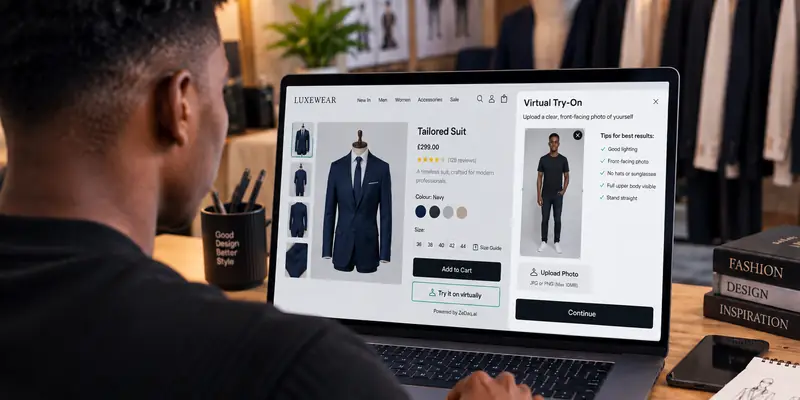
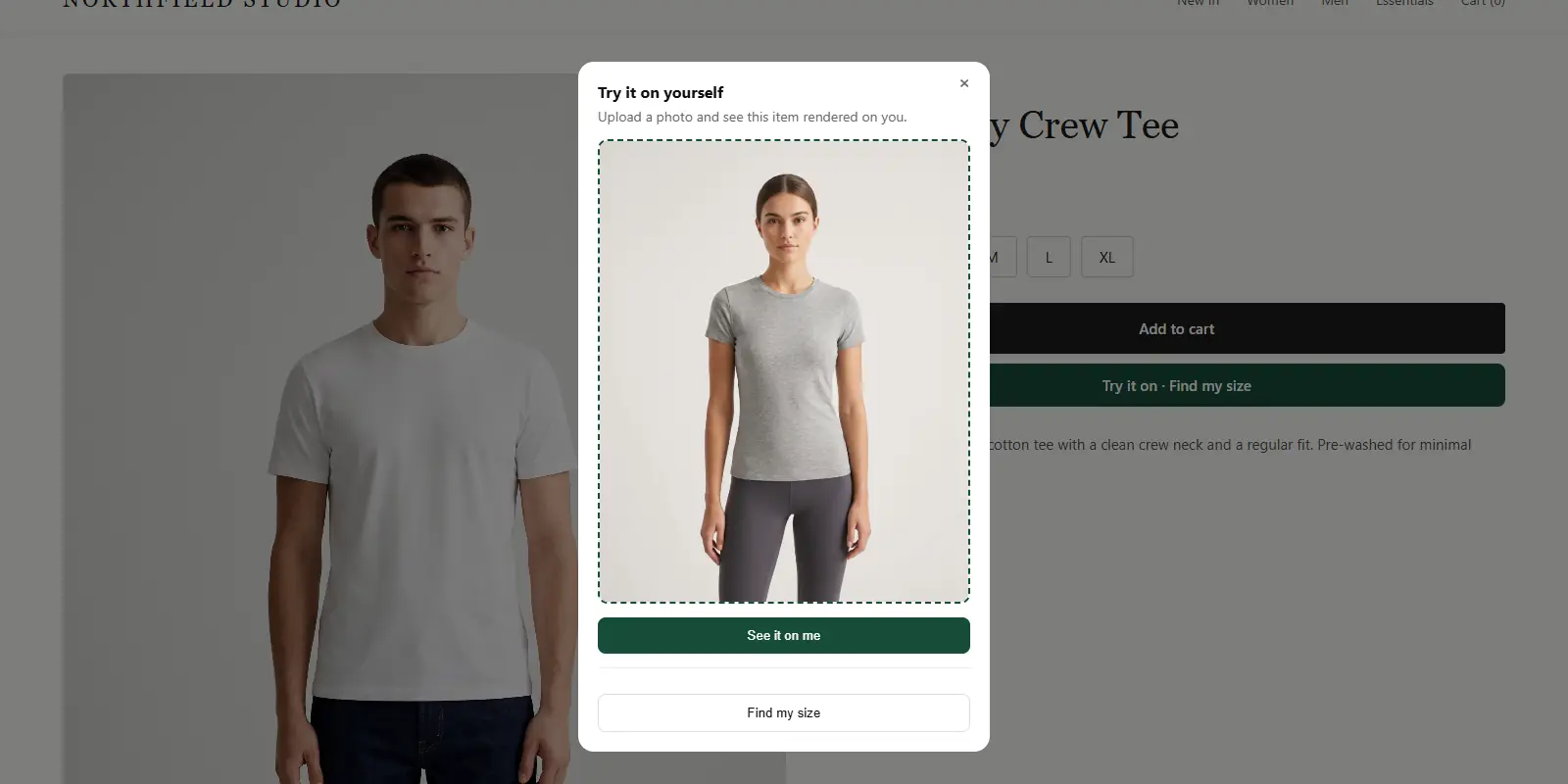
ZeDaq.ai is a Shopify app where the shopper uploads one photo and sees your real garment on their body. It can also recommend a size from a 30-second body scan, matched to your own size chart. Video builds interest, and try-on helps the shopper see the fit on themselves.
Show shoppers the fit on themselves
FAQs
Can I upload any video to Shopify?
Shopify's help center says there are file requirements, so check the "Uploading and managing files" article before you upload. Use short, compressed clips.
Why isn't my product video showing?
Shopify says videos display only if your theme supports them. Check your theme's product page settings or update the theme.
Should my video have sound?
Many shoppers watch with sound off, so make sure the clip works without it. Add a caption instead of relying on speech.
How long should a clothing product video be?
Keep it short enough that a shopper sees the key points in a few seconds. Test different lengths and see what holds attention.
Try ZeDaq.ai free
Virtual try-on and Find my size for your store, plus client, order and invoicing tools for tailors, in one subscription.