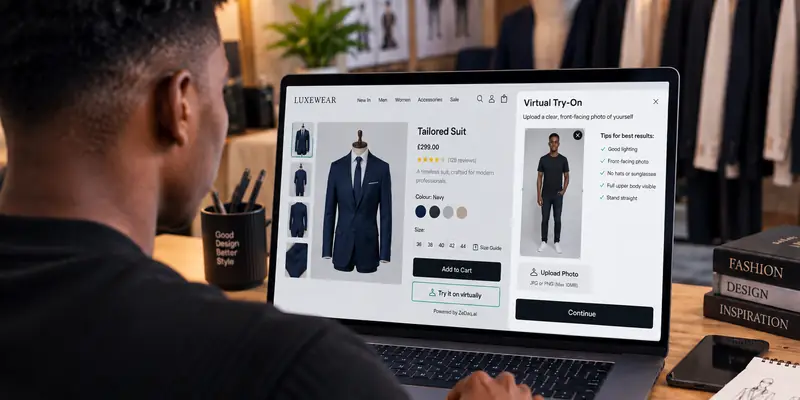
Does Virtual Try-On Work With Any Shopify Theme?
By the ZeDaq.ai team · · 4 min read
On this page
Virtual try-on works with most current Shopify themes, as long as the theme is an Online Store 2.0 theme. Older "vintage" themes may need extra work, so check your theme type before you install.
This guide shows you how to check, what to do if your theme is older, and how to test the result. For the full install process, see our guide on how to add virtual try-on to Shopify.
Why does your theme matter for a try-on app?
Most Shopify apps add buttons to your store through theme app extensions. These let an app place a block on your product page, or switch on a site-wide embed, without editing your theme code.
Shopify's developer documentation says "Theme app extensions can integrate with Online Store 2.0 themes," per Shopify's theme app extensions guide. That is why your theme type decides how smooth setup will be.
The ZeDaq.ai Shopify app works this way. You turn on its app embed in the Theme Editor, and the try-on button appears on product pages.
How do you check if your theme is Online Store 2.0?
You can check in a few minutes without any code.
- In your Shopify admin, go to Online Store → Themes.
- Click Customize on your live theme.
- Open a product page template in the editor.
- Look at the left sidebar. If you see App embeds, and you can add sections to the product page, your theme supports the modern setup.
If you can't find App embeds, your theme is probably a vintage theme. Check the theme's name and its listing in the Shopify Theme Store, or ask the theme developer.
Does try-on work with Dawn and other free Shopify themes?
Shopify's own free themes, such as Dawn, are Online Store 2.0 themes. Try-on apps that use app embeds should work with them without code changes.
If you bought a paid theme years ago, check the version you have installed. An older copy may be a vintage theme even if the current version is not.
What if you use a vintage theme?
You have three options:
- Update to a 2.0 theme. This is the cleanest fix. Many themes have a newer 2.0 version, or you can move to a free theme such as Dawn.
- Ask a developer to add the embed by hand. Some vintage themes can be edited to load an app, but this needs someone comfortable with Liquid (Shopify's template language).
- Wait and test on a copy. Duplicate your theme, try the switch on the copy, and only publish once you're happy.
Never test big theme changes on your live theme. Use Duplicate first, then work on the copy.
How do you test try-on on your theme before going live?
Once the app embed is on, test like a shopper would. Use this checklist on a phone and a laptop.
- The try-on button appears on product pages.
- The button doesn't overlap your add-to-cart button, price or images.
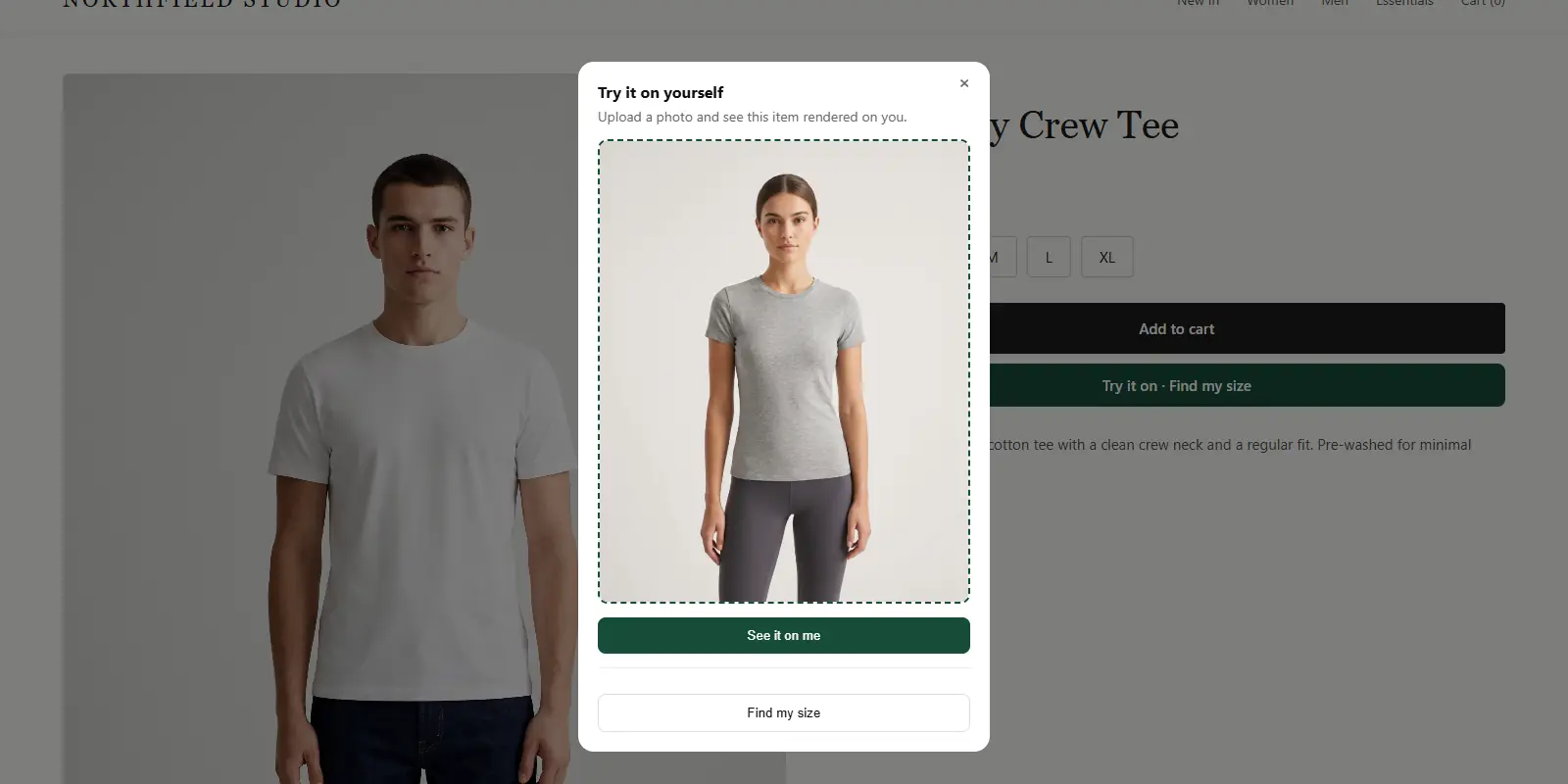
- Tapping it opens the try-on window on mobile without layout problems.
- "Find my size" appears inside the window and returns a size.
- Product pages still load quickly.
- Other apps on the page, such as reviews or upsells, still work.
If anything clashes, try the theme on a duplicate with other apps turned off, one at a time. That shows which app causes the conflict.
Common layout issues and quick fixes
- Button hidden below the fold on mobile. Check the product template's block order in the Theme Editor and move key blocks higher.
- Sticky add-to-cart bar covers the window. Test the try-on window with the sticky bar on and off, then contact the app's support if it still overlaps.
- Wrong garment type. In the embed settings, set the garment type to match the product, so the size scan uses the right chart.
Before you pay for anything, you can run this whole test on a free plan. Our guide to what a free try-on plan gives you on Shopify explains the limits.
Does Shopify include try-on in any theme by default?
No theme includes AI virtual try-on out of the box. You add it with an app. Our answer to whether Shopify has built-in try-on explains what Shopify itself offers.
If you are still choosing which app to use, compare options in our roundup of the best AI try-on apps for Shopify. Check that each one supports your theme before you install.
With ZeDaq.ai, the Free plan is $0 and includes 3 try-ons and 3 measurements a month. Paid plans start with Micro at $14 a month, and every paid plan has a 3-day free trial with no card required.
Check try-on on your own theme
FAQs
Do I need to edit theme code to add try-on?
Not on an Online Store 2.0 theme. You switch on the app embed in the Theme Editor and save.
Will try-on break my theme?
An app embed doesn't change your theme files. If something looks wrong, turn the embed off and the button disappears.
Can I use try-on on a custom-built theme?
Yes, if the theme supports app embeds. If it doesn't, a developer may need to add support, so test on a duplicate first.
Does try-on work on headless Shopify stores?
A headless store doesn't use a Shopify theme, so app embeds don't apply. Use the script-tag widget or the REST API in your storefront code instead.
Try ZeDaq.ai free
Virtual try-on and Find my size for your store, plus client, order and invoicing tools for tailors, in one subscription.