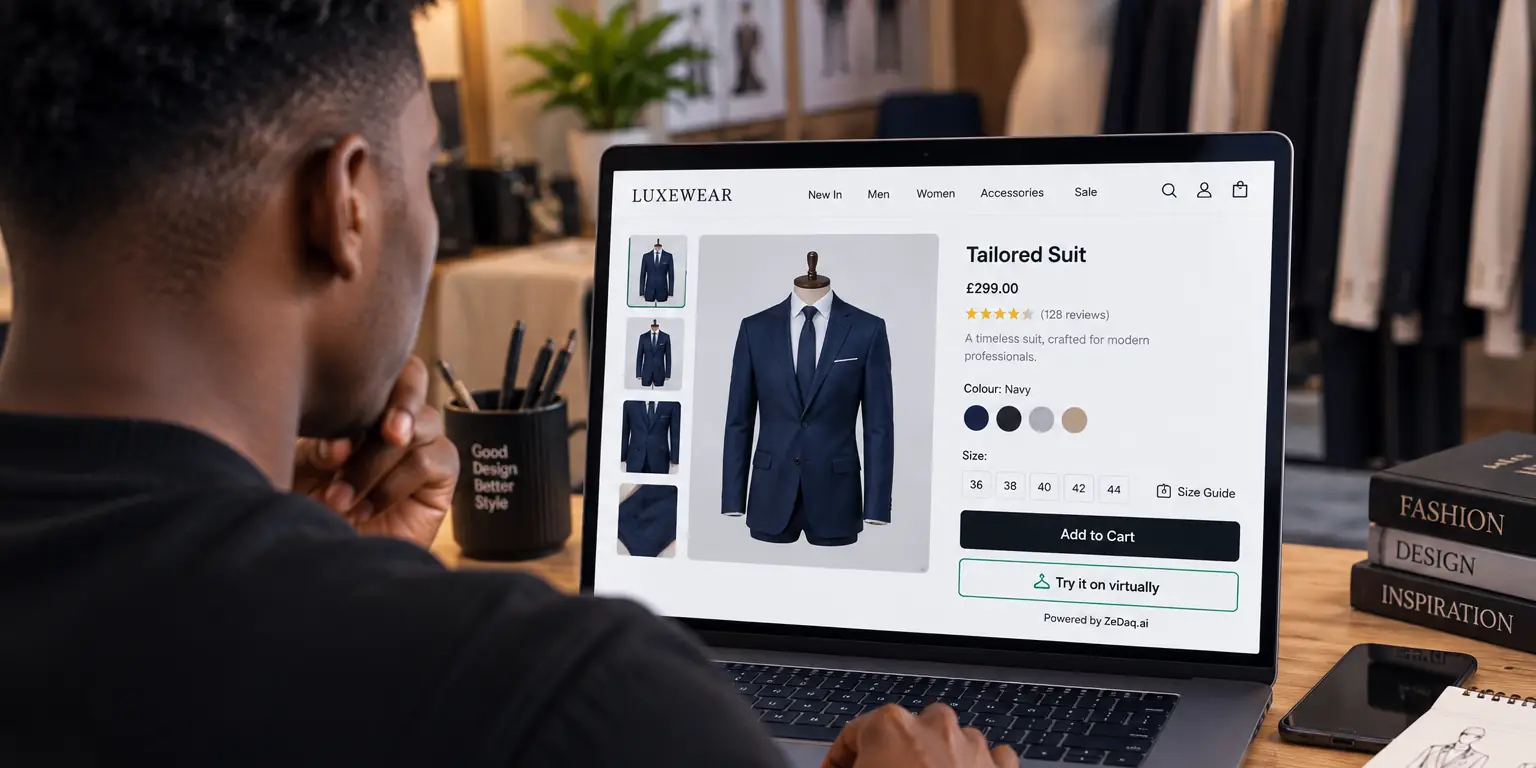
BigCommerce Product Options for Apparel
By the ZeDaq.ai team · · 5 min read
On this page
- What are product options in BigCommerce?
- Which options should create variants?
- How should you structure SKUs?
- How do you keep size labels consistent?
- How do BigCommerce and Shopify compare for apparel options?
- How do options connect to a size recommendation?
- How do developers call the API directly?
- What is a quick checklist for apparel options?
For apparel on BigCommerce, set up size and color as product options that create variants, give each combination its own SKU and stock level, and keep your size labels identical everywhere. Other options, such as monogram text, are better treated as add-ons that don't change stock.
Clear options also make fit tools easier to add. If you plan to add try-on later, the guide to virtual try-on for WooCommerce shows the script-tag approach that also works on BigCommerce. This article covers the option setup that comes first.
What are product options in BigCommerce?
Product options are the choices a shopper makes on a product page: size, color, a print, an engraving. In apparel, the most important are the ones that decide which exact item ships.
BigCommerce's own documentation is the authority on option types, limits and how variants are generated, and these can change. Check it for your plan before you build a large catalog. The rest of this article covers how to plan your choices, not the exact menu clicks.
Which options should create variants?
An option that changes the physical item should create a variant. Size and color almost always do.
A variant is one specific buyable version, for example "Navy, Medium". Each one needs its own stock count, because you can sell out of Medium while Large is still available.
Options that don't change the item, such as a gift message, should not create variants. Treat them as add-ons so they don't multiply your SKUs.
How should you structure SKUs?
Give every size and color combination a unique SKU. A readable pattern helps your team pick and pack without errors.
A common pattern is style, color, then size:
| Part | Example | Meaning |
|---|---|---|
| Style | TEE01 | The product |
| Color | NVY | The color |
| Size | M | The size label |
| Full SKU | TEE01-NVY-M | One variant |
This is an example pattern, not a BigCommerce requirement. Pick one that suits your team and use it everywhere. If you want advice on labeling stock to match, see the notes on size options and variant planning, which apply across platforms.
How do you keep size labels consistent?
Use one set of labels for sizes across your options, your size chart and your stockroom. If your product options say "M" but your size chart says "Medium", shoppers and tools get confused.
Decide on a label system first, then apply it:
- Letters: XS, S, M, L, XL
- Numbers: 8, 10, 12, 14 (say which country system you use)
- Both: M (UK 12), if you serve several regions
Whatever you choose, tools that recommend a size will suggest one of your own labels. That only works smoothly if the labels on your product options match your size chart exactly.
How do BigCommerce and Shopify compare for apparel options?
Both platforms handle size and color variants. The differences are in setup details and limits, which vary by plan and over time. The comparison of BigCommerce versus Shopify for apparel looks at the wider picture, including themes and apps.
If you are also looking at other builders, the guide to Wix Stores product options for clothing sizes covers how Wix approaches the same job.
How do options connect to a size recommendation?
A size recommendation tool needs two things from your store: your size chart and a way to tell which garment type a product is. Your product options must then let the shopper pick the suggested size in one tap.
With ZeDaq.ai, merchants enter their own size guide in the Dashboard under Size charts, one chart per garment type (tops, outerwear, dresses and bottoms). The scan then recommends your own labels. The shopper's measurements are matched to your chart, and a generic UK, US, EU and AU chart is the fallback.
On a custom or BigCommerce storefront, you add the script-tag widget to the product template and set the garment type. The widget adds a "Try it on" button and a "Find my size" option. The setup details are in the widget documentation.
How do developers call the API directly?
If you build your own storefront or a headless setup on top of BigCommerce, you can call the REST API instead of using the widget. Send a request to POST /api/v1/tryon with an x-api-key header. The full reference is in the API documentation.
Keep keys on the server for API calls. For the widget, the key appears in your page source, so lock it to your store's domain in the Dashboard under API keys.
For a developer-focused overview, read the try-on API guide for developers.
What is a quick checklist for apparel options?
- Size and color create variants, each with its own SKU.
- Add-ons such as monograms do not create variants.
- Size labels match your size chart exactly.
- Sold-out variants are easy to see.
- Each product has the right garment type for fit tools.
- You tested one product on a real phone before adding the rest.
Add try-on and sizing to your own storefront
FAQs
Should size be an option or a separate product?
An option, in almost every case. One product with several variants keeps reviews, images and stock together and is easier for shoppers to understand.
How do I handle a size that exists in only one color?
Create the variants that exist and leave out the ones that don't. Shoppers will then only see combinations you can ship.
Can I use different size charts for different products?
Yes. Fit tools that support it use one chart per garment type, so tops and trousers can have different ranges.
Do I need an app to add try-on to BigCommerce?
ZeDaq.ai does not have a BigCommerce app. Use the script-tag widget on the product template, or the REST API.
Try ZeDaq.ai free
Virtual try-on and Find my size for your store, plus client, order and invoicing tools for tailors, in one subscription.

