How to Set Up Size Variants in Shopify for Clothing
By the ZeDaq.ai team · · 4 min read
On this page
- What is a variant in Shopify?
- How do you add size variants step by step?
- How should you name and order sizes?
- How do you handle many sizes and colors?
- How do you manage stock for each size?
- How do variants connect to size charts and size advice?
- What common mistakes should you avoid?
- How do you test your variants before launch?
- What if a product has only one size?
To set up size variants in Shopify, open the product, add an option called Size, type each size as a value, then set the price, SKU and stock for every variant. You can add a second option such as Color to make combinations like Medium in Black.
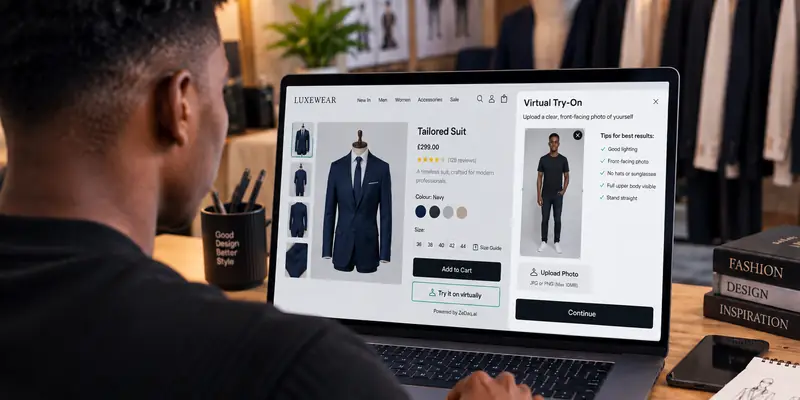
Menus in the Shopify admin change from time to time, so check the current wording in the Shopify Help Center. Once your variants are right, the next step is helping shoppers choose between them, as covered in adding virtual try-on to Shopify.
What is a variant in Shopify?
A variant is one version of a product that shoppers can buy, such as a medium blue shirt. Each variant has its own price, SKU (a stock code you assign), barcode and inventory count.
Options are the choices that create variants. For clothing, the usual options are Size and Color.
How do you add size variants step by step?
- In your Shopify admin, go to Products and open the product, or add a new one.
- Find the Variants section and choose Add options like size or color.
- Name the first option Size.
- Type the values, such as XS, S, M, L and XL, in the order you want them shown.
- Add a second option, Color, if needed, and type each color.
- Select Done. Shopify creates a row for each combination.
- Set price, SKU and stock for each row.
- Save the product.
How should you name and order sizes?
Be consistent across every product. If one shirt says Medium and another says M, filters and reports become messy.
- Pick one format. Letters, numbers or both, such as "UK 12", but use it everywhere.
- Order smallest to largest. Drag values into order so the picker reads naturally.
- Add the region if you sell abroad. "US 8" and "UK 12" mean different things.
- Avoid extra words. Put fit notes in the description, not the variant name.
How do you handle many sizes and colors?
Each product has limits on options and variants, which Shopify sets and may change. Check the Shopify Help Center for the current figures before you plan a large range.
If you hit a limit, split products by color or use separate listings. A common approach is one product per color with sizes as variants.
Use bulk tools
For many products, Shopify lets you import and export through a CSV file. This is faster than editing one by one. Always save a backup before a bulk edit.
How do you manage stock for each size?
Set stock per variant, not per product. A shopper should see "out of stock" for Small while Large stays available.
Sold-out sizes are a sales chance. A back-in-stock app for size restocks can collect emails for the missing size and notify shoppers when it returns.
How do variants connect to size charts and size advice?
Variants say which sizes exist. They do not tell a shopper which one will fit. Add a size chart on the product page, and make sure its labels match your variant names exactly.
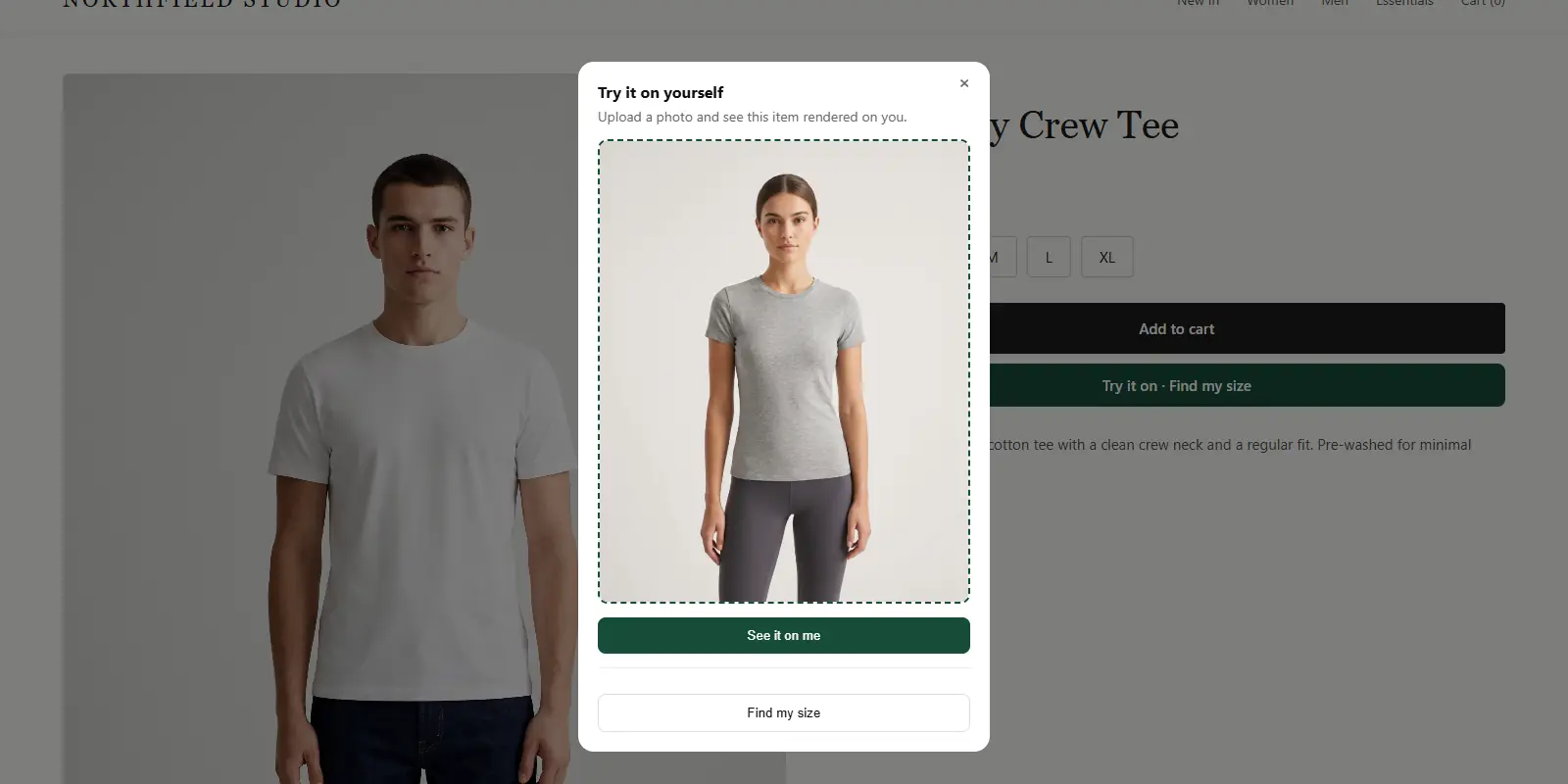
ZeDaq.ai can suggest a size from a 30-second body scan, matched to your own size chart. The recommended label then lines up with your variants if you named them the same way. Your chart is entered in the app, one per garment type. For other chart tools, see alternatives to ESC size charts.
If you sell in several markets, name sizes carefully, and read multi-currency and multi-language fashion stores for what to set up first.
What common mistakes should you avoid?
- Typing sizes differently on each product. Pick one format and stick to it.
- Forgetting to track inventory. Turn on tracking for each variant.
- Mixing flat and body measurements. Say clearly which your chart uses.
- Leaving SKUs blank. SKUs make stock counts and reports easier.
- Hiding sold-out sizes. Showing them as unavailable tells shoppers the size exists.
How do you test your variants before launch?
Open the product page on your phone. Pick each size and color, and check that the price, image and stock status change correctly. Add a variant to the cart and go through checkout to the payment step without paying.
Fix anything odd before you publish the product.
What if a product has only one size?
Some items, such as scarves or bags, have no size choice. You do not need a Size option for them. Add the product with a single default variant and put dimensions in the description.
For one-size garments such as a loose kaftan, say so clearly and give the measurements it fits. That avoids returns from shoppers who assume a standard size.
Match the right size to each shopper
FAQs
Can I add sizes to many products at once?
Yes. Use a CSV import or Shopify's bulk editor. Back up your data first.
Should size and color be separate products?
Usually they are options of one product. Split by color only if you reach limits or need different photos and pricing.
Why do my variants show out of stock?
Check inventory for each variant and the location tracked. A variant with zero stock shows as sold out.
Can I charge different prices for larger sizes?
Yes. Price is set per variant, so you can change it for a size. Be clear with shoppers so the price difference is not a surprise.
Try ZeDaq.ai free
Virtual try-on and Find my size for your store, plus client, order and invoicing tools for tailors, in one subscription.