Adding Your Own Size Chart to ZeDaq.ai as a Nigerian Brand
By the ZeDaq.ai team · · 4 min read
On this page
To add your own size chart to ZeDaq.ai, open Dashboard → Size charts (or the size chart section in the Shopify app), pick a garment type and enter the body measurements for each of your sizes. Once saved, every size scan on that garment type recommends your brand's labels instead of a generic chart.
This matters for Nigerian brands because your patterns are your own. A size chart copied from a foreign retailer won't match what your tailors in Aba or Ibadan actually cut. This guide takes you from a notebook chart to a working one. For the wider picture, see our guide on sizing and try-on for African brands.
What should you prepare before you open the dashboard?
Gather these first so you can finish in one sitting:
- Your size labels for each garment type (for example S to XXL, or 8 to 20).
- Body measurements for each size, not garment measurements.
- Your preferred unit: centimeters or inches.
- A list of which products belong to which garment type.
If your current chart only shows garment widths, convert it. Ask your head tailor what body each size is cut to fit, then write those numbers down.
Which garment types can you add?
ZeDaq.ai supports one chart per garment type:
| Garment type | Typical Nigerian products | Measurements to enter |
|---|---|---|
| Tops | Peplum tops, shirts, senator tops, blouses | Chest or bust |
| Outerwear | Jackets, kimonos, agbada outer layers | Chest or bust |
| Dresses | Ankara gowns, Adire shift dresses, Aso-ebi styles | Bust, waist and hips |
| Bottoms | Skirts, trousers, palazzos, wrapper skirts | Waist and hips |
You don't need all four on day one. Start with the type that brings the most size questions in your DMs.
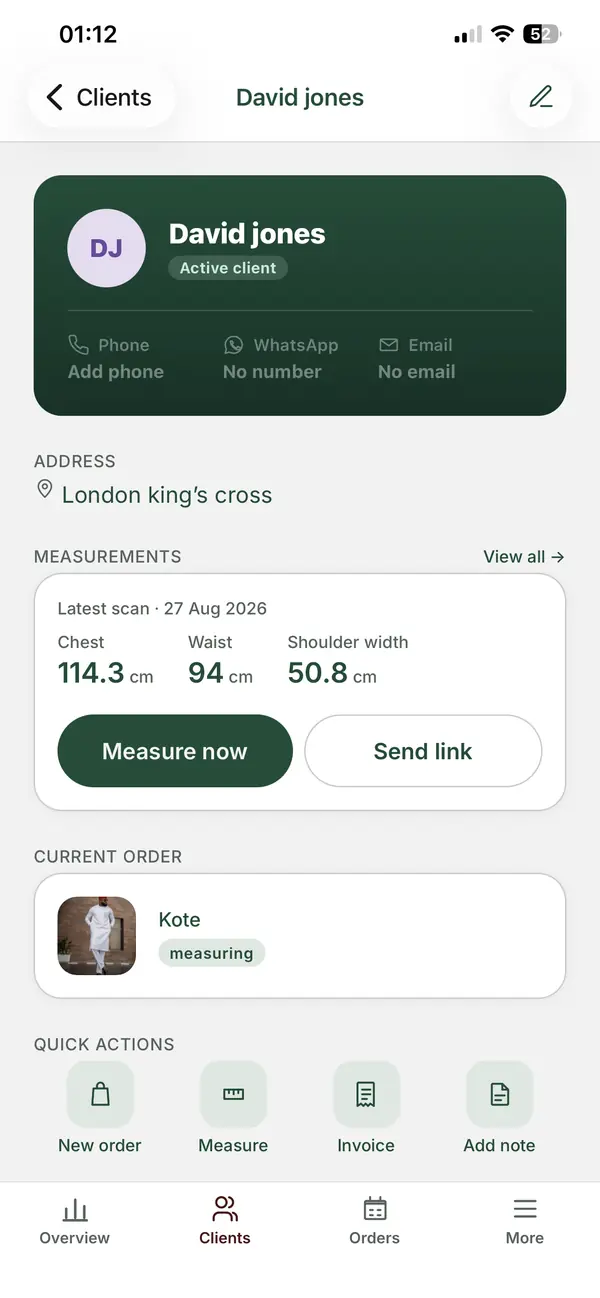
How do you enter the chart step by step?
Step 1: Open Size charts
Log in and open Dashboard → Size charts. On Shopify, open the ZeDaq.ai app inside your admin and go to the size chart section.
Step 2: Choose a garment type
Pick tops, outerwear, dresses or bottoms.
Step 3: Set your unit
Choose centimeters or inches. Use the unit your team measures in, so nobody has to convert.
Step 4: Add your sizes
For each size, type your label and the minimum and maximum for each measurement. Use your own labels exactly as they appear on your product pages.
Step 5: Check the ranges
Make sure each range meets the next. If size 12 ends at 101 cm hip and size 14 starts at 104 cm, a 102 cm customer falls into a gap. Close it.
Step 6: Save and test
Run a scan yourself on a product of that garment type. Check that the suggested size matches what your team would choose.
Should you use letters, numbers or both?
Use whatever your customers already see on your product pages. The chart accepts your own labels, so "M", "12" or "UK 12" all work.
If you're still deciding, our guide to letter sizes, number sizes or measurements compares the options for local and diaspora shoppers.
How does the scan use the chart you entered?
When a shopper taps "Find my size", they upload one photo and enter their height. The scan estimates their measurements and compares them to your chart for that garment type.
If their measurements point to two sizes, the scan recommends the larger one, based on the largest relevant measurement. A dress that is slightly loose at the waist can be taken in. One that won't pass the hips can't. The full process is covered in our guide to how a body scan picks a size.
If you want the background on how chart matching works, our article on AI size recommendation explains the broader method.
What does it cost to start?
The Free plan includes 3 measurements a month, enough to test your chart. Paid plans start with Micro at $14 a month, and every paid plan has a 3-day free trial with no card required.
Try ZeDaq.ai free for 3 days
FAQs
Can I edit my chart after saving it?
Yes. Update it whenever you change a pattern, and run a quick test scan afterward.
What happens to products without a chart?
Shoppers still get a size, from a generic UK, US, EU or AU chart. Adding your own chart replaces that with your labels.
Can I use different charts for women's and men's tops?
Each garment type has one chart. If your men's and women's tops are cut very differently, keep your labels distinct and check your ranges carefully.
Do I need a Shopify store to add a chart?
No. You can add charts in the ZeDaq.ai dashboard and use the script-tag widget on WooCommerce, Wix, Squarespace, BigCommerce or a custom site.
Try ZeDaq.ai free
Virtual try-on and Find my size for your store, plus client, order and invoicing tools for tailors, in one subscription.