Adding Virtual Try-On to a Shopify Plus Store
By the ZeDaq.ai team · · 6 min read
On this page
- What is different about try-on on Shopify Plus?
- Who should own the try-on rollout on a Plus team?
- How do you roll out try-on across several Plus stores?
- What does the shopper experience on a Plus storefront?
- How should a Plus store plan for try-on volume?
- Can you use try-on outside the Shopify theme?
- What should you check before going live in every market?
To add virtual try-on to a Shopify Plus store, install a try-on app from the Shopify App Store on each store you run, add your size charts, and switch on the app embed in your theme. Plus doesn't change how the app works, but it does change how you plan the rollout, because a Plus organization often runs several stores.
This guide focuses on that planning: who owns the setup, how to handle expansion stores, and how to test before every market goes live. For the basic steps on a single store, start with the standard Shopify try-on setup guide.
What is different about try-on on Shopify Plus?
The app itself is the same on every Shopify plan. What differs is the shape of a Plus business.
Shopify Plus is Shopify's plan for larger merchants.
Many Plus brands run expansion stores, which Shopify's help center describes as additional stores under one organization. Each of those stores "operates completely independently," with its own data and settings, according to Shopify's guide to expansion stores.
That has three practical effects for try-on:
- Each store needs its own setup. Products, settings and size charts don't sync between stores by default.
- Each store has its own app billing. Shopify's same help page says apps are billed per store, not per organization.
- More people touch the theme. Plus teams often have a developer, a merchandiser and an agency working on one storefront.
See what your shoppers will see
Try it on yourself
Live renderUpload a photo, pick a piece, see it rendered on you.
Pick something to try on
Who should own the try-on rollout on a Plus team?
Pick one owner before you install anything. On a large team, try-on touches three areas, and each one needs a name next to it.
| Area | Typical owner | What they do |
|---|---|---|
| App install and plan | Ecommerce manager | Installs the app on each store and picks the plan |
| Size charts | Merchandising or product team | Enters one chart per garment type, per store |
| Theme embed | Developer or agency | Turns on the app embed and checks it in the live theme |
| Testing | Customer service lead | Tries real products and flags odd results |
A clear owner list stops the common problem where the app is installed but nobody adds a size chart. Without a chart, shoppers get a generic UK, US, EU or AU size instead of your own labels.
How do you roll out try-on across several Plus stores?
Start with one store, learn from it, then copy the setup. A staged rollout is easier to fix than a launch across every market on the same day.
Step 1: Choose a pilot store
Pick the store with the most fit questions from shoppers. Your customer service inbox usually shows which one that is.
Step 2: Install the app
Install ZeDaq.ai from the Shopify App Store on the pilot store and approve the permissions. The app opens inside that store's Shopify admin.
Step 3: Add size charts per garment type
ZeDaq.ai uses one chart per garment type: tops, outerwear, dresses and bottoms. Enter the body measurements for each size, not the flat garment measurements. If your markets use different labels, such as UK 12 in one store and US 8 in another, enter each store's labels in that store's charts.
Step 4: Switch on the app embed
In the theme editor, open App embeds and turn on the ZeDaq.ai embed. Set the garment type so each product uses the right chart. If you test theme changes on a duplicate theme first, turn the embed on there too.
Step 5: Test, then copy to the next store
Run try-on and Find my size on your own phone across several products. When the pilot store looks right, repeat steps 2 to 4 on the next expansion store.
If your team has more setup questions, the fitting room setup questions answered cover common points about themes, charts and testing.
What does the shopper experience on a Plus storefront?
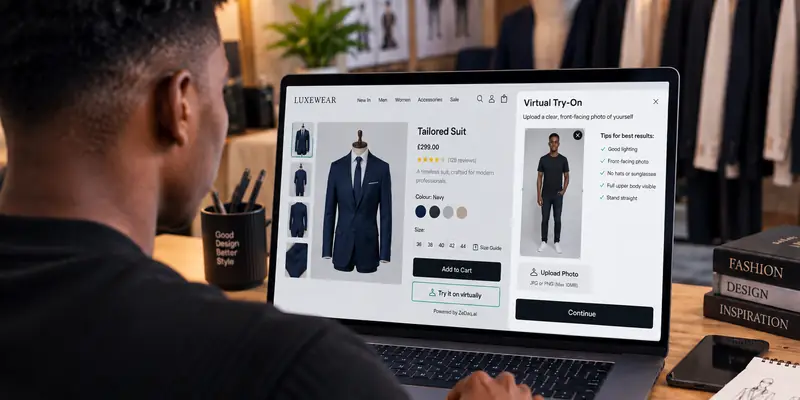
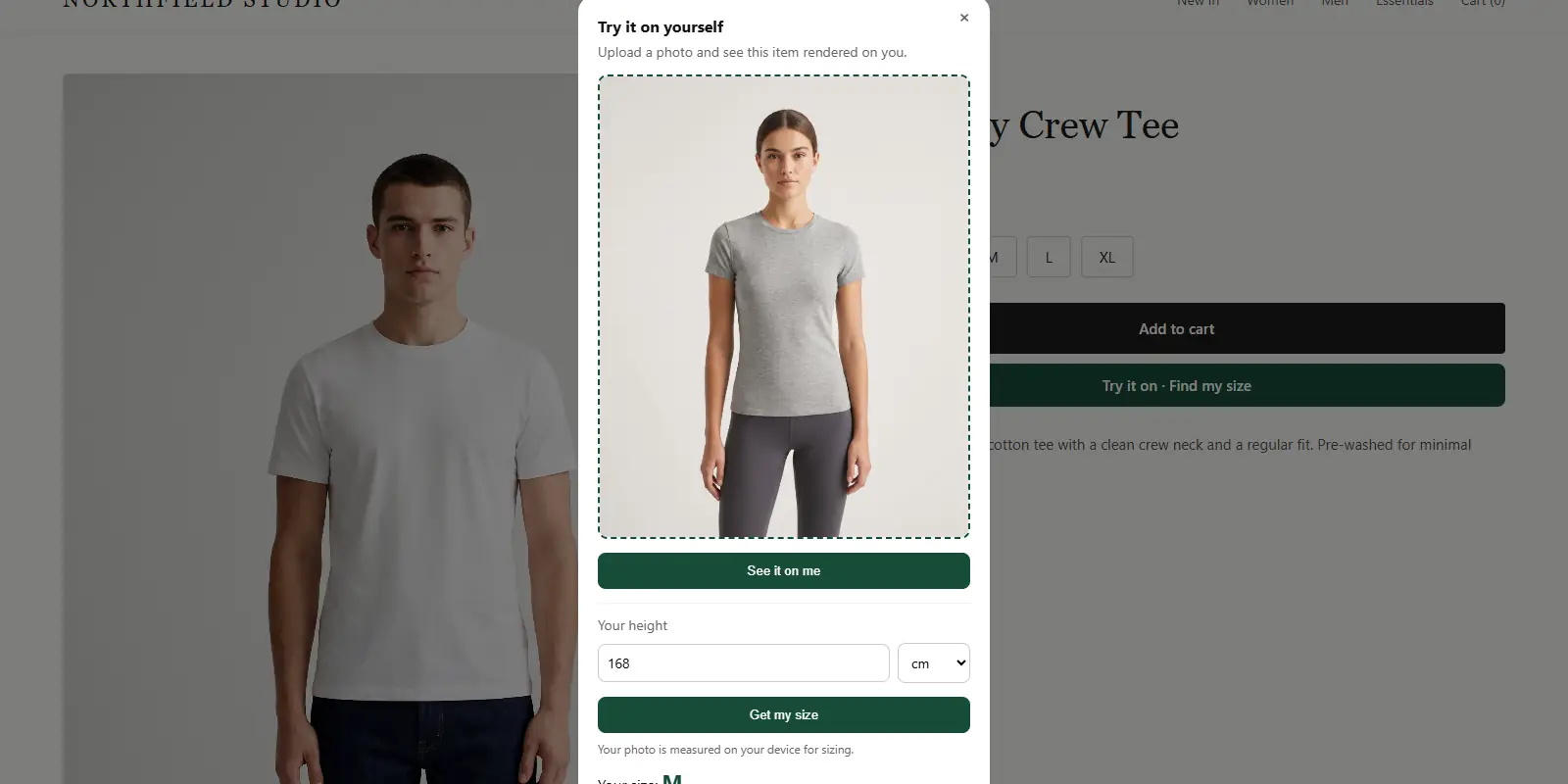
The shopper taps Try it on on the product page and uploads one photo. They see your real garment on their own body, without leaving your store or creating an account.
They can also tap Find my size and enter their height. The measurement runs on the shopper's device, and the result is matched to your size chart. If they fall between two sizes, the app suggests the larger one.
For eyewear, ZeDaq.ai also offers a live-camera try-on. That suits Plus brands that sell sunglasses or frames alongside clothing.
How should a Plus store plan for try-on volume?
Plus stores usually get more traffic than smaller shops, so plan usage before launch. Each try-on render and each size scan counts toward your monthly plan.
ZeDaq.ai plans are listed below. Every paid plan has a 3-day free trial with no card required.
| Plan | Price |
|---|---|
| Free | $0 (3 try-ons and 3 measurements a month) |
| Micro | $14/mo |
| Starter | $49/mo |
| Growth | $129/mo |
| Scale | $299/mo |
Because Shopify bills apps per store, each expansion store picks its own plan. A small market might stay on a lower plan while your main store runs a higher one. Current prices are on the ZeDaq.ai plans page.
For a full breakdown of how renders and scans are counted, read how Shopify try-on pricing works.
Can you use try-on outside the Shopify theme?
Yes. Some Plus brands also run a mobile app or a headless storefront, where the Shopify theme embed doesn't apply.
For those, ZeDaq.ai offers a REST API. Your developers send the shopper photo and garment to the API and show the result in your own interface. The guide to try-on through a REST API walks through how that works.
What should you check before going live in every market?
Use this checklist on each store before you announce try-on:
- The app is installed and a plan is chosen.
- Every garment type you sell has its own size chart.
- Size labels match that store's market.
- The app embed is on in the live theme, not only a draft.
- Garment type is set correctly on key products.
- Your team has run try-on and Find my size on real products, on a phone.
- Your privacy page explains in plain words how shopper photos are used.
- Customer service knows how to answer "how does this work?"
Start with your pilot store
FAQs
Does ZeDaq.ai need a special Plus version?
No. The same Shopify app installs on Plus stores. The Plus difference is mainly in how you plan setup across several stores and teams.
Do size charts sync between expansion stores?
No. Shopify keeps each expansion store's data separate by default, so you add charts in each store's copy of the app.
Can different stores use different plans?
Yes. Apps are billed per store on Shopify, so each store can choose the plan that fits its traffic.
Does the shopper need to download anything?
No. Try-on and Find my size run on your product page. Shoppers don't need an account or an app.
Can we test before shoppers see it?
Yes. Turn on the embed in a duplicate theme first and test it there, then publish the theme when you are ready.
Try ZeDaq.ai free
Virtual try-on and Find my size for your store, plus client, order and invoicing tools for tailors, in one subscription.