Shopify Virtual Fitting Room Apps: Setup Questions Answered
By the ZeDaq.ai team · · 6 min read
On this page
- What does a virtual fitting room app add to a Shopify store?
- Does my Shopify theme need to support it?
- How do you set up the fitting room step by step?
- What should you check before shoppers see it?
- Is the shopper's photo stored or shared?
- How much does a Shopify fitting room cost to run?
- What changes on Shopify Plus or with several stores?
A Shopify virtual fitting room app is set up in three moves: install it from the Shopify App Store, add your size charts, and switch on its app embed in the Theme Editor. Most setup questions come down to your theme, your size data and how you test before shoppers see it.
This guide answers the questions store owners ask most often while installing, using ZeDaq.ai as the worked example. If you are still choosing an app, start with our comparison of AI try-on apps for Shopify, then come back here for the setup.
What does a virtual fitting room app add to a Shopify store?
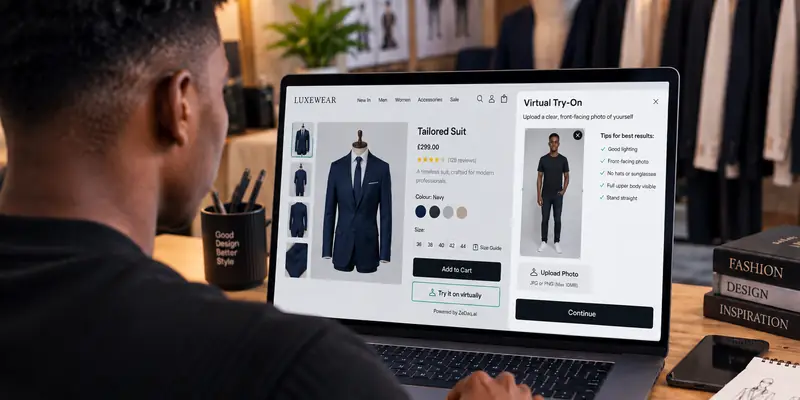
A virtual fitting room is a tool on the product page that helps a shopper judge fit and look before buying. On Shopify it usually arrives as an app with a button near the size selector.
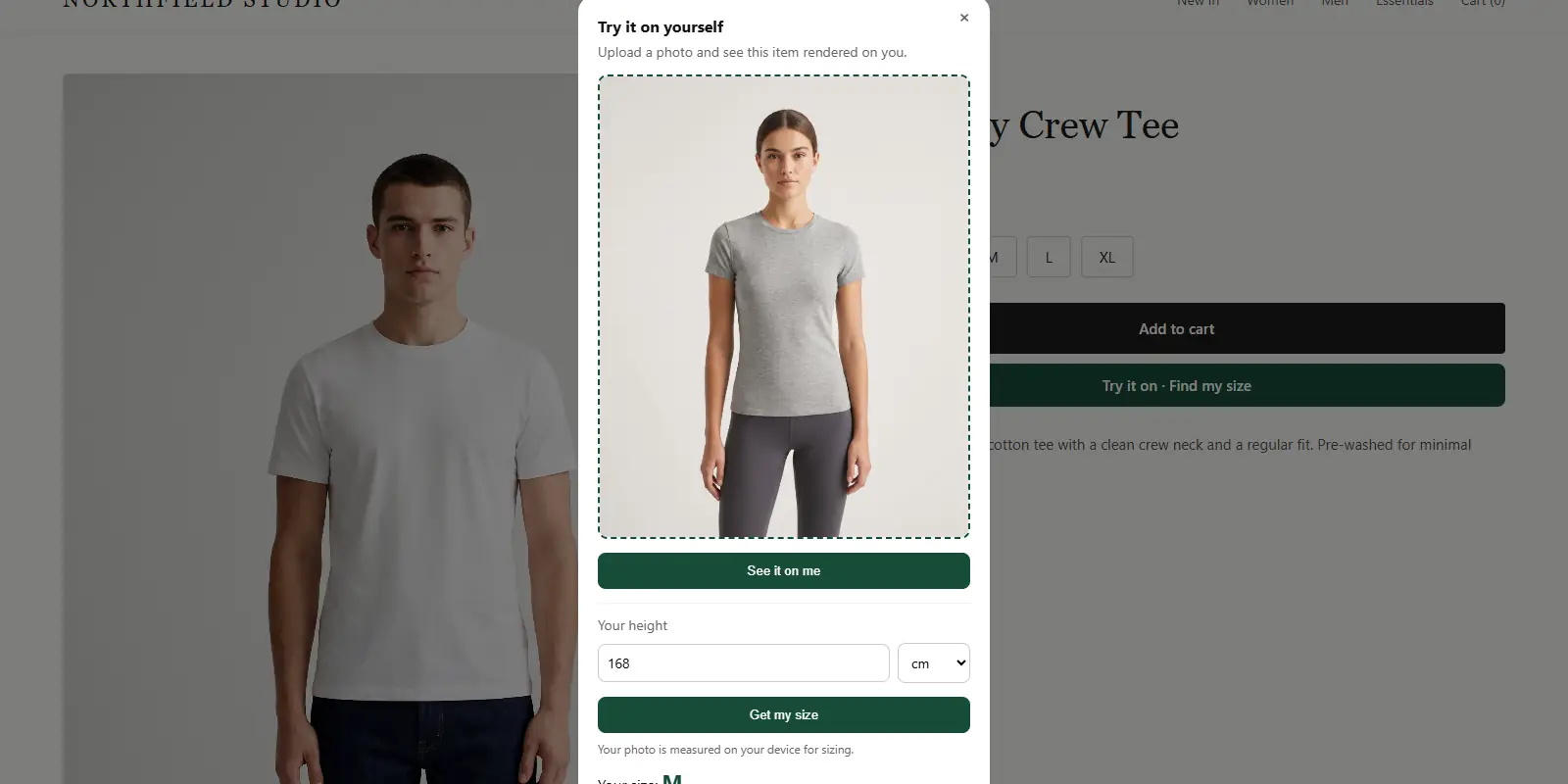
With ZeDaq.ai, that button opens two tools:
- Try it on. The shopper uploads one photo and sees your real garment on their body. The image is rendered from your product photo, not a sticker laid on top.
- Find my size. The shopper uploads one photo and types their height. The app measures them and suggests a size from your own size chart.
Some apps only do one of these. Others call any size quiz a "fitting room". Check which job you need before you install, because a try-on image answers "how will it look?" and a size scan answers "which size do I order?"
Open the fitting room as a shopper would
Try it on yourself
Live renderUpload a photo, pick a piece, see it rendered on you.
Pick something to try on
Does my Shopify theme need to support it?
Yes, in one way. App embeds and app blocks need an Online Store 2.0 theme, such as Shopify's free Dawn theme. If your theme is older, it may not show the App embeds panel at all.
To check, go to Online Store → Themes → Customize and look in the left sidebar. If you see App embeds, you are ready. If not, you may need to update your theme before any fitting room app can appear without code.
How do you set up the fitting room step by step?
Plan for about one sitting if your size guide is ready. Here is the order that avoids rework.
Step 1: Install the app
Install ZeDaq.ai from the Shopify App Store and approve the permissions. The app opens inside your Shopify admin.
Step 2: Add a size chart for each garment type
Open Your size chart in the app. Add one chart per garment type you sell: tops, outerwear, dresses and bottoms. Enter body measurements for each size, not flat garment widths.
If your size guide lives in a PDF or a supplier's spreadsheet, tidy it first. The guide to preparing your sizing data shows which columns matter and how to close gaps between sizes.
Step 3: Test the chart before going live
Use Test a shopper in the app. Type in a set of measurements you know well, such as your own, and check the suggested size matches what you would pick in person.
Step 4: Switch on the app embed
In Online Store → Themes → Customize, open App embeds and turn on ZeDaq.ai Virtual Try-On. You can show the button inline on the product page or as a floating button. Save the theme.
Step 5: Set the garment type
In the embed settings, set the garment type to upper body, lower body or dresses. This tells the try-on how to place the garment and tells the scan which chart to use.
Step 6: Run a real test on your phone
Open a live product page on your phone. Run one try-on with a full-length photo, then run Find my size. Check the button position, the loading time and the result on a small screen.
What should you check before shoppers see it?
Use this checklist on three or four products of different types:
- The button sits near the size selector and doesn't push "Add to cart" off the first screen.
- The main product image is front-facing, on a plain background, with the whole garment in frame.
- Every product points to the right garment type.
- Each garment type has its own chart, with ranges that meet and no gaps.
- Your fit note agrees with the chart. If a style runs small, say so.
- The widget shows in the right language for your market. The app lists 10 storefront languages on its App Store page.
If a render looks wrong, the cause is usually the product photo. Swap in a cleaner front image and test again before you change any settings.
Is the shopper's photo stored or shared?
For sizing, the photo is analyzed in the shopper's browser and only the measurements are sent to ZeDaq.ai. For try-on, the photo is sent so the image can be rendered. The shopper doesn't need an account or an app, and they choose which photo to use.
Write one or two lines on the product page or in your privacy policy that explain this in plain words. Shoppers are more willing to upload a photo when they know what happens to it.
How much does a Shopify fitting room cost to run?
Costs depend on how the app counts usage. With ZeDaq.ai, each try-on render counts toward your monthly try-on cap, and each body scan counts toward your measurement cap. A plain size lookup from a chart is free.
ZeDaq.ai paid plans are Micro at $14 a month, Starter at $49, Growth at $129 and Scale at $299. There is also a Free plan with 3 try-ons and 3 measurements a month, and you can try it free for 3 days with no card required. Check the current ZeDaq.ai plans and limits before you pick a tier.
ZeDaq.ai is new to the App Store and has no reviews there yet, so test it on your own products rather than relying on ratings.
What changes on Shopify Plus or with several stores?
The app works the same way on Shopify Plus. What changes is the rollout. A Plus brand often runs separate stores for different regions, so each store needs the app, its own size charts and its own embed settings.
The guide to try-on for Shopify Plus stores covers piloting on one store first and copying a tested setup to the rest. If you also run a site outside Shopify, the same fitting room can sit on it with a script tag, as explained in our guide to a virtual fitting room for clothing websites.
Set up your fitting room on Shopify
FAQs
Do I need to edit theme code to add the fitting room?
No. On an Online Store 2.0 theme, you switch the app on in App embeds in the Theme Editor. No code is needed.
Can shoppers use the fitting room on their phone?
Yes. It runs on your product page in the shopper's mobile browser, so there is nothing to download. Test it on a phone before launch, because that is where most layout problems show up.
What happens if I skip the size chart?
Find my size still gives a result from a standard UK, US, EU or AU chart. Your own chart makes the suggestion match your labels and fit.
Will the fitting room slow down my product page?
Run your product page through a speed test before and after you switch on the embed. Compare the two results on a mobile setting as well as desktop.
Try ZeDaq.ai free
Virtual try-on and Find my size for your store, plus client, order and invoicing tools for tailors, in one subscription.