Adding Try-On to a Django Store
By the ZeDaq.ai team · · 4 min read
On this page
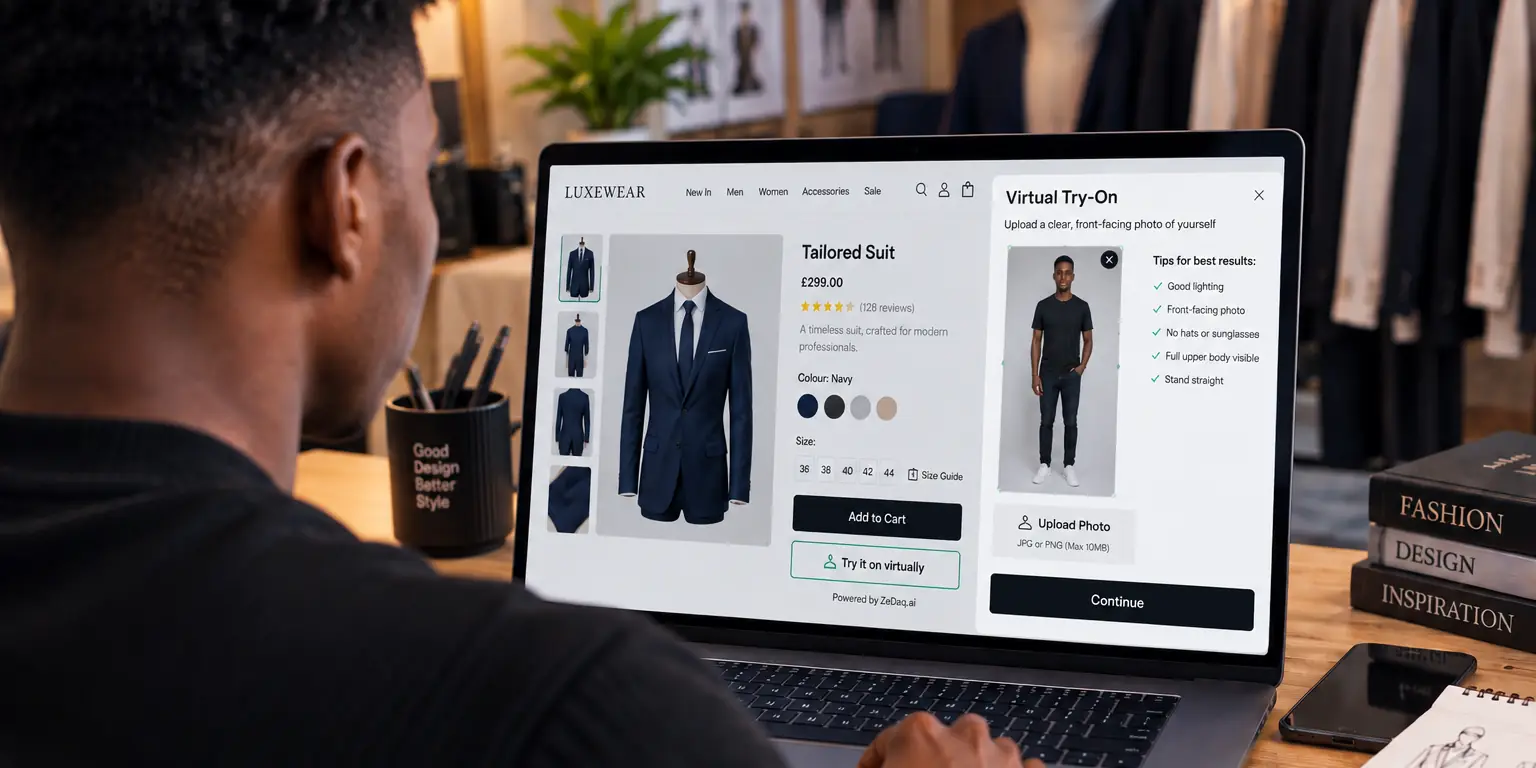
To add try-on to a Django store, either call the ZeDaq.ai REST API from a Django view or paste the script-tag widget into your product template. The widget is the quickest route, and the API gives you full control of the interface.
This guide covers both. It suits any Python store, including ones built on Oscar or Saleor, though the code here is plain Django. For the wider picture, see the virtual try-on API for ecommerce developers.
Which route should you choose: widget or API?
Pick the widget if you want a working button today. Pick the API if you want your own design or need to run renders from the server.
| Widget | API | |
|---|---|---|
| Setup | Paste one script tag | Write a view |
| Interface | Provided | You build it |
| Key location | In the page, locked to your domain | On your server |
| Best for | Quick launch | Custom flows |
How do you add the widget to a Django template?
Paste this into your product template, with your own key:
<script src="https://www.zedaq.ai/widget/zedaq.js" data-key="YOUR_KEY" defer></script>
Create the key in Dashboard → API keys and lock it to your store's domain. A domain-locked key only works on your site, so exposing it in page source is expected. The widget adds "Try it on" and "Find my size". Setup details are in the widget docs.
Put the tag in a base template block that only product pages use, so other pages stay light.
How do you call the API from a Django view?
The endpoint is POST /api/v1/tryon on https://www.zedaq.ai. Send JSON with person_image_base64 and product_image_base64, plus an optional garment_type of upper_body, lower_body or dresses. Send your key in the x-api-key header (API reference).
import base64, os, requests
from django.http import JsonResponse
from django.views.decorators.http import require_POST

@require_POST
def tryon(request):
    photo = request.FILES.get("photo")
    if not photo:
        return JsonResponse({"error": "missing_photo"}, status=400)
    product = get_product(request.POST["product_id"])
    with product.image.open("rb") as f:
        product_b64 = base64.b64encode(f.read()).decode()
    r = requests.post(
        "https://www.zedaq.ai/api/v1/tryon",
        headers={"x-api-key": os.environ["ZEDAQ_API_KEY"]},
        json={
            "person_image_base64": base64.b64encode(photo.read()).decode(),
            "product_image_base64": product_b64,
            "garment_type": product.garment_type,
        },
        timeout=60,
    )
    return JsonResponse(r.json(), status=r.status_code)
Here get_product and garment_type are your own model code. Keep the API key in an environment variable on the server, and never send it to the browser.
How do you handle a 202 response?
A 200 response returns image_base64 and mime_type. A 202 means the render is still running, and the body holds a job_id and a poll_url. The docs say to poll that URL about every 2 seconds until it returns 200. You are charged only when a render succeeds (API reference).
Forward the 202 to your front end and poll through a second view, or poll in a background task. Add a maximum number of attempts so a stuck job cannot hold a worker.
What errors should you plan for?
Errors come back as JSON with an error code and a message. The docs list missing_api_key, invalid_api_key, domain_not_allowed, tryon_cap_reached and rate_limited, among others.
Log the code and show shoppers a calm message. The same pattern is shown in other languages, such as adding try-on to a custom PHP store and the WooCommerce hooks for a try-on button.
If your front end is a separate JavaScript app, see adding virtual try-on to a Next.js headless store.
How do you secure the integration?
Treat the try-on view like any endpoint that accepts file uploads and costs you money.
- Require a logged-in user or a session before accepting uploads, if your store allows it.
- Validate that the upload is a JPEG or PNG before you send it on.
- Take the product from your own database, never from a URL the browser sends.
- Add Django's rate limiting or a throttle package so one visitor cannot use up your monthly limit.
- Keep the API key out of version control, in an environment variable.
Because usage counts against your plan, handle the tryon_cap_reached error by hiding the button or showing a short message.
How do you test it before launch?
Test the view with a script first, then in the browser. Cover four cases: a good photo, a wrong file type, a bad key and a product image that cannot be read.
Run the same checks on a phone, since most shoppers upload from a phone camera. Use Django's test client for the failure cases, and mock the API call so your tests do not use real renders.
Get an API key and try your first render
FAQs
Does this work with Django Oscar or Saleor?
The API is plain HTTP, so any Python store can call it. Add the view or template tag in whichever way your platform lets you extend product pages.
Where should I store the API key?
For the API, keep it in a server environment variable. For the widget, create a key locked to your domain.
Which image formats are accepted?
The docs say JPEG or PNG works, and a full-length photo about 800px wide is a good size.
What does it cost?
The Free plan includes 3 try-ons a month. Paid plans start with Micro at $14 a month; see the pricing page.
Try ZeDaq.ai free
Virtual try-on and Find my size for your store, plus client, order and invoicing tools for tailors, in one subscription.

