WooCommerce Hooks for Adding a Try-On Button
By the ZeDaq.ai team · · 3 min read
On this page
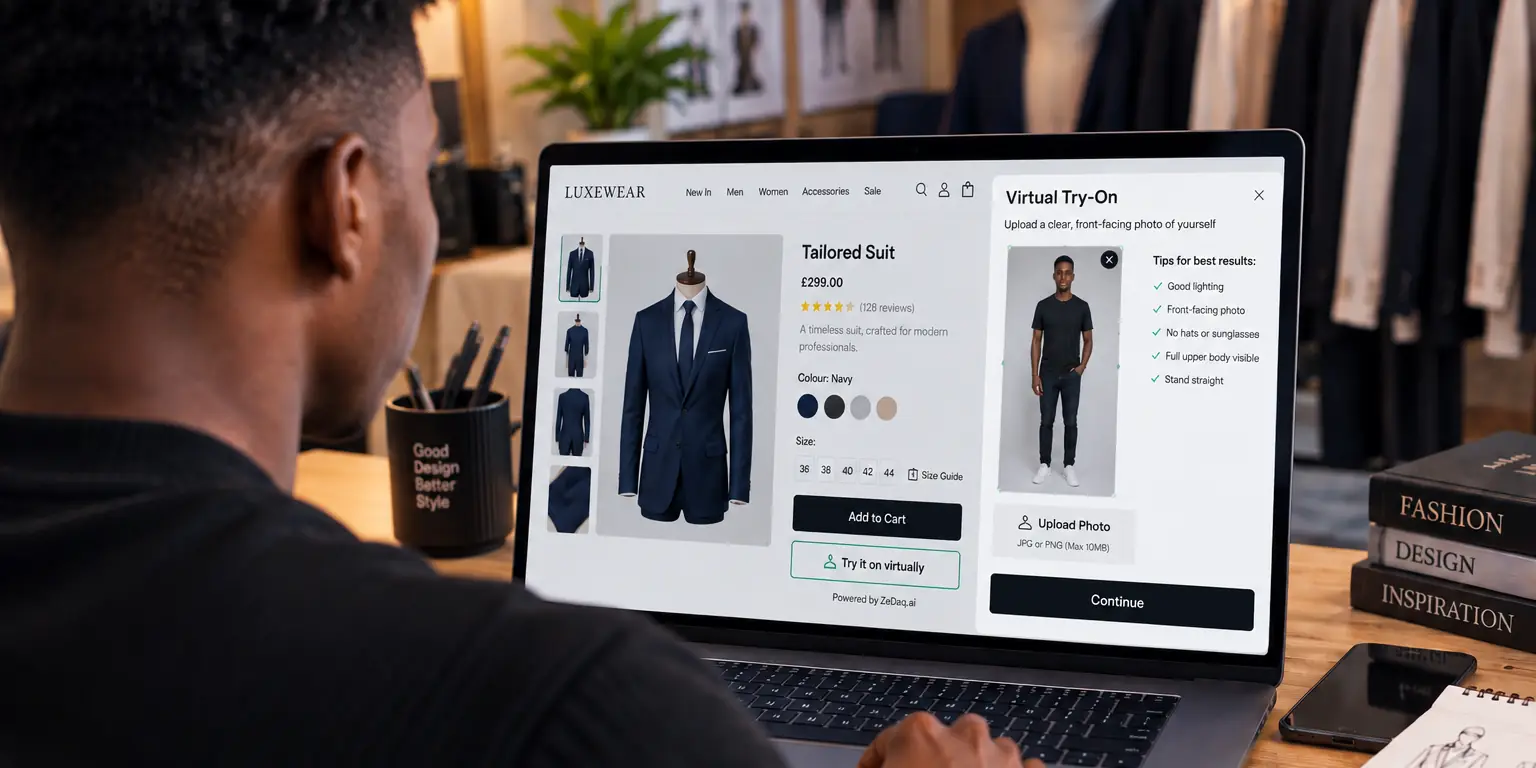
To add a try-on button to a WooCommerce product page, attach a function to a product page hook such as woocommerce_single_product_summary or woocommerce_after_add_to_cart_button. The function prints the button, and a script loads the try-on window when the shopper clicks it.
This guide is for developers and store owners who are comfortable with a small code snippet. If you want the full WooCommerce virtual try-on overview first, start there, then come back for the hook details.
What is a WooCommerce hook?
A hook is a named point in WooCommerce's templates where your code can add or change output. According to the WooCommerce theme development docs, hooks let you add or move content from a code snippet without editing template files, and they work without a child theme.
That matters because editing plugin or parent theme files directly is discouraged. Updates overwrite those changes.
Which hook should you use for the button?
The WooCommerce hook reference lists these product page hooks and the template files that call them:
| Hook | Where the button appears | Called from |
|---|---|---|
woocommerce_single_product_summary |
In the summary column, with title, price and add to cart | content-single-product.php |
woocommerce_before_add_to_cart_button |
Directly above the add-to-cart button, inside the form | Simple, grouped, external and variable button templates |
woocommerce_after_add_to_cart_button |
Directly below the add-to-cart button, inside the form | Simple, grouped, external and variable button templates |
woocommerce_after_add_to_cart_form |
After the whole add-to-cart form | Simple, grouped, external and variable form templates |
For most fashion stores, woocommerce_after_add_to_cart_button is a good start. The button sits next to the purchase action, where size doubts show up.
How do you add the button with a hook?
Step 1: Load the script
Paste the ZeDaq.ai widget script into your product template, or enqueue it from your theme's functions file:
<script src="https://www.zedaq.ai/widget/zedaq.js" data-key="YOUR_KEY" defer></script>
The key must be locked to your store's domain in Dashboard → API keys. The widget adds "Try it on" and "Find my size". The widget setup details cover the rest.
Step 2: Add the hook
Put this in a child theme's functions.php or a small custom plugin:
add_action( 'woocommerce_after_add_to_cart_button', 'my_tryon_button' );

function my_tryon_button() {
    echo '<div class="my-tryon-slot"></div>';
}
Use the slot to hold your own markup or styling. Whether the widget places its own buttons depends on how your store is set up, so test on a staging site.
Step 3: Limit it to the right products
Wrap the output in a check, so the button shows only on clothing:
function my_tryon_button() {
    if ( ! has_term( 'clothing', 'product_cat' ) ) {
        return;
    }
    echo '<div class="my-tryon-slot"></div>';
}
Replace clothing with your own category slug.
What should you test after adding it?
- Open a simple product and a variable product. Both should show the button.
- Check the button on a phone, where most shoppers browse.
- Confirm that the add-to-cart button still works.
- Try your page builder or block theme. Some do not run classic hooks, and may need a shortcode or a block instead.
Do you need a plugin instead?
Not for a button. The script-tag route needs no plugin, as the guide to adding try-on without a plugin explains. ZeDaq.ai does not offer a WooCommerce plugin.
If you are building something more custom, such as a headless storefront, the try-on API for developers describes the POST /api/v1/tryon endpoint, which takes an x-api-key header. See also the API reference.
For a comparison of both routes, read about other WooCommerce and custom store options.
Get a key and test on staging
FAQs
Can I use woocommerce_single_product_summary instead?
Yes. It places the button in the summary column along with the title and price. You can control its position with the priority number when you add the action.
Does the hook work with variable products?
The add-to-cart button hooks are called by the variable product button template as well. Test with a real variable product on staging.
Where should I put the code?
Put it in a child theme's functions.php or a small custom plugin, not in the parent theme. Updates to a parent theme overwrite edits.
Does this work in block themes?
Block themes may not run classic product hooks the same way. Check the theme's documentation, or use the script tag in a custom HTML block.
Try ZeDaq.ai free
Virtual try-on and Find my size for your store, plus client, order and invoicing tools for tailors, in one subscription.

