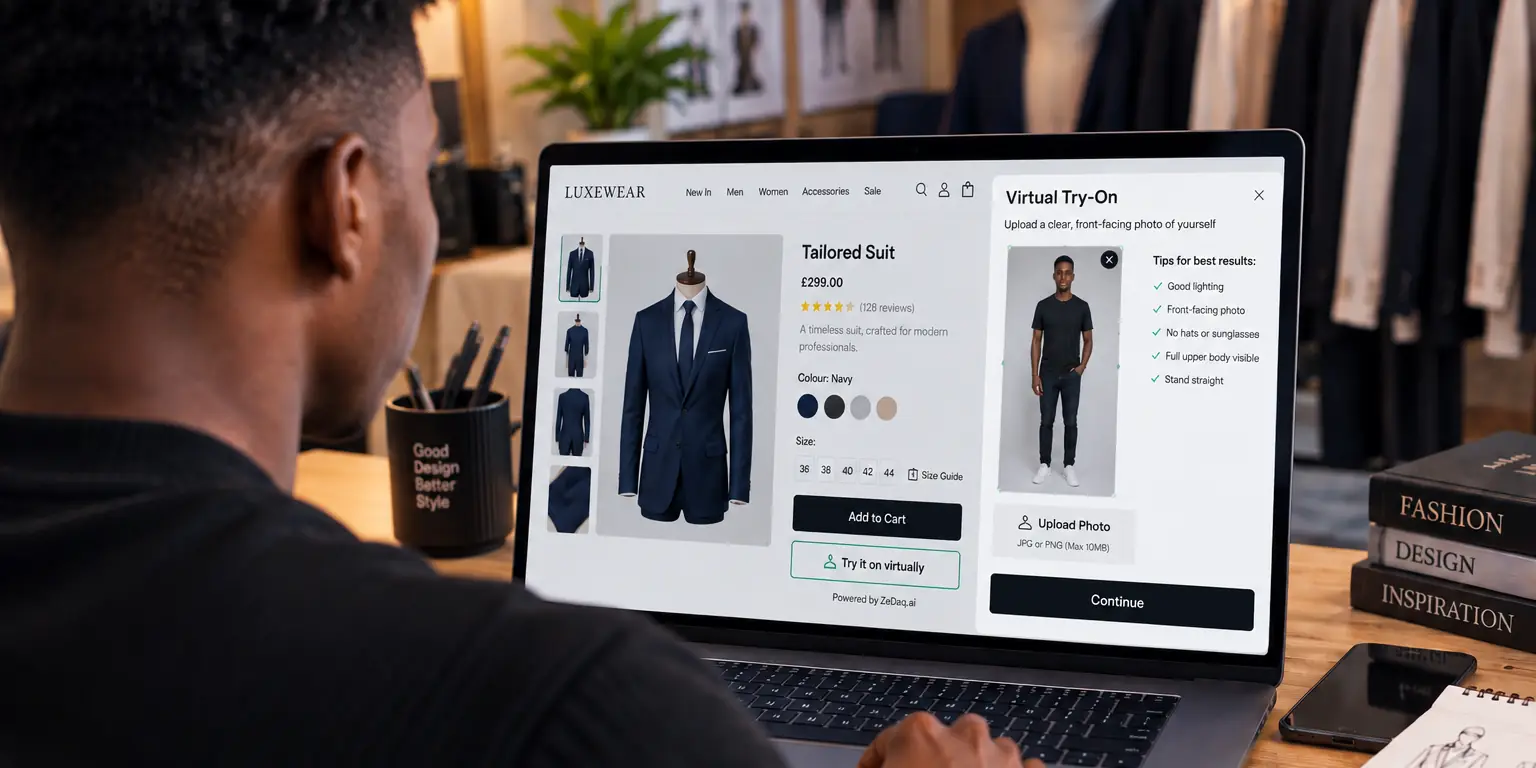
Adding Size Recommendation to a Custom Store via API
By the ZeDaq.ai team · · 5 min read
On this page
To add size recommendation to a custom store via API, enter your size charts in the ZeDaq.ai dashboard, then call one of two endpoints. POST /api/v1/scan turns a body scan into measurements and a size, and GET /api/v1/size-chart returns a size for measurements you already have.
Your store then shows the shopper one label from your own chart. This guide covers sizing only. Auth, try-on renders and the wider request flow are in the virtual try-on API guide for developers.
Which sizing endpoint should you use?
It depends on what your store already knows about the shopper.
| Endpoint | Use it when | What you send | Billing |
|---|---|---|---|
POST /api/v1/scan |
The shopper does a body scan | Height plus on-device pose measurements | Counts as one measurement |
GET /api/v1/size-chart |
You already have body measurements | Chest, plus waist and hips if known | Size lookups are free |
Both endpoints are documented in the ZeDaq.ai API reference, checked November 2026. Both use the same x-api-key header as try-on.
Run a scan yourself to see the result
Try it on yourself
Live renderUpload a photo, pick a piece, see it rendered on you.
Pick something to try on
How does the scan endpoint work?
The scan starts on the shopper's device. Pose detection measures the shopper in the photo, in pixels, inside their browser. Your code then sends those pixel values to POST /api/v1/scan, and the photo itself is never sent.
The request body uses these fields:
height_cm: the height the shopper typed inperson_height_px: the shopper's height in the photo, in pixelsfront_body_widths_px: chest, waist and hips widths in pixelsgarment_category: which of your charts to match against
The docs also describe a two-photo mode with front and side views, using an A4 sheet as a scale reference. Start with the one-photo mode unless you need the extra detail.
What comes back?
A successful response has three parts:
| Field | Contains |
|---|---|
measurements |
height_cm, chest_cm, waist_cm, hips_cm |
store_size |
label, fit, deciding_measurement, garment_category, or null |
size |
Standard sizes: alpha, UK, US, EU, AU |
Show store_size.label first, because it is the label your shopper sees in your variant menu. If store_size is null, you haven't added a chart for that garment category yet, so fall back to the standard sizes in size.
How do you look up a size from known measurements?
Call GET /api/v1/size-chart with query parameters. chest_cm is required. waist_cm, hips_cm and garment_category are optional.
GET https://www.zedaq.ai/api/v1/size-chart?chest_cm=98&waist_cm=84&garment_category=top
x-api-key: YOUR_API_KEY
The response gives store_size plus standard sizes, in the same shape as the scan. This suits stores that already save shopper measurements, such as a returning customer's profile or a made-to-measure order form.
How do you set up your size charts first?
Charts live in Dashboard → Size charts. You add one chart per garment category: top, outerwear, dress and bottom. Each size gets a label and a minimum and maximum body measurement.
Each category uses the measurements that matter for it:
| Category | Measurements used |
|---|---|
top |
Chest |
outerwear |
Chest |
dress |
Chest, waist and hips |
bottom |
Waist and hips |
When measurements point to different sizes, the API sizes up to the largest one. A dress that fits the chest but is tight on the hips isn't a good recommendation, so the hips win. The deciding_measurement field tells you which measurement chose the size, which is handy for a short note such as "sized for your hips".
Fit needs differ by product. Stretch fabrics and compression wear behave differently from woven shirts, as the guide to sizing for activewear brands explains.
How should you build it into your product page?
Follow these steps for a clean first version:
- Map each product to a garment category in your own catalog data.
- Add a "Find my size" button near your size selector.
- Collect height and run the on-device scan, or read saved measurements.
- Call the right endpoint from your server, so your API key stays private.
- Preselect
store_size.labelin the size dropdown. - Show the deciding measurement in one short line.
- Let the shopper change the size. A suggestion should never lock the menu.
Cache the shopper's measurements, with their consent, so they don't rescan on every product. Then each later product needs only a free size-chart lookup.
Is there a faster route than the API?
Yes. If you don't need your own interface, the script-tag widget adds "Try it on" and "Find my size" for you:
<script src="https://www.zedaq.ai/widget/zedaq.js" data-key="YOUR_KEY" defer></script>
Widget keys are visible in your page source, so you must lock the key to your store's domain in Dashboard → API keys. Unlocked keys are refused. The full set of options is in the widget setup docs.
For other platforms, compare the routes in WooCommerce size recommendation options, or see try-on for Magento and custom stores.
How much does API sizing cost?
API calls draw from the same plan as the widget and the Shopify app. Each scan uses one measurement, and size lookups are free. The Free plan includes 3 measurements a month for testing. Micro is $14 a month, Starter $49, Growth $129 and Scale $299. Each paid plan has a 3-day free trial with no card required.
Get an API key and test sizing today
FAQs
Does the shopper's photo reach your server or ZeDaq.ai?
Not for sizing. The scan endpoint receives pixel measurements taken on the shopper's device. The photo stays in their browser.
Can I use the sizing API without the try-on endpoint?
Yes. The scan and size-chart endpoints work on their own. You can start with sizing and add try-on later.
What if I haven't added a chart for a category?
store_size comes back as null. The response still includes standard UK, US, EU and AU sizes you can show instead.
Can I call the API from the browser?
Keep server-side calls for your private API key. Only widget keys, locked to your domain, are meant to sit in page source.
Try ZeDaq.ai free
Virtual try-on and Find my size for your store, plus client, order and invoicing tools for tailors, in one subscription.

