WooCommerce Variable Products for Clothing Sizes
By the ZeDaq.ai team · · 4 min read
On this page
- What is a variable product, and why use it for clothing?
- How do you create a variable product step by step?
- How do you add size and color attributes?
- What should each variation contain?
- How do you test a variable product before publishing?
- How do you keep size labels consistent?
- How can shoppers get a size suggestion on a variable product?
- Which plugins make variations easier to use?
A WooCommerce variable product lets one clothing item carry many sizes and colors, each with its own price and stock. You create the product, add a size attribute, generate variations from it, and then fill in each variation's details.
This guide follows the steps in the WooCommerce documentation for variable products. If you also want shoppers to see a suggested size, the page on virtual try-on for WooCommerce shows where that fits.
What is a variable product, and why use it for clothing?
A simple product has one price and one stock count. A variable product groups several versions of the same item under one page.
For clothing this means one "Linen shirt" page with a size picker, instead of one page per size. Shoppers compare in one place, and you keep reviews and photos together.
How do you create a variable product step by step?
- In WP-Admin, go to Products and click Add New Product.
- Enter the product name, then choose Variable Product from the Product data dropdown.
- Open the Attributes tab and add your attribute (see the next section).
- Click Save Attributes.
- Open the Variations tab and click Generate variations, or Add manually.
- Expand each variation and enter its details.
- Click Save changes at the bottom of the Variations panel.
- Click Publish.
How do you add size and color attributes?
In the Attributes tab, you have two options. You can select an existing global attribute from the add existing dropdown. Or you can click Add New, name the attribute, and enter the values separated by a pipe (|).
A pipe-separated size attribute looks like this: XS | S | M | L | XL. Add a second attribute named "Color" for colorways.
Global attributes are the better choice for a store. You define "Size" once, and every product uses the same labels. That keeps filters and size charts consistent.
What should each variation contain?
Open a variation to set its details. Per the WooCommerce documentation, the Regular Price is required, and variations without one won't show in your store. Optional fields include Sale Price, stock settings under Manage Stock?, weight, dimensions and shipping class.
Use the Bulk actions dropdown above the variations list to set the same price or stock on all variations at once. This saves time when every size costs the same.
You can also set default form values at the top of the variation settings. This needs at least one variation to exist. Defaults pre-select a size or color when the page opens.
How do you test a variable product before publishing?
Open the product page in a private browser window, so you see what a shopper sees. Pick each size in turn and check that the price, stock message and image all update.
Then add one size to the cart and go to checkout. A variation with a missing price or a stock count of zero shows up quickly this way.
How do you keep size labels consistent?
Size labels cause more trouble than any setting. If one product says "Medium" and another says "M", your filters, size chart and reports split in two.
Pick one system and use it everywhere:
- Letters: XS, S, M, L, XL
- Numbers: 6, 8, 10, 12
- Mixed: "UK 12" when you sell in several regions
Write the labels exactly the same in your attribute, your size chart and any tool that recommends a size. Our guide to adding a size chart in WooCommerce covers the chart side.
See a size recommendation from a shopper's view
Try it on yourself
Live renderUpload a photo, pick a piece, see it rendered on you.
Pick something to try on
How can shoppers get a size suggestion on a variable product?
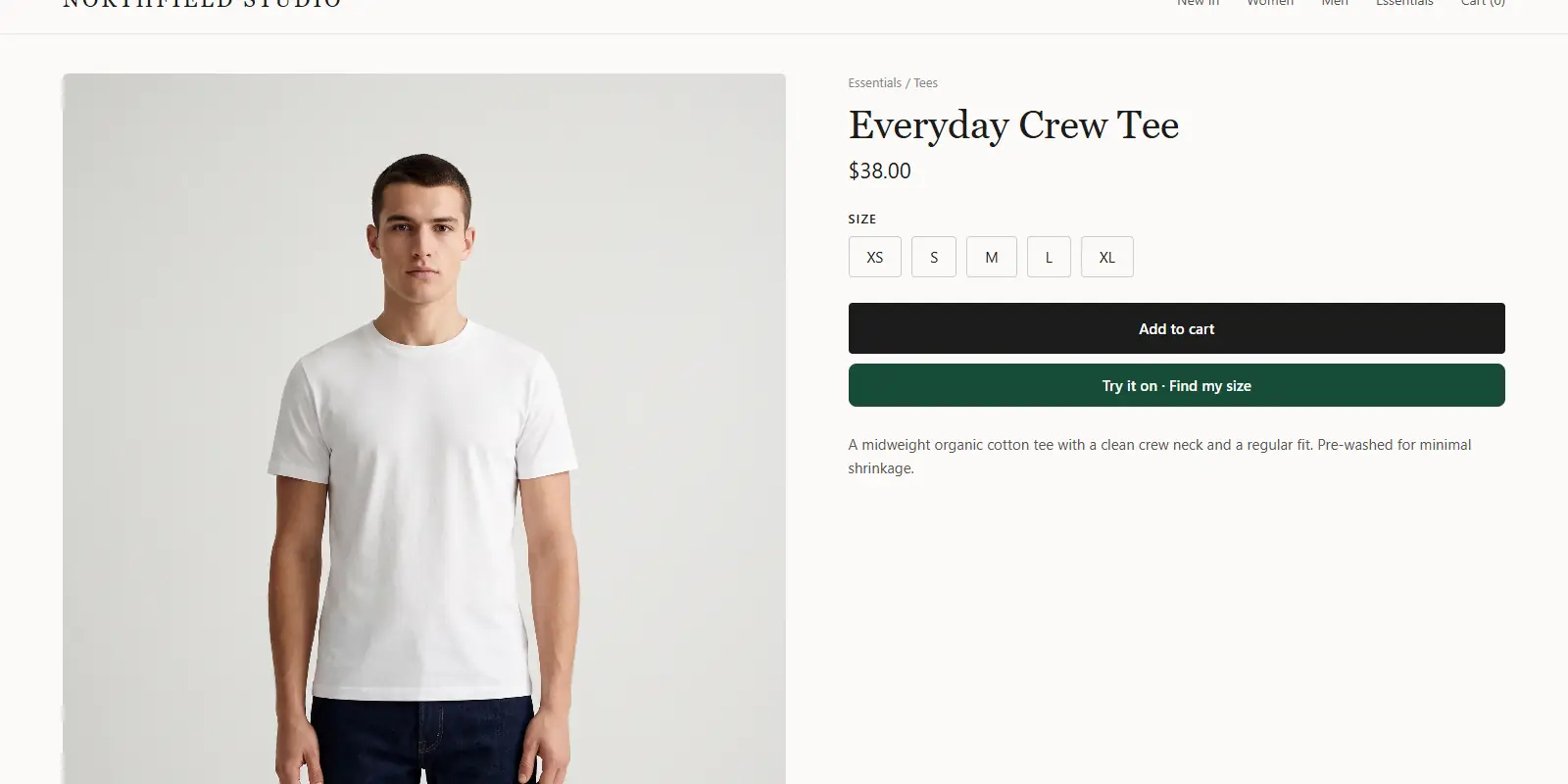
ZeDaq.ai adds a "Find my size" button to product pages through a script tag. The shopper uploads one photo and types their height. The measurements are matched to the size chart you entered in the Dashboard, with one chart per garment type.
To use it, paste <script src="https://www.zedaq.ai/widget/zedaq.js" data-key="…" defer> into the product template. Lock the key to your domain in Dashboard → API keys. Setup details are in the widget docs.
The suggestion is a label from your own chart. So your WooCommerce size values should use the same labels, and the shopper can then pick that option in the size picker. Developers who want more control can look at the try-on API for developers.
Which plugins make variations easier to use?
WooCommerce's default dropdown works, but many clothing stores want swatches or a size chart popup. Our roundup of the best WooCommerce plugins for clothing shops compares options.
If variable products start to feel heavy, the guide to leaving WooCommerce for another platform lays out the alternatives.
Add a size suggestion to your WooCommerce product pages
FAQs
Do I need a plugin to sell sizes in WooCommerce?
No. Variable products are built into WooCommerce. A plugin only adds extras such as swatches or size chart popups.
What happens if a variation has no price?
It won't show in your store. WooCommerce requires a Regular Price on every variation you want to sell.
Should I use a global attribute or a custom one?
Use a global attribute for sizes, so every product shares the same labels. A custom attribute is fine for a one-off option on a single product.
Can I track stock for each size?
Yes. Turn on Manage Stock? inside each variation, and set the count for that size.
Try ZeDaq.ai free
Virtual try-on and Find my size for your store, plus client, order and invoicing tools for tailors, in one subscription.

