Squarespace Code Injection for Product Pages
By the ZeDaq.ai team · · 4 min read
On this page
To add a script to Squarespace product pages, paste it into the Footer field of the Code Injection panel, then test it on a live product page. Code injection loads your script on every page, so use a script that only acts where it should.
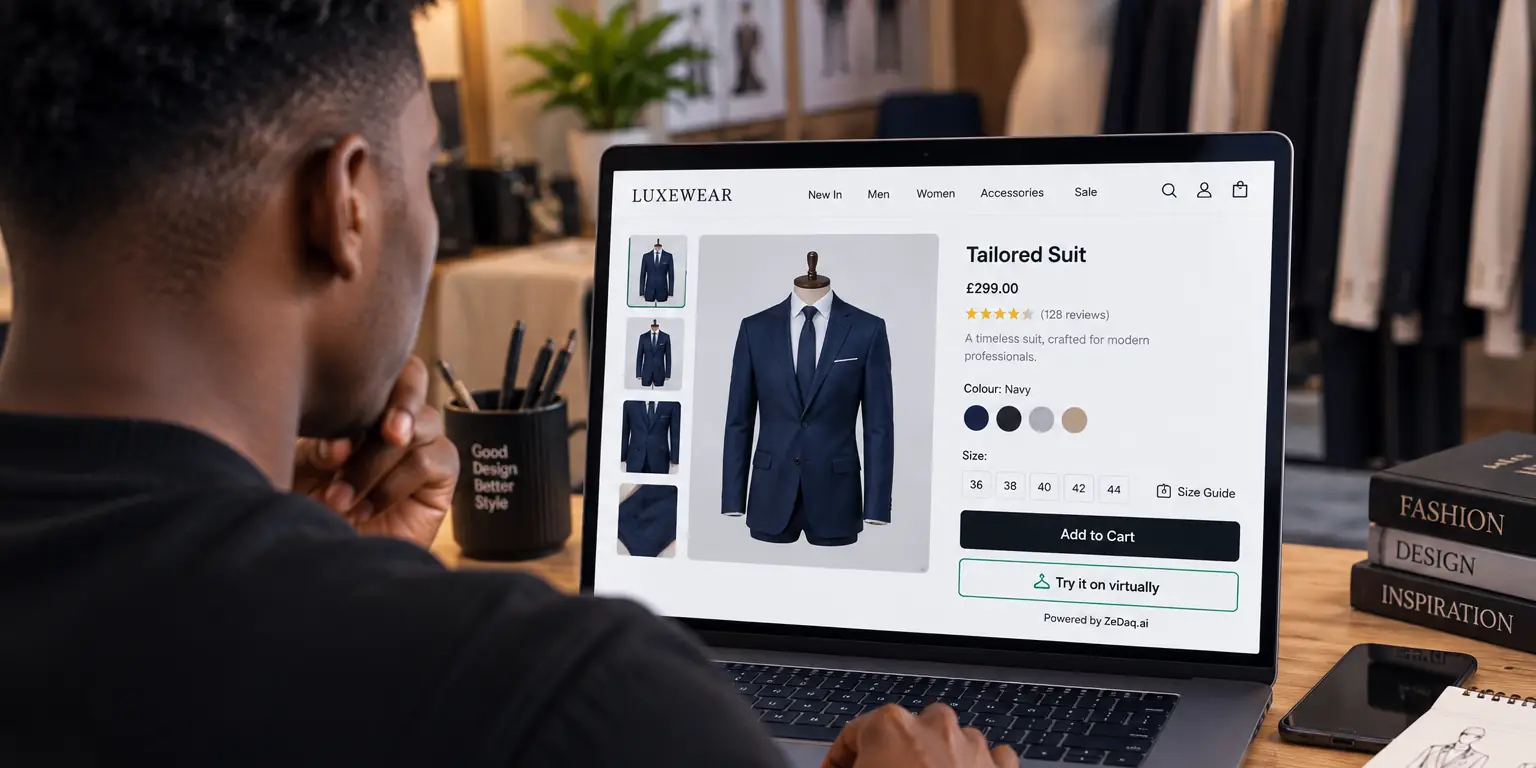
This guide uses the ZeDaq.ai widget as the example, since it adds a "Try it on" button and "Find my size" to product pages. The same steps work for other scripts. If you also run another platform, the virtual try-on for WooCommerce guide shows how the widget works there.
What is Squarespace code injection?
Code injection lets you add your own code to your site without editing the template. According to Squarespace's help page, checked November 2026, the Header field places code in the page's <head> tag, and the Footer field places it before the closing </body> tag. Both fields apply to every page.
Squarespace also says custom code can break your site's look or behavior, especially on mobile, and its support team cannot help write or fix custom code. Test carefully and keep a copy of anything you paste.
Which Squarespace plans include code injection?
Squarespace says code injection is available on the Core, Plus and Advanced plans, and on some legacy billing plans. This is from the same Squarespace help page, checked November 2026. Plan names change, so check your own account.
Squarespace also notes that checkout pages do not support custom code, so the script cannot run there.
What do you need before you start?
- A Squarespace plan that supports code injection.
- A ZeDaq.ai account and a widget key. You can start on the Free plan, which includes 3 try-ons and 3 measurements a month.
- The exact domain your shoppers visit, such as
www.yourbrand.com. - Product images that are hosted on your own domain or a common store CDN, since the widget only fetches images from those places.
How do you add the widget with code injection?
Step 1: Create a domain-locked key
In the ZeDaq.ai dashboard, go to API keys and create a key. Lock it to your store's domain. The key is visible in your page source, so an unlocked key is refused.
Step 2: Copy the script tag
Use this tag, with your own key:
<script src="https://www.zedaq.ai/widget/zedaq.js" data-key="YOUR_WIDGET_KEY" data-garment-type="upper_body" defer></script>
Set data-garment-type to match the product, such as upper body, lower body or dresses. The widget documentation lists the other options, including data-target for placing the button inline and data-button-label for custom text.
Step 3: Paste it into the Footer field
In Squarespace, open the Code Injection panel under Website Tools and paste the tag into Footer. Save.
The defer attribute in the tag tells the browser to run the script after the page has loaded.
Step 4: Test on a product page
Open a product page in a private or incognito window. Squarespace recommends this to see the live site with your code running.
Check that the "Try it on" button appears, that a test photo works and that "Find my size" returns a result.
How do you handle different garment types?
The script tag holds one garment type. If you sell tops and trousers, the type has to match the product, so test each category. The widget documentation explains the options; read it before you roll out across a mixed catalog.
Merchants enter their own size chart in the ZeDaq.ai dashboard, one per garment type, so the size result uses your labels.
What costs does this involve?
Try-on renders count against your plan's monthly try-on cap, as described on the ZeDaq.ai docs page. Size scans use measurements from your plan. See the ZeDaq.ai pricing page for current plans. Every paid plan has a 3-day free trial with no card required.
What if it does not work?
Work through these checks:
- No button. Confirm the plan supports code injection and that you saved the Footer field.
- Domain error. The key must be locked to the domain you are visiting. Requests from other domains return
domain_not_allowed. - No product image. The widget uses your product gallery or the
og:imagetag. Setdata-product-imageif it picks the wrong one. - Works on desktop, not mobile. Squarespace warns custom code can behave differently on mobile. Test on a real phone.
If you need to call the service from your own code instead, the article on the virtual try-on API for ecommerce developers covers the REST API. Wix store owners can read about adding custom code to Wix product pages, and WooCommerce users can follow adding try-on without a plugin.
Get a widget key for your Squarespace store
FAQs
Where is code injection in Squarespace?
Squarespace places it under Website Tools in the Pages area, as linked from its help page. Menu names can change, so search the help center if you cannot find it.
Can I add the script to one product page only?
Squarespace offers page-level injection under each page's Advanced settings. Check its help page for what is available for your page type before you use it.
Do I need a developer?
Not for a paste-in script. If you want custom button placement or styling, a developer can help.
Is there a Squarespace app for ZeDaq.ai?
No. On Squarespace you use the script-tag widget. The Shopify app is only for Shopify stores.
Try ZeDaq.ai free
Virtual try-on and Find my size for your store, plus client, order and invoicing tools for tailors, in one subscription.

