Matching Your Size Chart in a Shopify Try-On App
By the ZeDaq.ai team · · 4 min read
On this page
Matching your size chart in a Shopify try-on app means turning your existing size guide into body-measurement ranges, entering one chart per garment type, and testing the result before shoppers see it. Done well, the app recommends your own labels instead of a generic size.
Most stores already have a size chart, often as an image or a table on a page. The work is getting it into a shape the app can read. If you haven't installed try-on yet, start with adding virtual try-on to Shopify, then come back to this step.
Why does your existing size chart need converting?
Many Shopify size charts mix two kinds of numbers. Some show body measurements, such as "chest 92 cm". Others show garment measurements, such as "pit to pit 52 cm" taken across a flat shirt.
A sizing scan measures the shopper's body. So the app needs body ranges, not garment widths. If your chart lists garment sizes, you need to convert it before you enter it.
Try the scan your shoppers will see
Try it on yourself
Live renderUpload a photo, pick a piece, see it rendered on you.
Pick something to try on
How do you convert your chart into body ranges?
Use this worksheet for each garment type. It takes about one sitting per chart.
- Find your source. Pull up the size chart you show shoppers today, plus any fit notes from your supplier or pattern maker.
- Check what each column measures. Label each one "body" or "garment". Ask your supplier if you aren't sure.
- Keep body columns as they are. These go straight into the app.
- Convert garment columns. Ask your supplier or pattern maker for the body each size is cut to fit. If you can't get that, have people of known sizes try samples and note who fits which size.
- Close the gaps. Make each size's maximum meet the next size's minimum, so no shopper falls between rows.
- Choose one unit. Pick centimeters or inches for the whole chart.
Which columns does each chart need?
| Garment type | Columns to enter |
|---|---|
| Tops | Chest |
| Outerwear | Chest |
| Dresses | Chest, waist, hips |
| Bottoms | Waist, hips |
This table reflects how the ZeDaq.ai scan matches each type. Extra columns from your old chart, such as sleeve length, can stay on your product page as information for shoppers.
How do you enter your chart in the ZeDaq.ai Shopify app?
ZeDaq.ai lets you add one chart per garment type: tops, outerwear, dresses and bottoms.
- Open the ZeDaq.ai app in your Shopify admin and go to Your size chart.
- Choose the garment type.
- Pick your unit.
- Enter each size label exactly as it appears on your products, such as "XS" or "UK 10".
- Enter the minimum and maximum for each column.
- Save, then repeat for your other garment types.
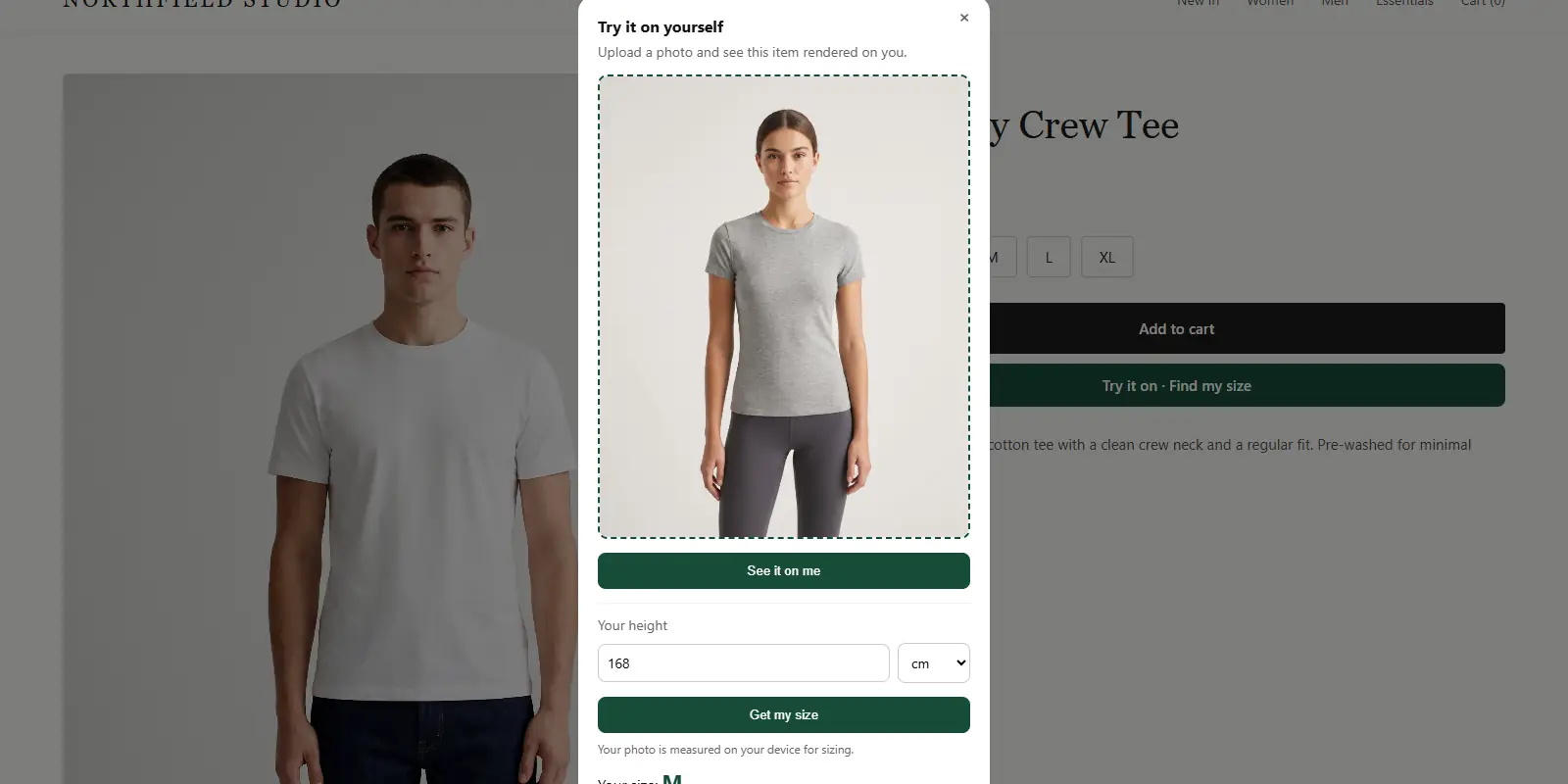
When a shopper taps "Find my size", they upload one photo and enter their height. The measuring runs on their device, and the result is matched to your chart. If they fall between sizes, the app sizes up and recommends the larger label.
How do you test the match before going live?
Testing catches most chart mistakes. Use real people, not guesses.
A five-person test
Ask five people on your team or among friends to help. For each one:
- Write down the size they normally buy from you, and how it fits.
- Have them run "Find my size" on a product page.
- Record the recommendation next to their usual size.
| Tester | Usual size | Recommended | Match? |
|---|---|---|---|
| Example 1 | M | M | Yes |
| Example 2 | L | L | Yes |
| Example 3 | S | M | Check the S/M boundary |
If several testers land a size higher than expected, your ranges may be set too small. Shift the boundary slightly and test again. The app also has a Test a shopper option, where you can type measurements and see which size your chart returns.
What does it cost to run sizing on Shopify?
ZeDaq.ai's Free plan includes 3 try-ons and 3 measurements a month, which is enough to test your chart. Paid plans are Micro at $14 a month, Starter at $49, Growth at $129 and Scale at $299, each with a 3-day free trial and no card required.
To see what each plan includes, read Shopify try-on pricing explained. If you want to stay on the free tier for now, the guide to free try-on app plans covers what that plan suits.
Should you still show a size chart on the product page?
Yes. Some shoppers prefer to read a chart, and some already know their measurements. Keeping the chart visible gives them a choice.
The chart and the try-on do different jobs. The guide to try-on versus size charts explains when each one helps a shopper decide.
Put your own size chart to work
FAQs
Can I upload my size chart as an image?
The chart needs to be entered as numbers, one range per size and column. Use your image as the source and type the ranges in.
What if I don't add a chart for a garment type?
Shoppers still get a recommendation from a generic UK, US, EU or AU chart. It just won't use your brand's labels.
Can different products use different charts?
Yes, by garment type. Each of tops, outerwear, dresses and bottoms can have its own chart.
Do I need to redo my chart for every product?
No. One chart covers every product of that garment type, so you enter it once.
Try ZeDaq.ai free
Virtual try-on and Find my size for your store, plus client, order and invoicing tools for tailors, in one subscription.