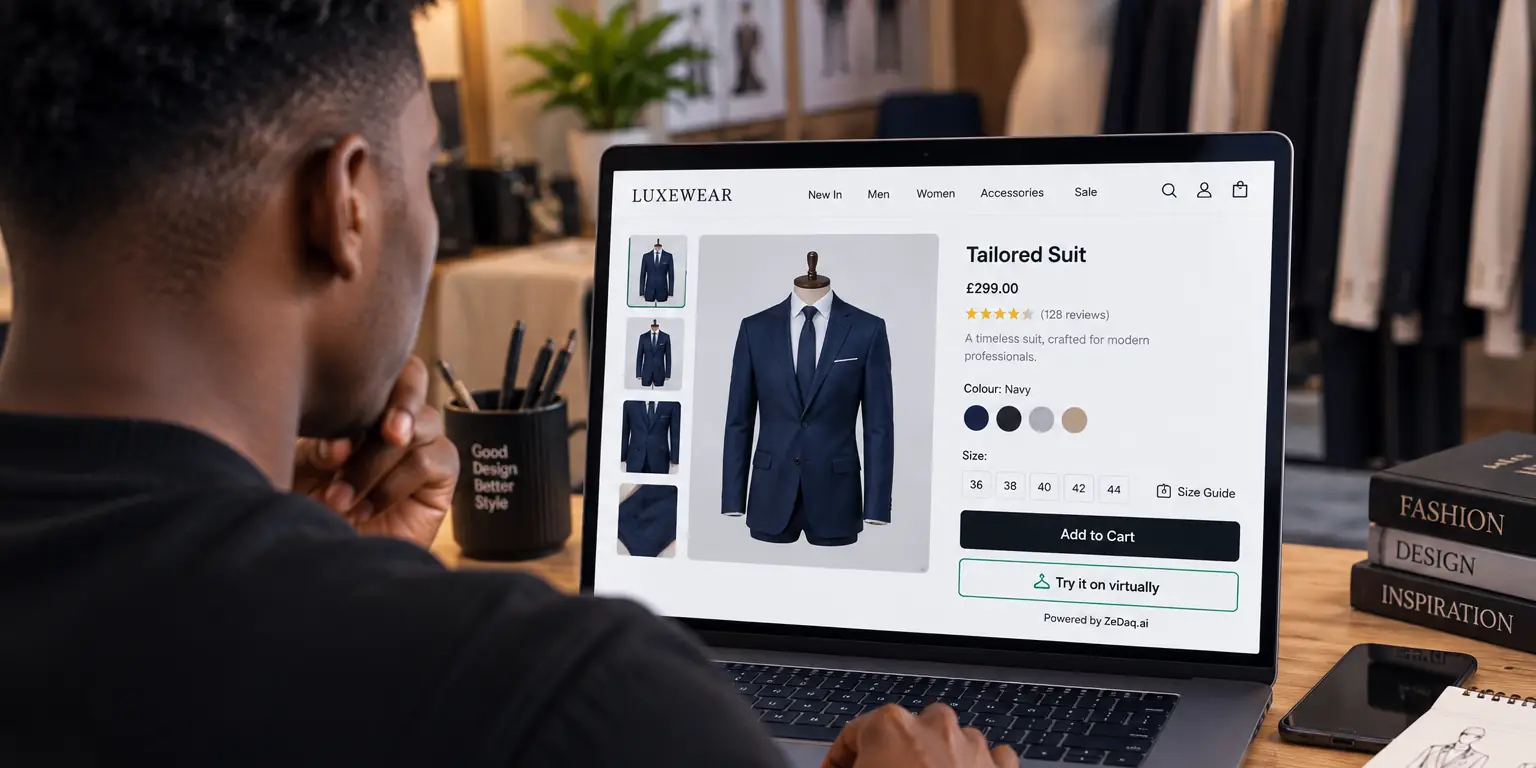
How to Prepare a Non-Shopify Store for a Try-On Widget
By the ZeDaq.ai team · · 5 min read
On this page
To prepare a non-Shopify store for a try-on widget, get four things ready: clear product images, a size chart for each garment type, access to your product page template, and an API key locked to your domain. With those in place, adding the widget itself takes one line of code.
This guide is the prep work that comes before installation on WooCommerce, Wix, Squarespace, BigCommerce or a custom site. If you run WooCommerce, the WooCommerce try-on guide covers the install itself once you are ready.
Why does preparation matter before you add the widget?
The widget can only work with what your store gives it. If your product photos are cluttered or your size chart has gaps, shoppers see weaker results.
Doing the prep first also saves time. You avoid adding the script, finding a problem, removing it and starting again.
How should you prepare your product images?
Try-on renders your real garment on the shopper's photo, so the product image is the starting point. Clean images give the AI a clear view of the garment.
Use this checklist for each product you plan to enable:
- Show the whole garment. Keep hems, sleeves and collars in frame.
- Use a plain background. White or light gray works well.
- Light it evenly. Avoid deep shadows across the fabric.
- Pick the main image carefully. A front view of the garment works better than a close-up of the fabric.
- Keep color accurate. Shoppers judge color from the render, so match it to the real item.
You don't need new photos if your current ones already meet these points. Start with your best sellers and fix the rest over time.
Test a render with your own photo
Try it on yourself
Live renderUpload a photo, pick a piece, see it rendered on you.
Pick something to try on
How should you prepare your size chart?
The widget's Find my size button measures the shopper from one photo plus their height. It then matches those measurements to your own size chart. If you haven't added a chart, it falls back to a generic UK, US, EU or AU chart.
ZeDaq.ai uses one chart per garment type: tops, outerwear, dresses and bottoms. You enter them in Dashboard → Size charts.
Get your chart ready in this format before you start:
| Size | Chest (cm) | Waist (cm) | Hips (cm) |
|---|---|---|---|
| S | 84–89 | 66–71 | 90–95 |
| M | 89–94 | 71–76 | 95–100 |
| L | 94–99 | 76–81 | 100–105 |
Example chart only. Use your brand's own chart.
Three rules keep the chart useful:
- Use body measurements. Enter the size of the person who fits the garment, not the flat garment width.
- Make ranges meet. If one size ends where the next begins, no shopper falls into a gap.
- Split by fit. A loose coat and a fitted dress need separate charts.
When a shopper falls between sizes, the scan suggests the larger size. That is another reason to keep your ranges accurate.
What access do you need on your website?
The widget is a single script tag. You paste it into the template that renders your product pages:
<script src="https://www.zedaq.ai/widget/zedaq.js" data-key="YOUR_KEY" defer></script>
Before installation day, confirm you can do the following:
- Edit the product template. On WooCommerce that may be a theme file or a code snippet tool. On Wix, Squarespace and BigCommerce it is usually a custom code or header setting.
- Publish changes. Some teams need sign-off before code goes live.
- Reach your developer or agency. If someone else built the site, they may hold the access you need.
If an agency looks after your site, share the agency guide to offering try-on with them. It explains how they can set it up for clients.
How do you set up a domain-locked key?
Your key tells the widget which store it belongs to. Create it in Dashboard → API keys and lock it to your store's domain.
Locking matters for security. A locked key only works on your domain, so another site can't copy your script and use your plan. Check these points:
- Use the exact domain shoppers visit, such as your main shop address.
- If you have a staging site, decide whether you need a separate key for it.
- Store the key in one safe place your team can find later.
After that, the install steps are short. The full walkthrough is in adding try-on with one script tag.
Which plan should you start on?
Start on the Free plan to test. It includes 3 try-ons and 3 measurements a month, which is enough to check that your images and charts work.
| Plan | Price |
|---|---|
| Free | $0 |
| Micro | $14/mo |
| Starter | $49/mo |
| Growth | $129/mo |
| Scale | $299/mo |
Every paid plan has a 3-day free trial with no card required. Prices are from the ZeDaq.ai pricing page, checked November 2026.
If you also run a Shopify store, the Shopify app is a separate route. The guide to try-on for Shopify Plus stores covers larger Shopify setups.
What is your final readiness checklist?
Run through this list before you paste the script:
- Main product images are clean, full and color-accurate.
- A size chart exists for every garment type you sell.
- Chart ranges meet with no gaps.
- You can edit and publish your product template.
- Your API key is created and locked to your domain.
- You have a phone ready to test try-on and Find my size on a live product.
Get your key and start testing
FAQs
Is there a WordPress plugin?
No. On WooCommerce and other WordPress sites, you add the script tag to your product template instead.
Do I need new product photos?
Not always. If your current images show the full garment on a plain background, they are a good start.
What happens if I skip the size chart?
Find my size still works, using a generic UK, US, EU or AU chart. Your own chart makes the result match your labels and fit.
Can I use the API instead of the widget?
Yes. ZeDaq.ai also offers a REST API for teams that want to build their own interface.
Try ZeDaq.ai free
Virtual try-on and Find my size for your store, plus client, order and invoicing tools for tailors, in one subscription.

