How to Migrate a Fashion Store From WooCommerce to Shopify
By the ZeDaq.ai team · · 4 min read
On this page
- What should you do before you start?
- How do you export products from WooCommerce?
- How do you import products into Shopify?
- What about customers and orders?
- How do you keep your search rankings with URL redirects?
- Which parts of a fashion store need extra care?
- How do you test before switching your domain?
- What should you add after the move?
To migrate a fashion store from WooCommerce to Shopify, export your products, import them into Shopify with a CSV file, set up redirects for your old URLs, test everything, and then point your domain at Shopify. Plan for the work to happen in a test store first, so your live shop stays open until you are ready.
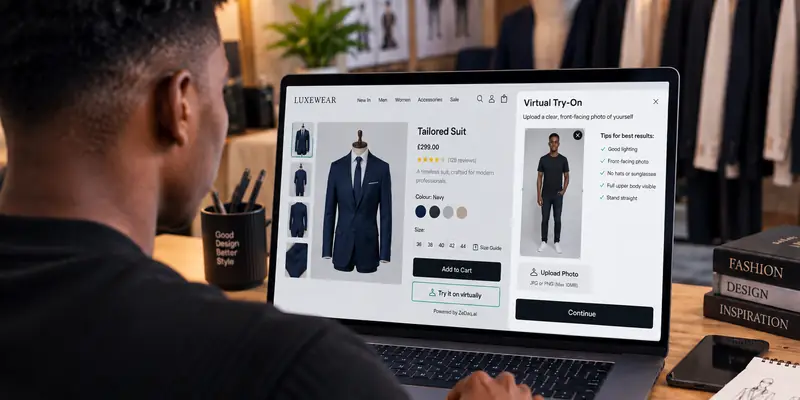
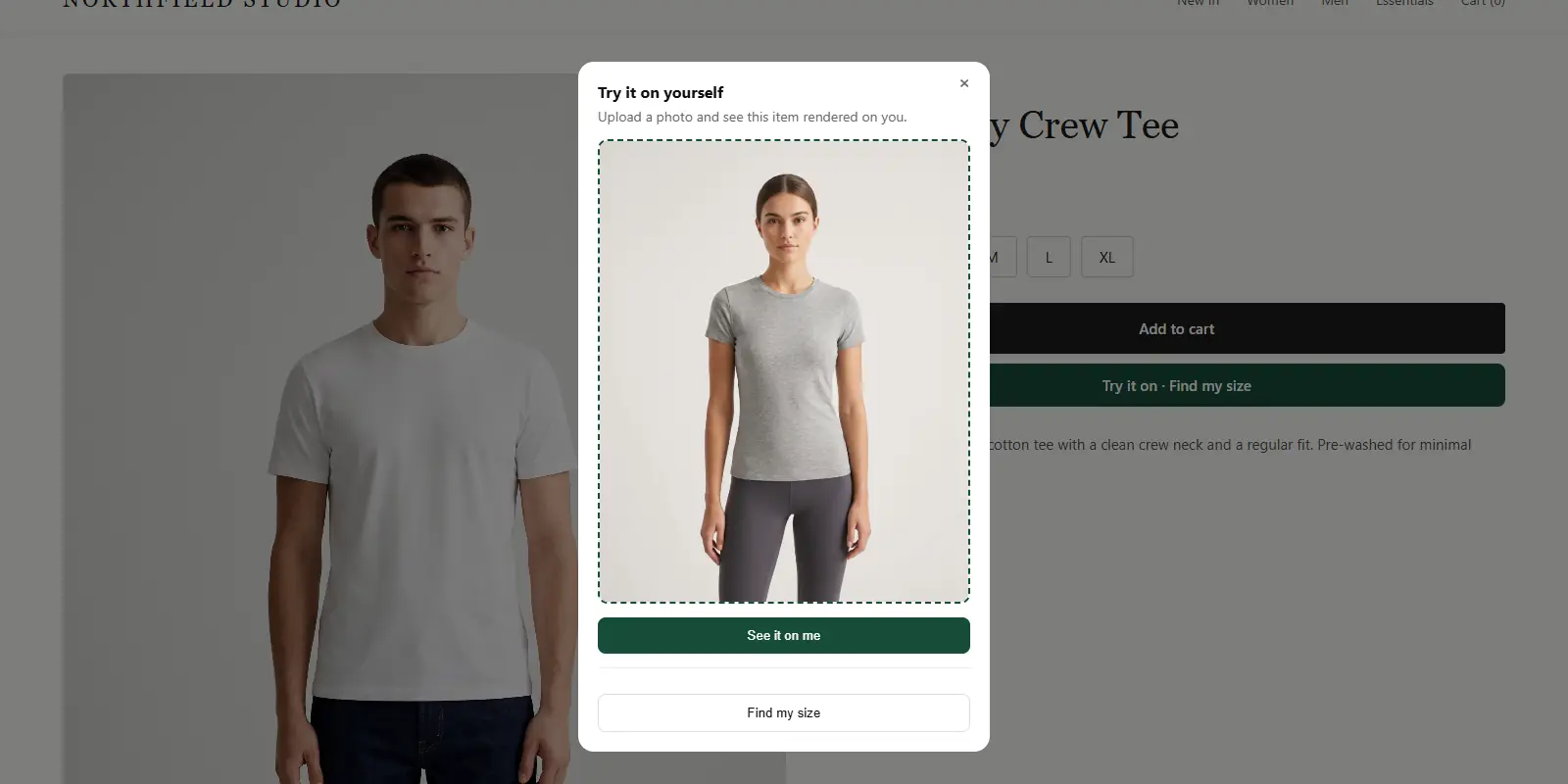
Once the move is done, you can add new tools such as virtual try-on on Shopify. This guide covers the steps that matter most for fashion stores, where sizes and colors create many variants.
What should you do before you start?
Prepare a list of what you have today. A clear inventory makes the rest much easier.
- Products and variants. Count products, sizes and colors.
- Customers and orders. Decide whether you need order history in the new store.
- Pages and blog posts. List the ones that bring search traffic.
- Plugins. Write down what each WooCommerce plugin does so you can find an equivalent.
- Payment and shipping rules. Note your methods, rates and zones.
Take a full backup of the WooCommerce site before you change anything.
How do you export products from WooCommerce?
Export your product data to a CSV file. Check WooCommerce's own documentation for the current export method, then look for missing sizes, colors and images before you move on.
Clean up as you go:
- Give every product a unique handle (the part of the URL after the product name).
- Make sure each variant has its own SKU.
- Check that image links are public.
- Remove old drafts and duplicates.
How do you import products into Shopify?
Shopify imports products from a CSV file. According to Shopify's CSV import guide, the file must be UTF-8 with comma-separated values and column headers in the first row.
Three points from that guide matter for fashion:
- Images are imported from public URLs, so the old site must stay live until the import finishes.
- A product can have up to 3 options, such as size, color and material.
- Products with variants need a URL handle in every row.
Shopify's CSV template has set columns. Map your WooCommerce columns to them, then import a small test batch first. Check that sizes and colors appear as variants.
What about customers and orders?
Customer and order data need their own plan. Order history is harder to move, and many stores keep it in an archive instead.
Decide early which data you need in the new store. Keep a copy of the old orders for tax and support questions, and check your local rules on how long to keep them.
How do you keep your search rankings with URL redirects?
Old URLs will stop working after the move, so set up redirects from each old address to its new one. Redirects tell search engines and shoppers where a page went.
Shopify's URL redirect guide shows how to add them one by one or by CSV import, under Content > Menus. It also notes that some paths, such as /cart and /collections/all, cannot be redirected.
Start with these pages:
- Home page and main category pages.
- Best-selling products.
- Blog posts that bring traffic.
- Policy pages, such as shipping and returns.
Which parts of a fashion store need extra care?
Fashion stores have details that generic guides skip.
- Size charts. Rebuild them in the new theme or as pages. A clear chart prevents wrong-size orders.
- Color swatches. Check that each color links to the right image.
- Collections. Rebuild smart collections by tag or product type.
- Back-in-stock and pre-order rules. Test them with real products.
If you plan a big launch after the move, the guide on how to plan a clothing drop on Shopify shows how to prepare stock and timing. Stores with high volume can also read about Shopify Plus for fashion brands before they pick a plan.
How do you test before switching your domain?
Treat the new store like a customer would. Run these checks on your phone and on a computer:
- Add a product with a size and color to the cart.
- Complete a test order with a test payment.
- Check shipping rates for each region.
- Check order emails and the returns page.
- Click through the top 20 old URLs to confirm redirects work.
Fix any problems before you move your domain. Then connect the domain in Shopify, wait for the change to take effect and check again.
What should you add after the move?
With the store live, review the shopper experience. Many fashion shoppers want help choosing a size or seeing a garment on themselves. ZeDaq.ai is a Shopify app that adds a "Try it on" button and a size recommendation from your own size chart, and the Free plan includes 3 try-ons and 3 measurements a month.
If you are comparing tools, see the best AI virtual try-on apps for Shopify.
Add try-on and sizing after you migrate
FAQs
How long does a WooCommerce to Shopify migration take?
It depends on catalog size, how many variants you have and how much cleanup is needed. Larger catalogs need more time for cleanup and testing.
Will I lose my search rankings?
Redirects and matching page titles and descriptions help protect them. Expect some movement for a short time after the switch.
Can I keep my WooCommerce site while I build the new one?
Yes. Build and test in Shopify first, then switch your domain when you are ready.
Do I need an app to migrate?
No. Shopify's CSV import handles products and redirects. Some stores use migration apps for orders and large catalogs, so compare options before you pick one.
Try ZeDaq.ai free
Virtual try-on and Find my size for your store, plus client, order and invoicing tools for tailors, in one subscription.