How to Handle Out-of-Stock Sizes on Shopify
By the ZeDaq.ai team · · 5 min read
On this page
For out-of-stock sizes on Shopify, track inventory for each size variant, keep sold-out sizes visible but clearly marked, and give shoppers a next step such as a back-in-stock alert or a pre-order. Hiding a size completely can leave shoppers unsure whether it exists.
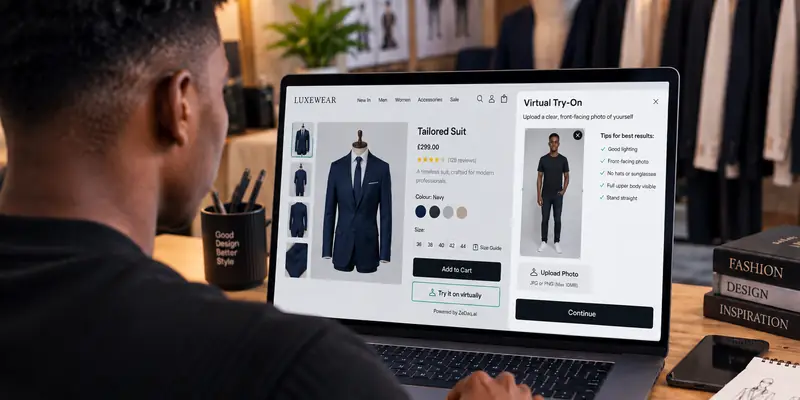
Sold-out sizes matter most when you also give fit help. If a shopper uses virtual try-on on your Shopify store and is told to buy a size you no longer have, they need a clear way forward, not a dead end.
What happens when a size sells out in Shopify?
Shopify tracks inventory for each variant, and a size and color combination is one variant. When a variant's stock reaches zero, it can show as sold out while other sizes stay available.
Shopify's help pages say that once you turn on inventory tracking, you can decide what happens when a product is out of stock. See Shopify's guide to tracking inventory for the current options. How a sold-out size looks to the shopper depends on your theme.
Should you hide or show sold-out sizes?
Show them in most cases, marked as unavailable. A shopper who sees the full size range learns that your brand covers their size. They also know to come back.
| Approach | What the shopper sees | When it works |
|---|---|---|
| Show, marked unavailable | Full range, sold-out sizes crossed out or disabled | Most stores. Keeps range visible |
| Hide the size | Only sizes in stock | Very limited drops where a short list is clearer |
| Show with a restock alert | Sold-out size with a notify option | Popular sizes that you reorder |
| Allow pre-order | Size stays buyable with a ship date | Sizes arriving soon |
If you hide sizes, a shopper may think your range stops at the sizes shown. This hurts most for people at the ends of your range, who already struggle to find their size.
How do you set up inventory for each size?
Set stock on the variant, not the product, so one sold-out size does not hide the others.
- Open your product in the Shopify admin.
- Make sure inventory tracking is on for each variant.
- Enter the quantity for every size and color.
- Check the product page and confirm that a zero-stock size shows as sold out.
- Repeat with a product that has a sold-out color and size combination.
Shopify's help page on adding variants says inventory settings are adjusted per variant, which is why you should check each one.
What next step can you offer shoppers?
A sold-out size should lead somewhere. Choose one or more:
- A back-in-stock alert. The shopper leaves an email and gets a message when the size returns. The comparison of back-in-stock apps for size restocks can help you choose.
- A pre-order. If a restock is on its way, sell the size now and ship later. Read about handling pre-orders for a clothing collection before you turn this on.
- A nearby size note. For some garments, an adjacent size works. Say so only if you know it fits.
- A similar product. Link to another style in the same size.
Whichever you pick, say it in plain words near the size selector. A faded button alone does not tell the shopper what to do.
Try a size recommendation on a sample product
Try it on yourself
Live renderUpload a photo, pick a piece, see it rendered on you.
Pick something to try on
How should size recommendations deal with sold-out sizes?
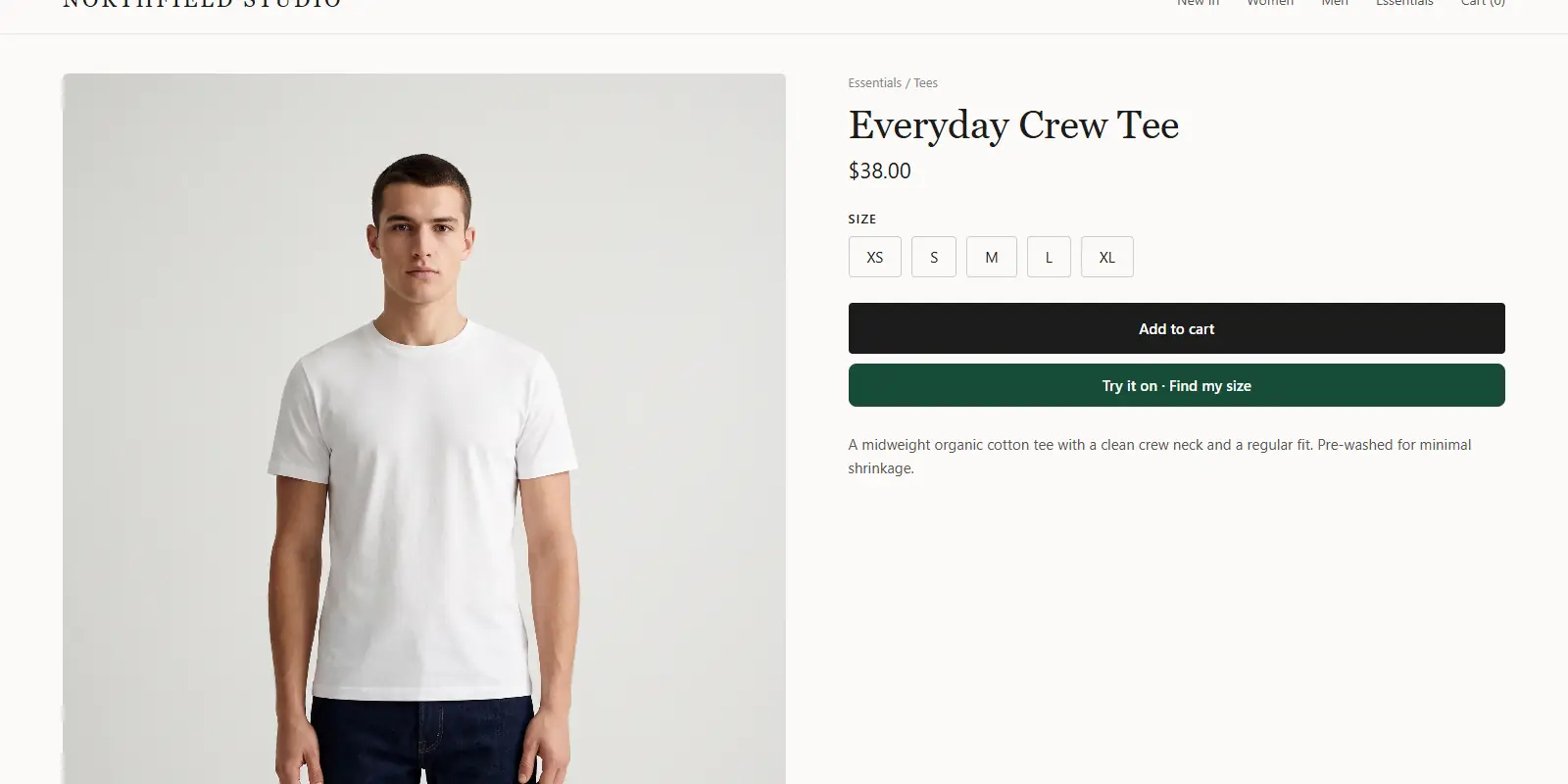
A size recommendation tells a shopper which size fits them, based on their measurements and your size chart. It does not change your stock. So a shopper may be told Medium, and Medium may be sold out.
Plan for that moment. Make sure the page shows what the shopper can do next, such as an alert for the recommended size. With ZeDaq.ai, merchants enter their own size chart, and the scan recommends your own labels. Keep those labels identical to your Shopify variant names so the recommended size is easy to find on the page.
If you are unsure how your page handles this today, test it yourself. Scan, get a size, then check what the page shows for that size when it is out of stock.
How do you prevent overselling?
Overselling happens when an item shows as available but is not. It causes cancellations, which shoppers remember.
- Keep inventory counts accurate, and run stock counts against the shelf.
- Be careful with settings that let customers buy after stock reaches zero. Use them only when you mean to take pre-orders.
- Update stock when you sell in other places, such as a physical shop or a marketplace.
The product page also matters. The fit and size information on your page should be the same whether or not a size is in stock.
What is a quick checklist?
- Inventory is tracked for every size variant.
- Sold-out sizes stay visible and are clearly marked.
- Each sold-out size has a next step.
- Pre-orders are used only when you have a ship date.
- The size labels in your chart match your variant names.
- You tested a sold-out size on a phone.
Give shoppers fit help before they pick a size
FAQs
Should I hide sold-out sizes on Shopify?
Usually no. Showing them marked as unavailable keeps your range visible and tells shoppers the size exists. Hide them only if a short list is clearer for a limited drop.
Can I let customers buy a size that is out of stock?
Shopify has a setting for selling after stock reaches zero. Use it only for planned pre-orders, with a clear ship date, or you risk overselling.
How do I tell shoppers a size is coming back?
Add a back-in-stock alert or a note with the expected date. Only promise a date you are confident about.
Does a size recommendation know my stock?
A recommendation is based on the shopper's measurements and your size chart, so plan for the case where the suggested size is sold out. Show a clear next step on the page.
Try ZeDaq.ai free
Virtual try-on and Find my size for your store, plus client, order and invoicing tools for tailors, in one subscription.