How to Add a Size Chart in BigCommerce
By the ZeDaq.ai team · · 5 min read
On this page
The simplest way to add a size chart in BigCommerce is to put an HTML table in a product custom field, or in your product description, so it shows on the product page. For a chart that also recommends a size, you add a small script through Script Manager.
This guide covers both. If you also run other platforms, the setup for virtual try-on on WooCommerce follows a similar script-tag pattern.
What are your options for a size chart on BigCommerce?
There are three practical routes:
| Option | Best for | Effort |
|---|---|---|
| Custom field with a table | A different chart per product | Low |
| Table in the product description | A few products | Low |
| Size widget through Script Manager | A chart that recommends a size | Medium |
Which one fits depends on how many products you have and whether you want shoppers to get a recommendation or only read a table.
How do you add a size chart with a custom field?
BigCommerce's own help center explains that you open the product, scroll to Custom fields, add a name and a value, and save. Fields appear on the product page as name and value pairs, and some themes show them in their own tab. See the BigCommerce custom fields help page.
The same page says HTML, CSS and JavaScript work in the value field, but not in the name field. So you can follow these steps:
- Go to Products → All products and open the product.
- Scroll to Custom fields and add a field named "Size chart".
- Paste your table as HTML in the value.
- Save, then open the product page and check how it looks.
The field also has a length limit, which is listed on that help page. A long chart may need a shorter table or a different route.
Because the theme controls where fields appear, check the result on a phone. Some themes show them below the description, others in a tab.
What should the chart contain?
Use body measurements, not the flat width of the garment. A shopper compares the chart to a tape measure around their own body.
A simple tops table looks like this. It is an example chart, so check your brand's own measurements:
| Size | Chest | Waist |
|---|---|---|
| Small | Your range | Your range |
| Medium | Your range | Your range |
| Large | Your range | Your range |
Close the gaps between sizes so a shopper never falls between two ranges. Give dresses and bottoms their own charts, because they need hip and waist, not chest alone. For more on this, read how to add a size chart to Shopify product pages, which covers the same table logic on another platform.
How do you show the chart in a tab or pop-up?
How you present the table depends on your theme. Some BigCommerce themes show custom fields in a tab, which keeps the page tidy. A table in the description sits in the main text.
BigCommerce also has a marketplace of apps. Check each listing yourself before you install one, because features and prices change. The point of a pop-up is to keep the chart close to the size selector so shoppers do not leave the page.
How do you add a size recommendation widget?
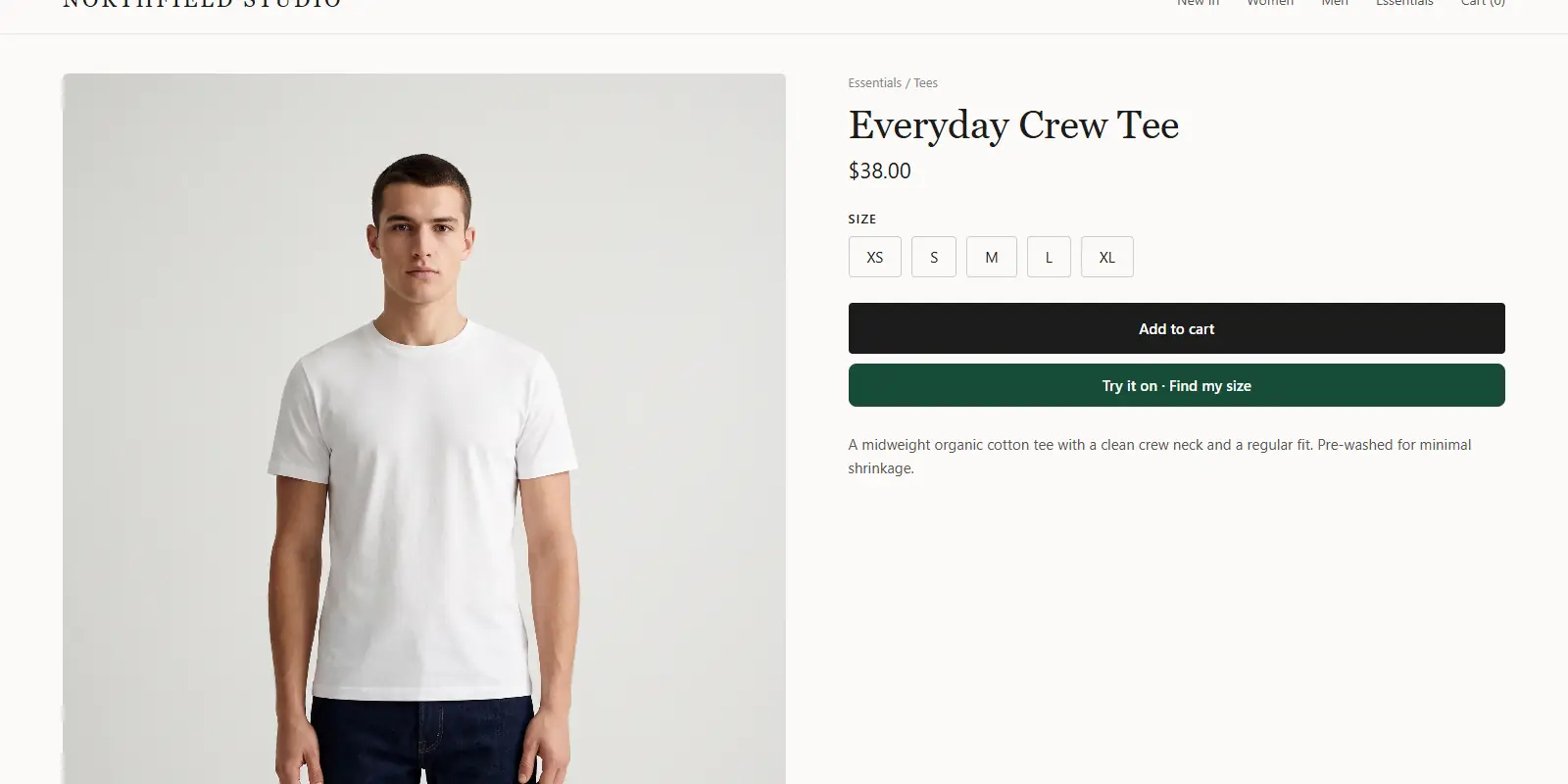
A table tells shoppers what each size measures. A widget tells them which size to pick. ZeDaq.ai provides a script-tag widget for WooCommerce, Wix, Squarespace, BigCommerce and custom sites. It adds "Try it on" and "Find my size".
To add it:
- Create an account, and open Dashboard → API keys to make a key.
- Lock the key to your store's domain.
- In BigCommerce, use Script Manager under Storefront, and add the script to storefront pages.
- Enter your own chart in Dashboard → Size charts, one chart per garment type.
The script looks like this:
<script src="https://www.zedaq.ai/widget/zedaq.js" data-key="…" defer>
Setup details are in the widget documentation. Developers who want their own interface can use POST /api/v1/tryon with an x-api-key header, described in the API reference.
The scan matches a shopper's measurements to your chart and recommends your own labels. It sizes up to the largest relevant measurement when someone falls between sizes. If you have no chart, shoppers get a generic UK, US, EU or AU size.
How does this compare with other platforms?
The table logic is the same everywhere. Only the place you paste it changes. If you also sell on other platforms, compare the steps for a Squarespace size chart and an Ecwid size chart.
How do you test it?
Run through this list on a real product:
- The table shows on a phone and on a desktop.
- The labels match the ones in your cart and variant selector.
- The widget loads only on product pages.
- A test shopper near a boundary gets the size you expect.
Fix the chart first if results look wrong. Most bad recommendations come from gaps or overlaps in the ranges.
Add size recommendations to your BigCommerce store
FAQs
Can I use one size chart for every product?
You can, but a tops chart does not suit trousers or dresses. Use one chart per garment type.
Does BigCommerce have a built-in size chart feature?
BigCommerce's help center does not list a dedicated size chart tool. Custom fields, the description or an app are the usual routes. Check your theme's documentation too.
Will the table work on a phone?
Test it. Keep columns few and short, so the table fits a narrow screen without sideways scrolling.
Do I need a developer?
Not for a custom field table. A developer helps if your theme needs custom placement for the widget.
Try ZeDaq.ai free
Virtual try-on and Find my size for your store, plus client, order and invoicing tools for tailors, in one subscription.

