BigCommerce Script Manager: Adding Third-Party Widgets
By the ZeDaq.ai team · · 4 min read
On this page
To add a third-party widget in BigCommerce, create a new script in Script Manager, paste the widget's script tag or URL, choose where it loads, save it, and test a product page. Script Manager lets you add code without editing theme files, which makes it the easiest route for most store owners.
This guide uses ZeDaq.ai's sizing and try-on widget as the example. It is one of the options covered in virtual try-on for WooCommerce and other platforms, and the steps apply to any widget that gives you a script tag.
What is Script Manager?
Script Manager is the BigCommerce tool for adding scripts to your storefront from the control panel. According to BigCommerce's scripts documentation (checked November 2026), it is in the channel settings for the storefront on non-Blueprint stores. The same page explains what it supports.
Key points from that page:
- Each channel can have 50 control-panel-created scripts.
- On BigCommerce-hosted storefronts, new or updated scripts take 20 seconds to cache.
- Stencil and headless storefronts are supported.
- Blueprint stores don't render scripts from Script Manager.
- Catalyst storefronts render scripts only from version 1.1 onward.
Check your theme type before you start. If you're on a Blueprint theme, this route will not work.
What do you need before you start?
Have these ready:
- The widget script. For ZeDaq.ai, this is
<script src="https://www.zedaq.ai/widget/zedaq.js" data-key="…" defer>. - A key locked to your store's domain. Create it in Dashboard → API keys.
- Size charts. Add your own size guide in Dashboard → Size charts, one chart per garment type: tops, outerwear, dresses and bottoms. The guide to adding a size chart in BigCommerce covers the store side.
How do you add a widget in Script Manager?
The menu labels can change, so use BigCommerce's own documentation if yours differ.
- Sign in to your BigCommerce control panel.
- Open Script Manager for your storefront channel.
- Choose to create a new script.
- Give it a clear name, such as "ZeDaq.ai widget."
- Choose where it loads. BigCommerce's documentation says Stencil scripts go in the header or footer.
- Choose the pages. Product pages are enough for sizing and try-on.
- Choose a script type and paste the script.
- Save.
Wait for the cache to update, then test.
How do you set the placement and pages?
Load the script only where it's needed. For a try-on and sizing widget, that means product pages. Fewer pages means less to test and less for visitors to load.
If you use more than one storefront channel, add the script to each channel separately.
How do you test it?
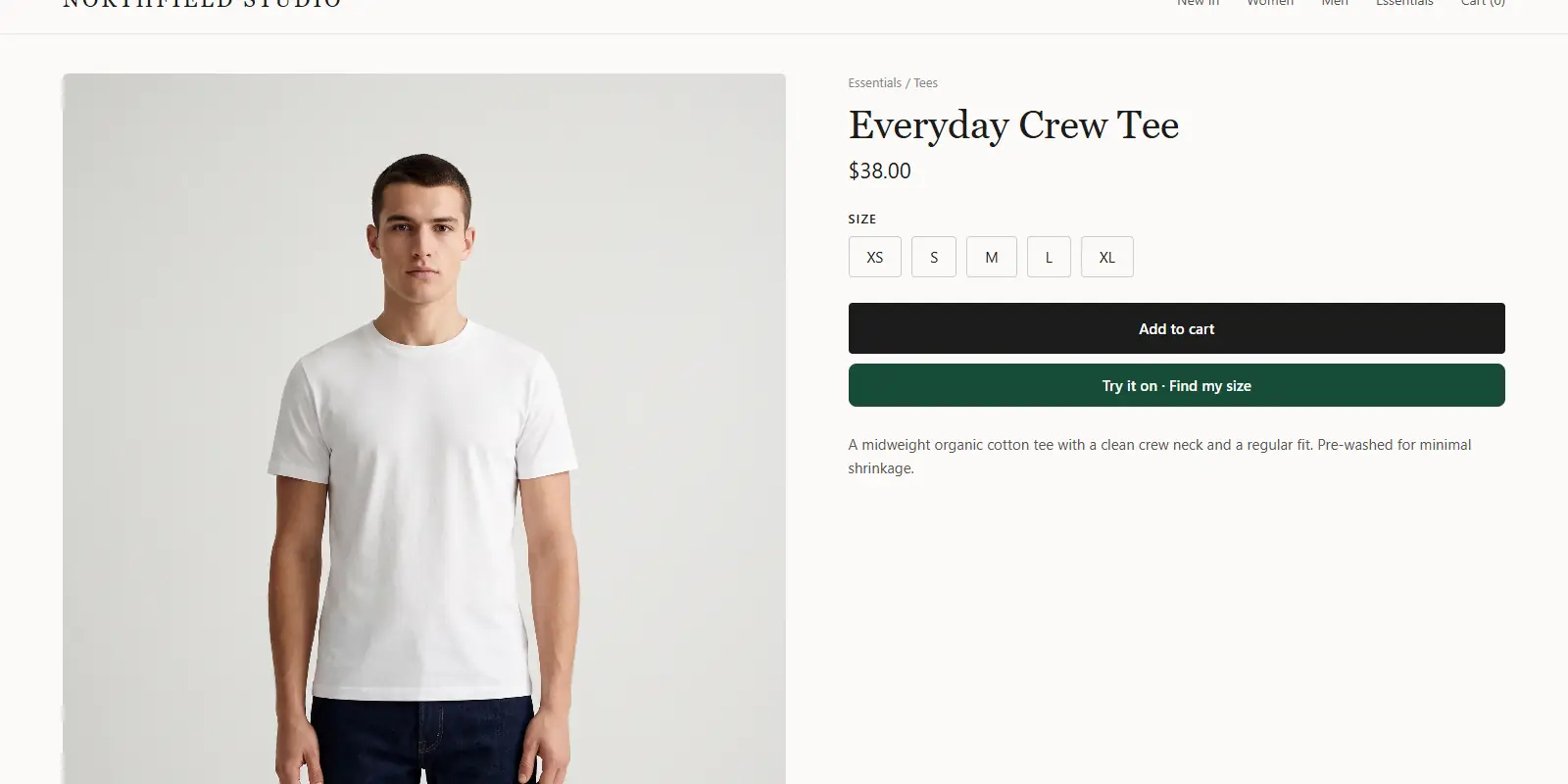
Open a product page on your phone and your laptop. Check that "Try it on" and "Find my size" appear, then run through the flow with a real photo.
Also check that:
- The widget doesn't clash with another app.
- The result uses the right size chart for the garment.
- The key is locked to your domain, so it only works on your store.
Setup details are in the widget documentation.
What should you know about consent and performance?
Any third-party script loads code from another company, so treat it with care. Only add scripts from vendors you trust, and keep a list of every script on your store with the date you added it.
BigCommerce's documentation says authorized control panel users can change the consent category on any script. If your store uses a cookie banner, check which category fits the widget with your privacy advisor. This is general information, not legal advice.
Also watch page speed. Load the widget only on product pages, and test on a mobile connection.
What goes wrong most often?
The common problems are small.
- Script not showing. Check the theme type, the cache time and the selected pages.
- Duplicates. Don't add the same script in Script Manager and in the theme.
- Wrong chart. The scan uses your size charts by garment type, so check each product.
Test on one product first. Then expand.
When is Script Manager not enough?
If you want a fully custom flow, a developer can call the REST API instead: POST /api/v1/tryon with an x-api-key header. The guide to the virtual try-on API for ecommerce developers explains the trade-offs.
If you're still choosing a platform, read BigCommerce vs Shopify for apparel brands.
Get your API key and widget
FAQs
Do I need a developer to use Script Manager?
Usually not. You paste a script and pick where it loads. A developer helps with custom placement.
Is the widget the same on every platform?
Yes. ZeDaq.ai's widget is one script for WooCommerce, Wix, Squarespace, BigCommerce and custom sites.
Can I remove the widget later?
Yes. Delete or disable the script in Script Manager, then check the product page.
Why isn't my script appearing?
Check your theme type, the pages you selected and the cache delay. Clear your browser cache and test again.
Try ZeDaq.ai free
Virtual try-on and Find my size for your store, plus client, order and invoicing tools for tailors, in one subscription.

