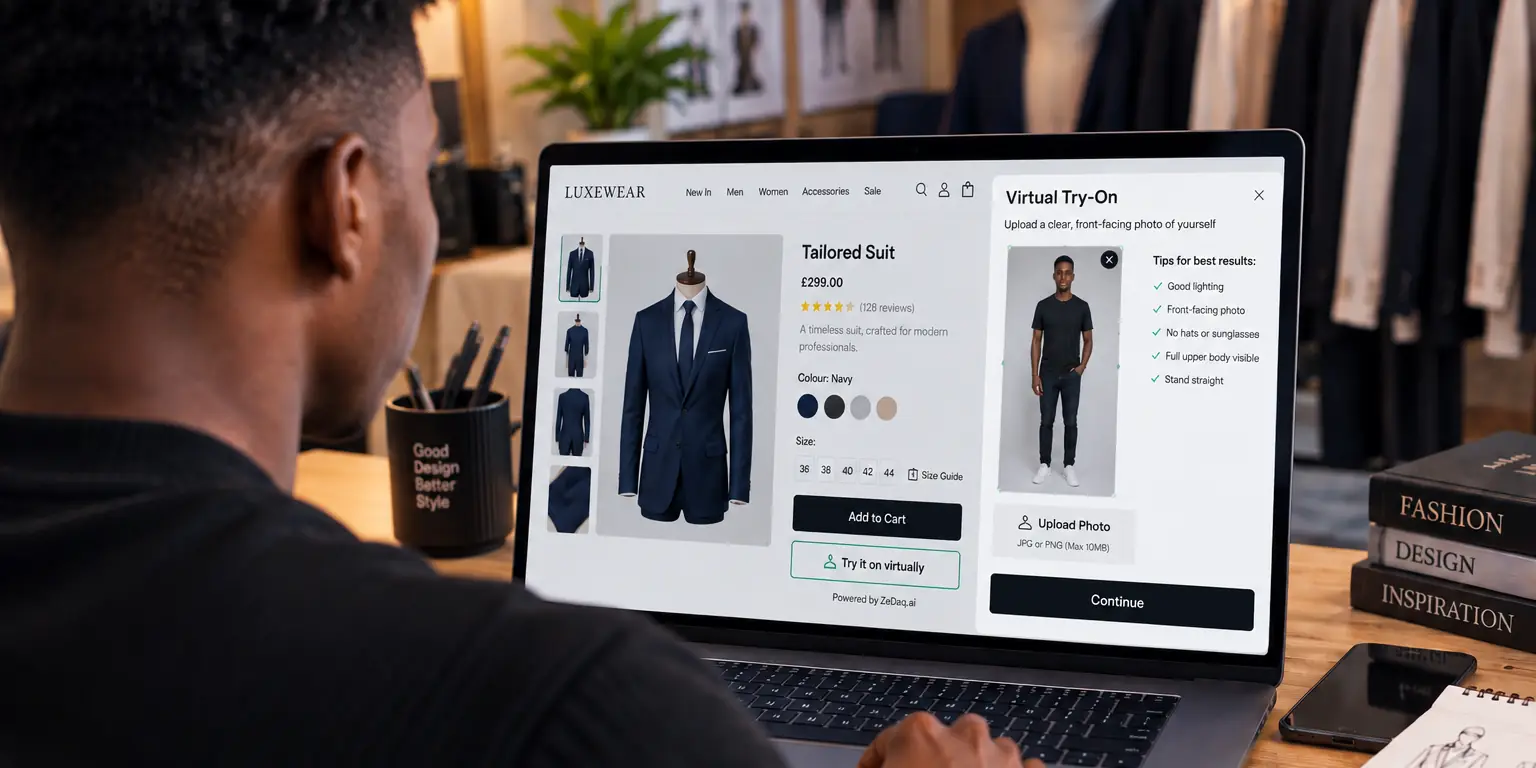
Virtual Try-On in a React Native Shopping App
By the ZeDaq.ai team · · 4 min read
On this page
- Why should the API call go through your backend?
- What does the API expect?
- How do you pick and encode the photo in the app?
- How do you call your backend from React Native?
- What does the backend route look like?
- How do you handle a slow render?
- What errors should the app handle?
- How do you design the photo step?
To add virtual try-on to a React Native app, let the shopper pick a photo with Expo Image Picker, send it as base64 to your own backend, and have that backend call the ZeDaq.ai REST API. The API returns a rendered image of your garment on the shopper, which the app then displays.
This guide shows the three pieces: the app screen, the backend route and the polling loop. It builds on the virtual try-on API for ecommerce developers overview, so read that first if you want the full feature list.
Why should the API call go through your backend?
Your API key must stay secret. A key shipped inside a mobile app can be pulled out of the bundle by anyone who downloads it.
So the app talks to your server, and your server talks to ZeDaq.ai. The server also gives you a place to add your own login checks and logging.
What does the API expect?
You send POST /api/v1/tryon with an x-api-key header and a JSON body. The API reference lists the fields:
person_image_base64: the shopper's full-length photoproduct_image_base64: your product imagegarment_type(optional):upper_body,lower_bodyordresses
The response is either a finished image (image_base64 and mime_type) or a 202 with a job_id and poll_url. In the second case you poll until the render is ready.
How do you pick and encode the photo in the app?
Use expo-image-picker and ask for base64 output. Resize the image first, because large photos slow the upload. The docs suggest a full-length photo around 800 px wide.
import * as ImagePicker from "expo-image-picker";

export async function pickShopperPhoto() {
  const result = await ImagePicker.launchImageLibraryAsync({
    mediaTypes: ["images"],
    quality: 0.7,
    base64: true,
  });
  if (result.canceled) return null;
  return result.assets[0].base64;
}
Use launchCameraAsync instead if you want shoppers to take the photo in the app. Ask for permission first, and explain why you need it.
How do you call your backend from React Native?
Send the photo and a product identifier. Let the server look up the product image, so the app does not need to upload it.
export async function requestTryOn(photoBase64, productId) {
  const res = await fetch("https://api.yourstore.com/tryon", {
    method: "POST",
    headers: { "Content-Type": "application/json" },
    body: JSON.stringify({ photo: photoBase64, productId }),
  });
  if (!res.ok) throw new Error("Try-on failed");
  const { image, mimeType } = await res.json();
  return `data:${mimeType};base64,${image}`;
}
Show the returned data URI in an Image component.
What does the backend route look like?
This Node example forwards the request and keeps the key in an environment variable.
app.post("/tryon", async (req, res) => {
  const productImage = await loadProductImageBase64(req.body.productId);
  const r = await fetch("https://www.zedaq.ai/api/v1/tryon", {
    method: "POST",
    headers: {
      "Content-Type": "application/json",
      "x-api-key": process.env.ZEDAQ_API_KEY,
    },
    body: JSON.stringify({
      person_image_base64: req.body.photo,
      product_image_base64: productImage,
      garment_type: "upper_body",
    }),
  });
  const data = await r.json();
  // data.image_base64 on 200, or data.poll_url on 202
  res.status(r.status).json(data);
});
loadProductImageBase64 is your own helper. It fetches the catalog image and encodes it.
How do you handle a slow render?
If the API returns 202, poll poll_url from your server until it returns 200 with the image. The docs say to poll every 2 seconds, and that usage is only charged once a render succeeds.
In the app, show a loading state and a cancel button. Keep a timeout so the shopper is never stuck on a spinner.
What errors should the app handle?
Handle these cases with clear messages:
- Missing fields (400): the photo or product image was not sent.
- Plan limit reached (402): the account has used its try-ons for the month.
- Invalid key (401): your server key is wrong or revoked.
Never show raw API errors to shoppers. Log them on the server and show a short, friendly message such as "We couldn't create your preview. Please try another photo."
How do you design the photo step?
Tell shoppers to stand straight in a full-length photo, wear fitted clothes and use good light. Show an example image before they pick one. If a render fails, fall back to a size chart. Similar ideas for the web are in adding virtual try-on to a React storefront.
Flutter apps follow the same flow, as shown in virtual try-on in a Flutter app. Enterprise platforms follow a similar server-side pattern, as shown in virtual try-on on Salesforce Commerce Cloud.
See what the API render looks like
Try it on yourself
Live renderUpload a photo, pick a piece, see it rendered on you.
Pick something to try on
Get an API key and test the flow
FAQs
Can I call the ZeDaq.ai API directly from the app?
It is safer not to. Anything inside a mobile app can be extracted, so keep the x-api-key on your server.
Does this work with bare React Native, not just Expo?
Yes. Any image picker that returns base64 works, because the API only receives a base64 string from your backend.
What image format should I send?
The docs say JPEG or PNG as base64. Check the API reference for any updates.
How much does a try-on cost?
Each successful render counts against your plan's monthly try-ons. The Free plan includes 3 try-ons a month, and current plans are on the pricing page.
Try ZeDaq.ai free
Virtual try-on and Find my size for your store, plus client, order and invoicing tools for tailors, in one subscription.

