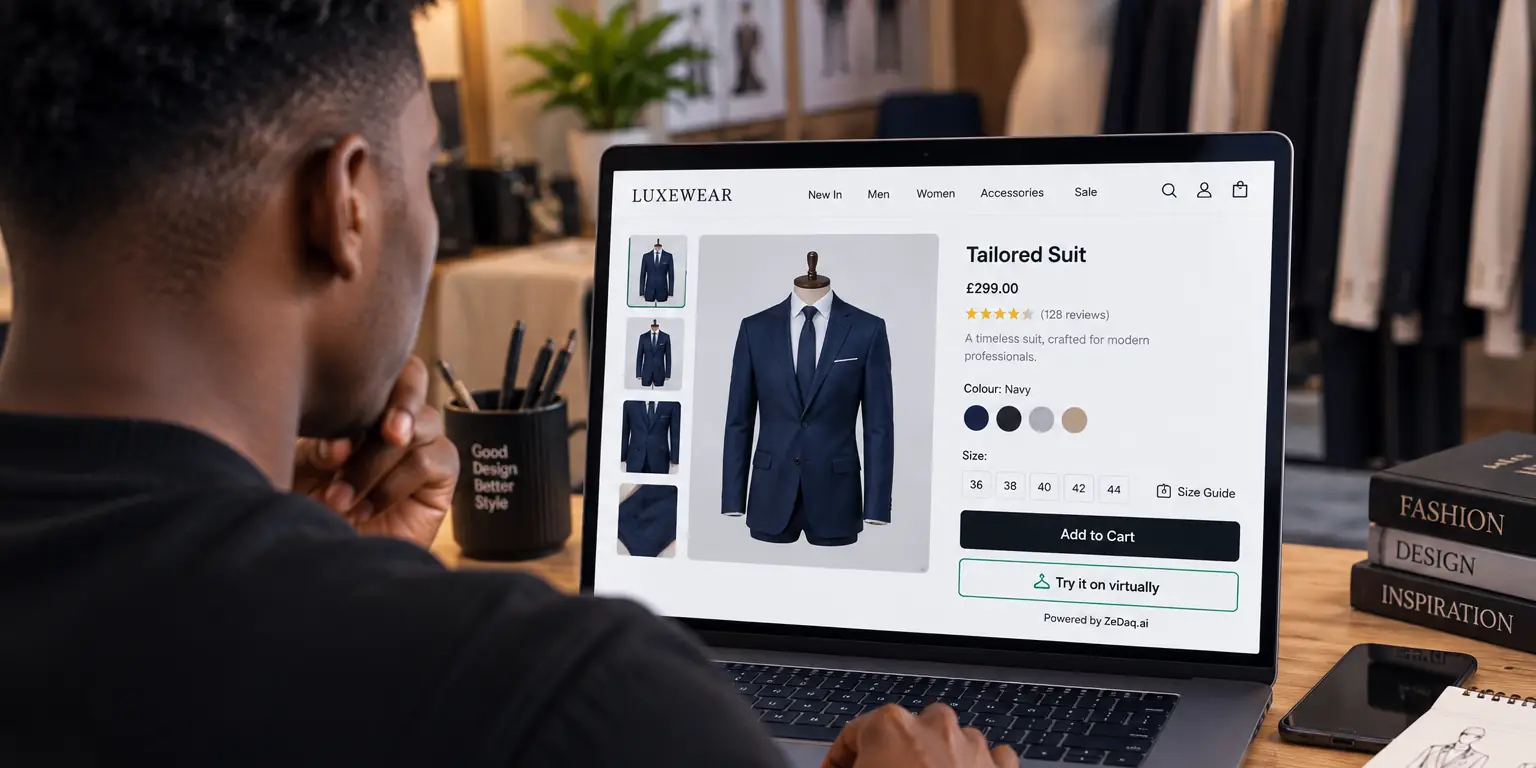
PWA Fashion Stores and Camera Access
By the ZeDaq.ai team · · 5 min read
On this page
A progressive web app (PWA) in a fashion store can reach the phone camera in two ways: the browser's camera API, or a plain file input that opens the camera app. Both need a secure (HTTPS) page, and the file input is the more forgiving choice for shopper photos.
This guide is for developers and store owners who run a PWA storefront and want features like a photo upload for virtual try-on on a custom or WooCommerce store. It covers what the browser allows, which option to pick and how to test.
What is a PWA, and why does the camera matter for fashion?
A PWA is a website that can be installed on a phone's home screen and behave like an app. It is still a web page, so it uses the same browser permissions as any other site.
The camera matters because clothing sells better when shoppers can show you something about themselves. A try-on or size scan starts with one photo, and on a phone the easiest source is the camera.
How does a web page get camera access?
There are two routes, and they behave differently.
Option 1: the camera API
The getUserMedia() method asks the browser for a live camera stream. The browser shows a permission prompt, and the page can then draw frames from the stream. MDN documents it in its getUserMedia reference, including the rule that it only works in a secure context.
Use this for live features, such as an eyewear preview that follows the face.
Option 2: a file input that opens the camera
A file input with accept="image/*" lets the shopper pick a photo from the gallery or take a new one. MDN's page on the capture attribute explains the hint that asks the device for the camera directly.
This route needs no permission prompt from your code, because the phone's own camera app handles it. It also works the same way inside an installed PWA and in a normal browser tab.
Which option should a fashion store pick?
Choose by the feature you are building.
| Feature | Better fit | Why |
|---|---|---|
| Upload one photo for try-on or sizing | File input | Shoppers can also pick an existing full-length photo |
| Live preview that tracks a face | Camera API | You need a continuous stream |
| Photo of a return item or defect | File input | One still image is enough |
ZeDaq.ai's try-on works from a single uploaded photo, so a file input fits it. Its eyewear try-on uses the live camera, so that one needs the camera API and the shopper's permission.
How do you set it up in a PWA?
Follow these steps in order.
- Serve every page over HTTPS. Camera access is blocked on insecure pages, and PWAs need HTTPS anyway.
- Add the file input first. Put an input with
type="file"andaccept="image/*"on the product page. Test it before anything fancier. - Add the camera API only where you need a live stream. Ask for permission when the shopper taps a button, not on page load.
- Handle a "no" answer. If the shopper blocks the camera, show a message and fall back to the file input.
- Test on real phones. Try one iPhone and one Android phone, in both the browser and the installed app.
If your storefront is a headless build, the try-on can be added through the try-on REST API for developers. Call it from your server, not from the browser, so your API key stays private.
What about the ZeDaq.ai widget?
The ZeDaq.ai widget is a script tag that adds "Try it on" and "Find my size" to product pages on WooCommerce, Wix, Squarespace, BigCommerce and custom sites. Setup details are in the widget documentation.
The key is visible in your page source, so it must be locked to your store's domain in Dashboard → API keys. If your PWA serves product pages from a different domain than your main site, lock the key to the domain the shopper actually sees.
The widget documentation does not cover every installed-PWA shell, so test it on your own build before launch.
How do you handle slow phones and large photos?
Phone photos are large, and uploads on a weak connection fail more often. Shrink the image in the browser before sending it. The API reference notes that a full-length photo around 800px wide works well.
Also keep a visible loading state. Try-on renders can take a few seconds, and the API may answer with a "pending" status that you poll. The guide to handling try-on API errors and retries covers that flow.
What should you check before launch?
Use this checklist:
- Every page loads over HTTPS.
- The file input opens the camera on iOS and Android.
- A blocked camera permission shows a helpful message.
- The photo is resized before upload.
- The widget key is locked to the right domain.
- Slow or failed uploads show a retry button.
A slow storefront also hurts camera features, because shoppers give up before the page is ready. The guide on why a WooCommerce clothing store is slow lists common causes.
If you also handle exchanges, see return and exchange setup options for WooCommerce.
Try the API on your own store
FAQs
Does a PWA need special permission to use the camera?
No special app-store permission is needed. The browser asks the shopper for camera permission the first time a page uses the camera API.
Can I use the camera without HTTPS?
No. Browsers limit camera access to secure contexts, so your pages must be served over HTTPS.
Is a file input or the camera API better for a try-on photo?
A file input is usually better. It lets shoppers take a new photo or pick an existing one, and it avoids a separate permission prompt in your code.
Where is the shopper's photo stored?
That depends on your implementation and on the service you call. Check the privacy notes of each service and tell shoppers what happens to their photo.
Try ZeDaq.ai free
Virtual try-on and Find my size for your store, plus client, order and invoicing tools for tailors, in one subscription.

